
Running two monitors instead of one gives you dedicated screen space for two tasks at once — a document on one screen, your email or a browser on the other — without constantly switching windows. Here's how to set it up. If you're still choosing screens, start with our guide to choosing a home-office monitor.
What you need
- Two monitors (they don't need to be identical, though matching sizes and resolutions makes for a more even setup)
- Enough video outputs on your laptop or desktop for both: check whether you have two of the same port (HDMI, DisplayPort or USB-C) or need a dock. See our guide to docking stations if you only have one video-capable port.
- A cable per monitor, matching each monitor's input
Steps
- Check your laptop's outputs. Most laptops have one HDMI or USB-C port capable of driving an external display; running two monitors from one laptop usually needs either two separate video ports, or a USB-C dock/hub that can output to two displays at once (not all can — check the dock's own specs for "dual display" support).
- Connect both monitors, then turn them on before or at the same time as your laptop, so Windows or macOS detects both at startup.
- Set the arrangement to match your desk. In Windows, go to Settings > System > Display and drag the two monitor icons into the same left-right (or one above the other) arrangement as your physical desk, so the mouse moves naturally between them. On macOS, this is under System Settings > Displays > Arrange.
- Choose Extend, not Duplicate. "Extend these displays" (Windows) or the default arrangement (macOS) treats the two monitors as one continuous desktop; "Duplicate" mirrors the same image on both, which isn't what most dual-monitor setups want.
- Match resolutions where you can. Two monitors with very different resolutions can make text and icons different sizes across the two screens; matching them (or accepting Windows' automatic scaling per monitor) keeps things visually consistent.
Dual monitor desk setup
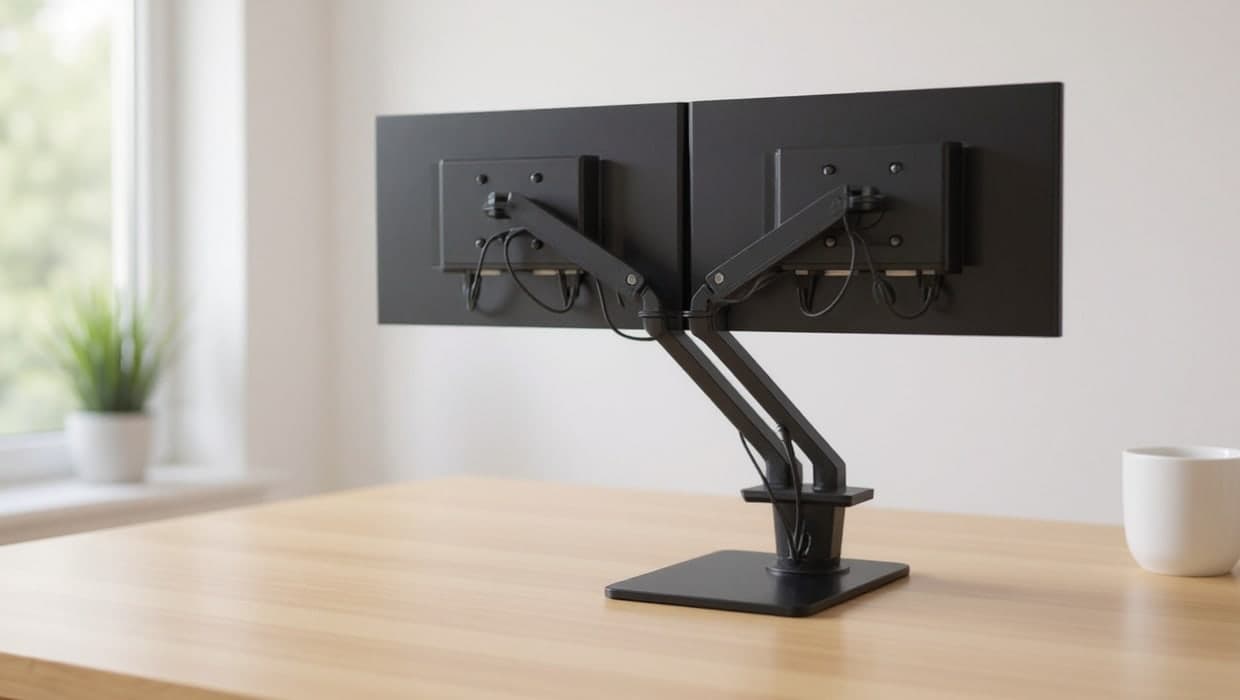
Position the monitor you use most directly in front of you, with the second monitor angled slightly inward on either side, so you're not constantly turning your head at an extreme angle. A dual monitor stand or arm (see our monitor stands and arms guide) lets you position both screens at eye height and adjust the angle, which a stack of books under a monitor never quite achieves.
Two monitors or one ultrawide
Both give you more screen space than a single standard monitor, but they suit different work styles:
- Two monitors suit distinct tasks: writing in one app while referencing another, or a video call on one screen while you take notes on the other. The visible gap between screens (the bezels) is a real dividing line some people find helps them mentally separate tasks.
- One ultrawide gives a single continuous canvas, better suited to one wide application (a spreadsheet with many columns, a timeline in video editing) than to two fully separate tasks. See Best Ultrawide Monitors for Work if this fits how you work better.
Neither is objectively better — it depends on whether your work is naturally "two separate things at once" or "one wide thing."
Common problems and fixes
- Second monitor not detected. Confirm the cable is fully seated at both ends, and that the monitor is set to the correct input (many monitors have several inputs and need the right one selected manually). Try a different cable or port if the first one shows no signal at all.
- Second monitor shows a black screen after your laptop wakes from sleep. This is a common quirk, especially over USB-C docks: unplugging and replugging the display cable, or toggling Extend/Duplicate in the display settings, usually restores it.
- Windows won't remember my monitor arrangement. This can happen when a laptop reconnects to a dock in a slightly different way each time. Re-arranging the displays once more, then leaving the arrangement alone rather than repeatedly changing it, usually settles it down.
- Text looks a different size on each monitor. This is Windows' or macOS' automatic scaling responding to each monitor's resolution and size independently. It's usually intentional (so text is a similar physical size on differently sized monitors), but can be adjusted per monitor in the display settings if you'd rather match the raw scaling percentage.
Making the most of two screens
Both Windows and macOS have built-in features for working across two monitors:
- Windows Snap lets you drag a window to the edge of either screen to instantly resize it to half (or a quarter) of that monitor, useful for quickly arranging two apps side by side on one screen while the other holds something else entirely.
- macOS Mission Control and Spaces let you assign different desktops to different monitors, and switch between full-screen apps on each independently.
Learning a couple of these window-management shortcuts makes a real difference to how much a second monitor actually helps day to day, beyond just having more physical screen space.
Frequently asked questions
Can I run two external monitors from one laptop?
It depends on your laptop's ports. Some laptops with a single Thunderbolt or USB-C port can drive two external displays through a compatible dock; others need two separate video outputs. Check your laptop's specifications, or see our docking station guide for docks that support dual displays.
Why do my two monitors show different colours or brightness?
Different monitor models (or even different units of the same model) can have slightly different factory colour calibration. Most operating systems let you adjust brightness and colour temperature per monitor in the display settings.