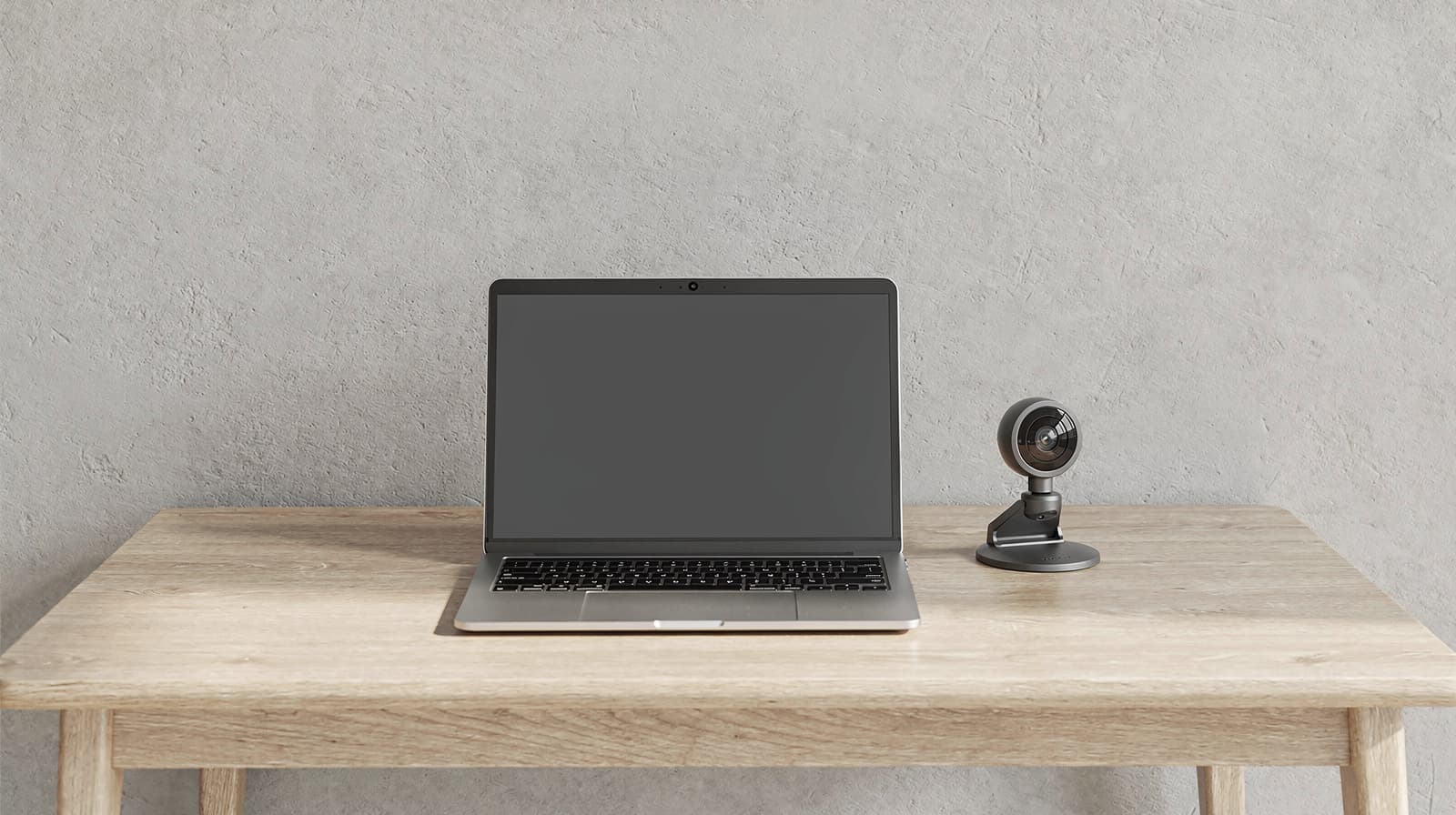
Is a webcam better than a laptop camera? Not automatically, and rarely because of resolution alone. Most people should fix their light and camera height first, and buy a webcam only if the lid stays closed during calls, the built-in camera can’t reach eye level, or they want features such as autofocus or a choice of field of view. Apple lists 1080p HD video recording on both the MacBook Air and MacBook Pro, the same top video mode as Logitech’s Brio 500 and Brio 100.
This guide helps you decide. If you already know you want one, jump to our guide to the best webcams for Zoom and Teams. If you are not sure, start with our complete guide to how to look and sound professional on video calls, which covers the free fixes.
The short version
- Upgrade if your laptop is closed on a stand or docked to a monitor, the built-in camera sits too low or off to one side, or your laptop’s spec page lists a low video resolution.
- Stay with your laptop camera if its spec page lists 1080p video, your calls look fine to other people, and your lighting is the real problem.
- Fix first: put a light in front of you, raise the lens to about eye level and check your background. These are quick to try, often need nothing new, and change the picture more than a new camera does.
- Also check your sound. If people say you sound distant, a microphone may help more than a camera. See our guide to the best USB microphones for remote workers.
What laptop cameras actually list
Laptop makers describe their cameras in different ways, so read your own laptop’s spec page. Apple lists video resolution. Lenovo lists megapixels and features.
Laptop | Camera as the maker lists it |
|---|---|
Apple MacBook Air | 12MP Center Stage camera with support for Desk View; 1080p HD video recording |
Apple MacBook Pro | 12MP Center Stage camera with support for Desk View; 1080p HD video recording |
Lenovo ThinkPad T14 Gen 7 (AMD) | 5MP RGB+IR camera with privacy shutter |
Lenovo ThinkPad E16 Gen 3 (Intel) | 5MP RGB camera with privacy shutter |
Megapixels and video resolution are different numbers. A 1080p frame is about 2 megapixels, so a 5MP camera has more than enough pixels to record 1080p; treat it as roughly equivalent to a 1080p webcam on resolution. If your laptop’s page gives neither figure, record a short clip in your call app and check its settings.
What an external webcam adds
Here is what the webcams in our guide list, from Logitech’s and Insta360’s own pages.
Webcam | Top video modes | Field of view | Focus | Extras the maker lists |
|---|---|---|---|---|
Logitech Brio 100 | 1080p at 30fps (2MP) | 58° | Fixed | Privacy shutter, built-in mic |
Logitech Brio 500 | 1080p at 30fps (4MP) | 90°, 78° or 65° | Autofocus | Privacy shutter, stereo mic, RightSight auto-framing in Logi Tune |
Logitech MX Brio | 4K at 30fps, 1080p at 60fps (8.5MP sensor) | 90°, 78° or 65° | Autofocus | Privacy shutter, Show Mode, Teams/Zoom/Meet certified |
Insta360 Link 2C | 4K at 30fps, 1080p at 60fps (1/2-inch sensor) | 79.5° fixed | Phase-detection autofocus | Auto Framing, HDR, privacy shutter |
Compare the two tables and a pattern shows. A 1080p laptop camera and a 1080p webcam share the same top video mode, but that doesn’t make the pictures equal: sensor size, lens and low-light processing differ from camera to camera, and spec pages rarely give enough detail to compare them. What a webcam adds for certain is where it sits, how wide it sees, whether it focuses, and framing features.
When an external webcam is worth it
Your laptop stays closed
If your laptop sits closed on a stand or in a dock while you use an external monitor, its built-in camera cannot see you. A webcam clipped to the monitor solves that. It is the clearest reason to buy one, and it needs no spec comparison.
You want the camera at eye level
A laptop camera sits at the top of a screen that is usually below eye level, so it looks up at you. A webcam on top of your main monitor is closer to eye level. You can also raise the laptop on a stand, but then you need a separate keyboard. Our video-calls guide explains why eye level matters and how to frame your head and shoulders.
You want a different field of view or focus
Some webcams let you change the field of view: the Brio 500 and MX Brio offer 90°, 78° or 65°. A narrower view frames one person and shows less of the room behind you, and a wider view fits two people. The Brio 100 has fixed focus, and the Brio 500, MX Brio and Link 2C have autofocus. Check whether your laptop’s spec page lists any of these before you decide they are missing.
You want 4K or automatic framing
The MX Brio and Link 2C record 4K, but Zoom and Teams send at most 1080p in a meeting, so a 4K camera does not give the other side a 4K picture. The extra detail helps mainly when the camera crops or zooms. For framing, the Link 2C’s Auto Framing keeps one person or a group in view. Framing can also come from software: Zoom has its own Auto-framing setting that adjusts your camera view to keep you centered, even if you move or sit closer or farther away. Apple also lists Center Stage on its MacBook cameras. So automatic framing alone is not a strong reason to upgrade.
When your laptop camera is enough
A laptop camera is enough when its spec page lists 1080p video, you sit at a normal distance with the screen at a comfortable height, and your only complaint is how you look in a dim room. In that case a light in front of you helps more than a new camera. Apps can help too: Zoom’s Adjust for low light and Portrait lighting settings brighten you against a dimmer background, and Google Meet’s studio look uses AI to fix issues caused by low light or low quality webcams (it needs an eligible Google Workspace or Google AI plan). These are a help, not a replacement for a real light.
Some laptop cameras already have features that webcams advertise. Lenovo lists a privacy shutter on both ThinkPads above, so a shutter is not a reason to buy a webcam either.
How to decide in five minutes
- Look up your laptop’s spec page and note the video resolution or megapixels.
- Record a short clip in Zoom, Teams or Meet, and watch it back the way others see it.
- Fix the light and the height, then record again.
- Ask whether the lid will be closed for most calls. If yes, plan to buy a webcam.
- If the picture is still poor, choose a webcam from our best webcams for Zoom and Teams.
How we wrote this
We have not tested any of these cameras ourselves. The laptop, webcam and app details come from the makers’ own spec and help pages, linked under Sources and read in late September 2026. Laptop models change every year, so check your own laptop’s spec page. This guide recommends no single product and links to no shops. Our webcam picks, with their specs and where to buy them, are in the guide linked above.
Questions people ask
Is a webcam better than a laptop camera?
Not always. Apple lists a 12MP Center Stage camera with 1080p HD video recording on its MacBook Air and MacBook Pro, the same top video mode as Logitech’s Brio 100 and Brio 500. A webcam earns its place when your laptop is closed, when you need eye level, or when you want a choice of field of view or autofocus.
Will a 4K webcam look better than my laptop camera on Zoom or Teams?
Not by resolution alone. Zoom and Teams send at most 1080p in a meeting, so a 4K camera does not mean a 4K picture on the call. Light and camera height usually change how you look more than resolution.
How do I find out what resolution my laptop camera is?
Search for your laptop’s model name plus tech specs and read the camera line. Apple lists video resolution, and Lenovo lists megapixels; a 5MP camera can record at least 1080p. If the page gives neither, record a short clip in your call app and watch it back.
Do I need a webcam if I use an external monitor?
If your laptop lid is closed, yes, because the built-in camera is out of use. A webcam on top of the monitor also sits closer to eye level than most laptop cameras.
What should I try before buying a webcam?
Put a light in front of you, raise the camera to about eye level, tidy your background and try your call app’s low-light settings, such as Zoom’s Adjust for low light. Our video calls guide covers each step.
Sources we used
- MacBook Air technical specifications (Apple)
- MacBook Pro technical specifications (Apple)
- Logitech Brio 500 specs and compatibility (Logitech)
- Logitech Brio 100 specs and compatibility (Logitech)
- Logitech MX Brio specs and compatibility (Logitech)
- Insta360 Link 2 and Link 2C specs (Insta360)
- Lenovo ThinkPad T14 Gen 7 (AMD) product page (Lenovo)
- Lenovo ThinkPad E16 Gen 3 (Intel) product page (Lenovo)
- Changing settings in the Zoom Workplace desktop and mobile app (Zoom)
- Enhance your video & audio with Gemini in Google Meet (Google)