For most home offices, use an external drive at your desk plus a cloud backup service for the offsite copy. The drive gives you fast restores; the service, such as Backblaze Computer Backup or IDrive, keeps dated versions of your files somewhere a fire or theft at home can't reach. Add a NAS (network-attached storage, a box of drives on your network) only when several people or computers share the same files. Below is the verdict for four common situations, then the services by name.
Our picks at a glance
- View at Adorama
The drive at your desk
- View at B&H Photo
A shared family photo library
- View at B&H Photo
A small team that wants files in the office
The picks in detail
- Top pick
The drive at your desk
Samsung Portable SSD T7 Shield 2TB (MU-PE2T0S/AM)
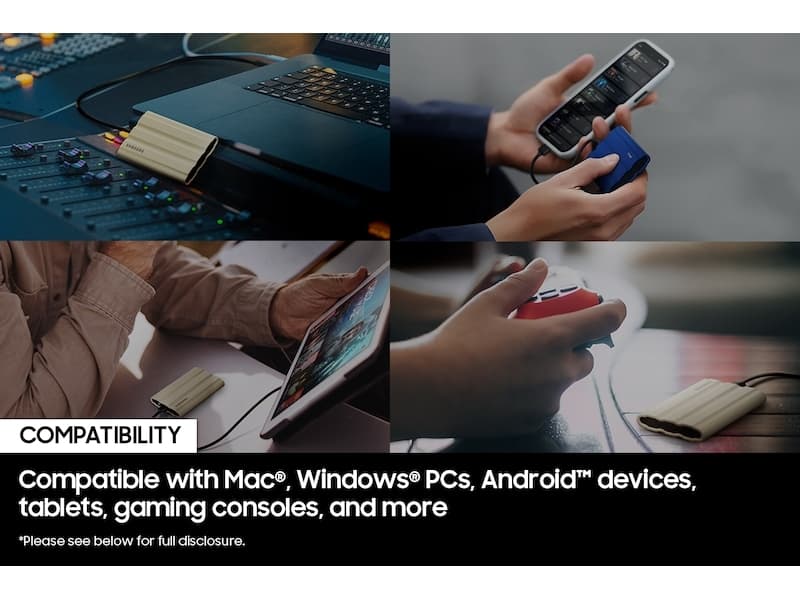
Samsung’s T7 Shield is the external drive we would plug in for File History or Time Machine.
View at AdoramaIt connects over USB 3.2 Gen 2 (10Gbps), is rated IP65 against water and dust, and has AES 256-bit hardware encryption with Samsung’s software, which matters if the drive holds client files. It weighs 98g and comes in 1TB, 2TB and 4TB. Buy a size at least twice your computer’s storage. Skip it if your backups will outgrow 4TB; a desktop hard drive or a NAS suits that better.
What we like
- AES 256-bit hardware encryption
- IP65 water and dust rating
- Sizes from 1TB to 4TB
Watch out for
- 3-year limited warranty, shorter than SanDisk’s five
- Samsung’s spec table doesn’t list the cable in the box
- A shared family photo library
Synology DiskStation DS225+ (2-bay NAS)
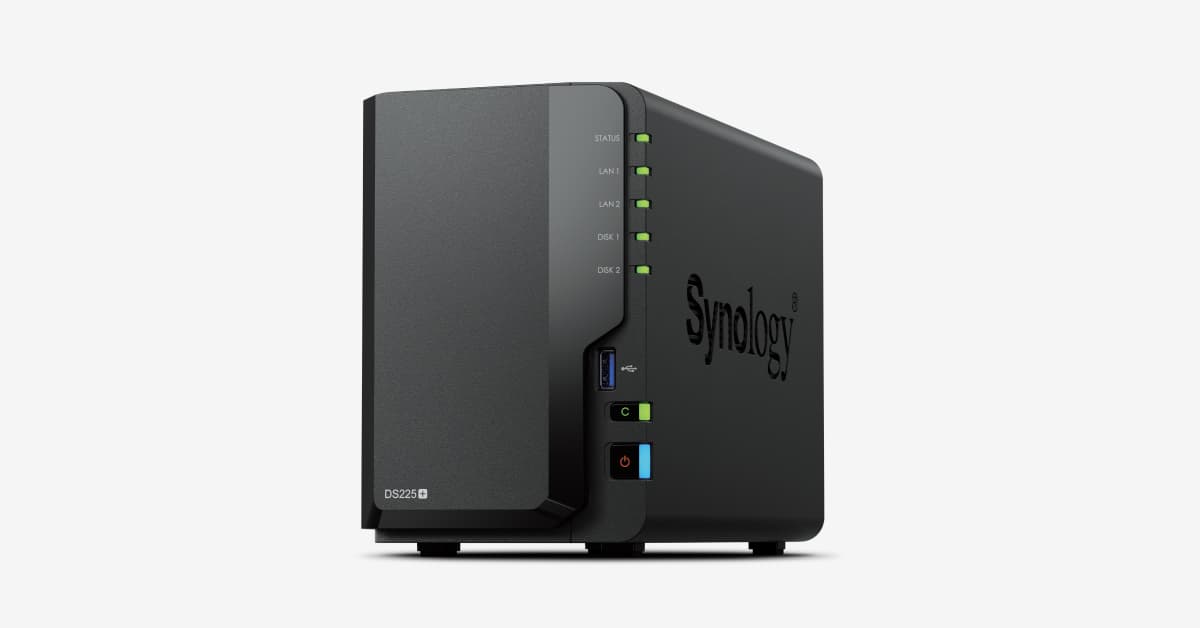
The Synology DS225+ is the NAS to buy when your photos or files no longer fit on one computer, or several people need the same folders.
View at B&H PhotoIt has two drive bays, a 2.5GbE network port alongside a 1GbE port, memory that expands from 2GB to 6GB and a 3-year warranty that can be extended to 5. Synology’s Hyper Backup can send a copy of the NAS to the cloud, which you need, because a NAS at home is never the offsite copy. Most single-computer households should skip it.
What we like
- 2.5GbE and 1GbE network ports
- Hyper Backup can copy the NAS to cloud storage
- 3-year warranty, extendable to 5 years
Watch out for
- Drive policy: launched requiring Synology or certified hard drives for full support; DSM 7.3 reopened third-party drives, but M.2 pools and cache still need listed drives
- Two bays: RAID 1 or Synology Hybrid RAID, no RAID 5
- Drives are sold separately
- A small team that wants files in the office
Synology DiskStation DS425+ (4-bay NAS)
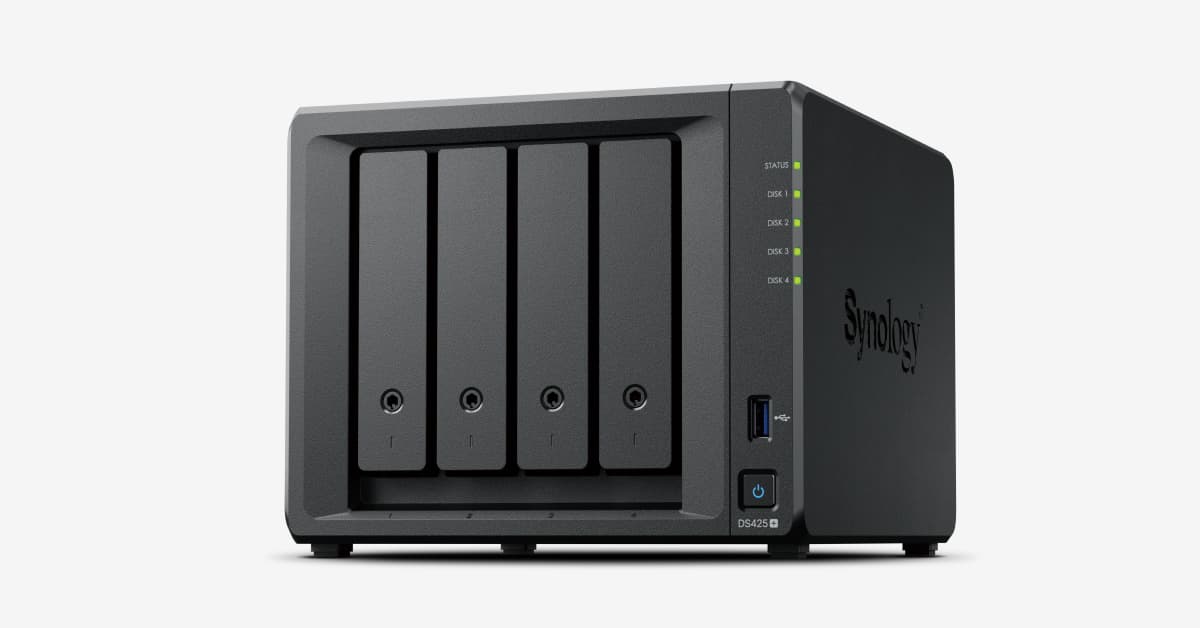
The Synology DS425+ is the step up for a small team that keeps large shared files in the office.
View at B&H PhotoIt has the same processor, memory and network ports as the DS225+, but four drive bays and two M.2 NVMe slots, and Synology lists RAID 5, RAID 6 and RAID 10 on top of RAID 0 and 1. It has the same drive policy history as the DS225+, so check Synology’s compatibility list before you buy drives. Teams that already share everything through a business cloud plan don’t need it.
What we like
- Four bays plus two M.2 NVMe slots
- RAID 5, RAID 6 and RAID 10
- 2.5GbE and 1GbE network ports
Watch out for
- Same drive policy as the DS225+; M.2 storage pools and SSD cache need drives on Synology’s list
- A bigger box and more drives to buy
Each of these fills one slot in a 3-2-1 plan: three copies, on two kinds of storage, one of them offsite. Our 3-2-1 backup plan for a home office explains the rule and walks through File History, Time Machine and the restore test step by step.
Which should you use? The verdict by situation
Your situation | At your desk | Offsite copy | Skip |
|---|---|---|---|
Solo freelancer, one computer | External drive | Backblaze Computer Backup or IDrive Personal | A NAS |
Family with photos on several devices | External drive, or a NAS if the library is shared | IDrive Personal, or a cloud copy of the NAS | Relying on phone sync alone |
Small team sharing files | A business sync plan, plus a NAS if files are large | Backblaze Business Backup or IDrive Team or Business | Personal plans for business files |
You only need an offsite copy | What you already have | A cloud backup service, or a second drive kept elsewhere | Counting a NAS at home as offsite |
Solo freelancer: an external drive plus a backup service
You have one computer and the files are your livelihood. Plug in an external drive and turn on File History or Time Machine, then add a backup service. Backblaze Computer Backup backs up the user data on a computer and its directly connected external drives, so the drive at your desk can be covered too. IDrive Personal does the same and adds phones. Skip the NAS: it adds setup and a second box to maintain, and it still isn't offsite. If you use a work laptop, follow your employer's rules first; the backup guide covers what changes.
Family with photos: one offsite service that covers the phones
Family photos live on phones as much as computers, so pick a service that takes both. IDrive backs up Windows PCs, Macs, iPhones, iPads and Android devices into one account, and keeps up to 30 previous versions of each file. Keep a local copy too, on an external drive or, once the photo library is too big for one computer or several people edit it, on a NAS such as the Synology DS225+.
If the photos move to a NAS, the NAS needs its own offsite copy. Backblaze Computer Backup won't take it (it excludes NAS and network drives), so use Synology's Hyper Backup to C2 Storage, Backblaze B2 Cloud Storage, or IDrive's NAS add-on for Synology and QNAP. Photo sync on the phones, such as iCloud, is convenient, but treat it as sync, not the backup (see below).
Small team: business sync for sharing, business backup for safety
A small team needs two things: one place where everyone edits the same files, and a backup of the computers those files live on. For sharing, use a business sync plan such as Dropbox Standard or OneDrive with work accounts. For the backup, Backblaze Business Backup covers Macs and PCs with an admin console and one year of version history included, and IDrive sells Team and Business plans.
Add a NAS, such as the four-bay Synology DS425+, only if the team works with large files that are slow to sync, or wants files to stay in the office. Then back the NAS up offsite as well. Personal plans are the wrong fit: Microsoft's Windows Backup, for example, doesn't work with work or school accounts.
You only need an offsite copy: a backup service
If you already have a drive at your desk, the missing piece is offsite. A cloud backup service is the easiest way to get it, because it runs on its own. Backblaze Computer Backup suits one computer; IDrive suits several devices or a NAS, and IDrive Express can ship your data on a physical drive if your upload is slow. If you don't want an online account, a second external drive kept in another building also counts, as long as you swap it on a schedule you actually keep.
Cloud backup vs cloud sync: they are not the same
A backup service copies your whole computer's user files on a schedule and keeps earlier versions, so you can go back to last Tuesday's file after a deletion, a bad edit or ransomware. A sync service (OneDrive, Dropbox, iCloud Drive) keeps the same folder current on every device. That is ideal for sharing and working from two machines, but a deletion or a damaged file syncs everywhere too. Sync services do keep a safety net, for a limited time.
For the offsite copy, a backup service is safer. Use sync for sharing, and back up the computers anyway.
The services compared
Every entry below is from the provider's own pages. None of these are affiliate links, and plans change, so read the provider's page before you sign up.
Service | Type | What it covers | Version history | Plans |
|---|---|---|---|---|
Backblaze Computer Backup | Backup | User data on a Mac or PC and its connected external drives; not NAS or network drives | 30 days by default; one year or forever as an option | Personal and Business |
IDrive | Backup | PCs, Macs, Linux, iPhones, iPads, Android, external drives; Synology and QNAP NAS as an add-on | Up to 30 previous versions; deleted files in Trash for 30 days | Personal, Team, Business |
Synology C2 Storage | Backup (for a Synology NAS) | Hyper Backup tasks from a Synology NAS | Versioned, with a retention policy (customizable on the Advanced plan) | Basic and Advanced |
Backblaze B2 Cloud Storage | Cloud storage | Any NAS or app that can send to it | Set by your NAS or backup software | A storage account, not a backup app |
Dropbox | Sync | Files in your Dropbox folder | 30 days on Basic, Plus and Family; 180 days on Professional, Essentials, Business and Standard; 365 days on Business Plus, Advanced and Enterprise | Personal and business |
OneDrive | Sync | Files in OneDrive; Windows Backup can add Desktop, Documents, Pictures, Videos and Music | 30 days of file versions; Microsoft 365 subscribers can restore the whole OneDrive to a point in the last 30 days | Personal and work or school accounts |
iCloud Drive | Sync | Files in iCloud Drive, including Desktop and Documents on a Mac if you turn it on | Deleted files recoverable for 30 days | Personal (Apple Account) |
Known problems worth knowing
- Backblaze Computer Backup skips your NAS. Backblaze excludes network-mounted drives, NAS devices and shared volumes, and points NAS owners to B2 instead. Its default version history is 30 days, so an old file you deleted and only miss later may be gone unless you extend it.
- Synology's drive policy on 2025 models. When Synology launched its 2025 Plus models, including the DS225+ and DS425+, full support was limited to Synology's own or certified hard drives, as Tom's Hardware reported. DSM 7.3, released on October 8, 2025, lets those models install and build storage pools on third-party drives that Synology has not validated, but M.2 storage pools and cache still need drives from its compatibility list. Synology still recommends listed drives and gives only limited support for others, so check the list before you buy drives.
- RAID is not a backup. QNAP spells it out: RAID guards against a failed drive, not deletion, corruption or a fire. A two-drive NAS in RAID 1 is still one copy.
- Sync windows are short on personal plans. Thirty days is the norm for Dropbox Basic and Plus, OneDrive and iCloud Drive. If you notice a problem in month two, a sync service won't save you.
External drive vs NAS vs cloud at a glance
| External drive | NAS | Cloud backup |
|---|---|---|---|
Best at | Fast restores of one computer | Shared files and backups for several computers | The offsite copy |
Where the copy lives | At your desk | In your home or office | With the provider |
Counts as offsite? | Only if stored in another building | No | Yes |
Needs internet? | No | Not for local backups | Yes; a large first upload is slow on a slow connection |
Ongoing work | Leave it plugged in, or plug it in often | Updates, drive health, its own offsite backup | Little, once it is running |
Our best external SSDs guide compares four drives by port, speed and encryption, and our best NAS for a home office covers bays, RAID and network ports. A NAS is only as fast as your network, so if most of your devices use Wi-Fi, read Wi-Fi 7 vs Wi-Fi 6 and plan a cable to the NAS.
How we chose
We have not tested these drives, NAS boxes or cloud services, and we have not run our own backup or restore tests. We started from four common home-office situations and matched each to one slot in a 3-2-1 plan. For the services, we read each provider's own plan, feature and support pages for what it backs up, how long it keeps versions and deleted files, and whether it sells personal or business plans; all are linked under Sources. We picked the drive and NAS models from our own specialist guides, and we added the Synology drive policy because it affects which drives you can buy. We don't show prices for drives, NAS boxes or service plans.
Questions people ask
Is a NAS better than an external hard drive for backup?
Only if several computers or people share it. For one computer, an external drive is simpler and restores faster. Neither is an offsite copy while it sits in your home or office.
Is cloud backup better than a NAS?
They do different jobs. A NAS is a fast local copy that several computers can share; a cloud backup is the offsite copy that survives a fire or theft at home. Most home offices with a NAS still need a cloud backup of it.
Is OneDrive, Dropbox or iCloud Drive a backup?
Not on its own. They are sync services: a deletion or damaged file reaches every device. They keep earlier versions and deleted files for a limited time, 30 days on most personal plans, so use a backup service as well.
Can Backblaze back up my NAS?
Not with Backblaze Computer Backup, which excludes NAS and network drives. Backblaze points NAS owners to its B2 Cloud Storage instead, and IDrive offers a NAS add-on for Synology and QNAP.
Can I use any hard drives in a new Synology NAS?
On the 2025 Plus models, DSM 7.3 lets you build storage pools on third-party hard drives Synology has not validated, but M.2 pools and SSD cache still need drives from its compatibility list. Synology gives only limited support for unlisted drives.
What is the best backup setup for a freelancer?
An external drive running File History or Time Machine, plus a cloud backup service such as Backblaze Computer Backup or IDrive Personal for the offsite copy. Restore one file from each to prove they work.
Sources we used
- Backblaze: Computer Backup for personal use
- Backblaze: Business Backup
- Backblaze Computer Backup docs: Supported backup data (exclusions and version history)
- Backblaze Computer Backup docs: Network-attached storage (NAS) devices
- IDrive: online backup plans and devices
- IDrive: online backup features (versions, Trash, NAS, IDrive Express)
- Synology C2 Storage for Hyper Backup
- Dropbox Help: Version history overview
- Dropbox: plans
- Microsoft Support: Restore a previous version of a file stored in OneDrive
- Microsoft Support: Restore your OneDrive
- Microsoft Support: Back up and restore with Windows Backup
- Apple Support: Recover deleted files on iCloud.com
- Synology: DSM 7.3 release (third-party drive support on 2025 models), October 8, 2025
- Synology Knowledge Center: Drive compatibility policies for systems from 2025 (DSM 7.3 and above)
- Tom’s Hardware: Synology requires self-branded drives for some consumer NAS systems
- Tom’s Hardware: Synology walks back compatibility policy for 2025 NAS units with DSM 7.3
- QNAP Blog: RAID = Backup?
- Synology DiskStation DS225+ specifications
- Synology DiskStation DS425+ specifications
- Samsung Portable SSD T7 Shield 2TB (MU-PE2T0S/AM) specifications