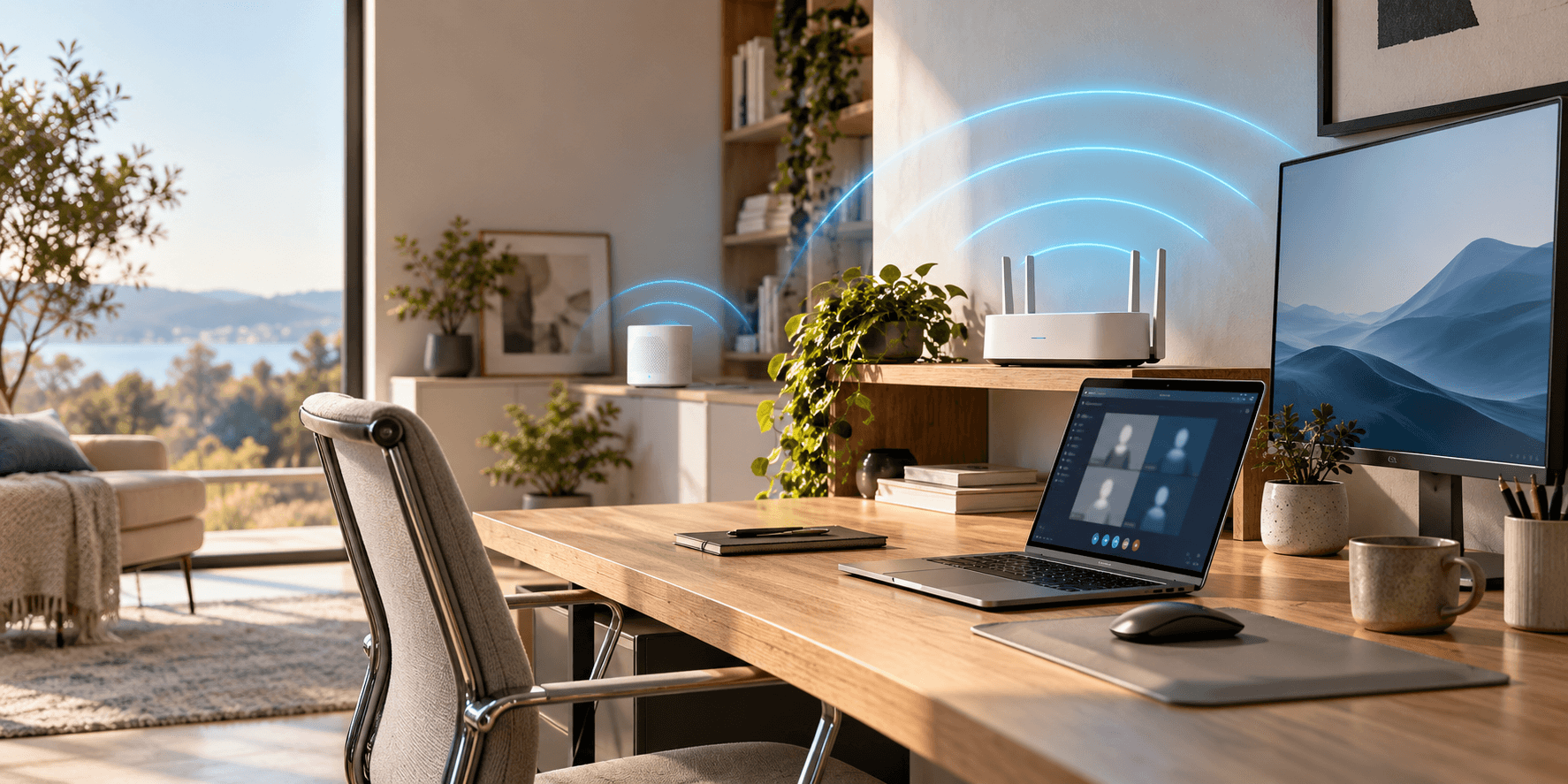
Most people should fix home-office Wi-Fi in this order: move the router to a central, raised spot, put work devices on the 5 GHz or 6 GHz band, and run an Ethernet cable to the desk if you can. Only then add mesh, a range extender, powerline or MoCA adapters, and only for the rooms the router still can't reach. Moving the router costs nothing and fixes more problems than any purchase, so start there.
This guide walks through a full home office Wi-Fi setup, step by step, and says where each fix fits.
The short version
- Check what you need first. A one-on-one Zoom call at 1080p HD uses up to 3.8 Mbps each way, so most calls need a steady connection more than a fast one.
- Place the router well. Central, on a shelf or table, away from metal and appliances.
- Use 5 GHz or 6 GHz for work. Intel recommends these bands for home offices that depend on voice and video calls.
- Wire your desk if you can. A cable avoids radio interference and range problems.
- Extend only what's left. Extender for one weak spot, mesh for several rooms or floors, powerline or MoCA where a cable run is impossible.
- Lock it down. Change the default passwords, update the firmware and use WPA3 where your devices support it.
Step 1: Work out what your home office needs
Before changing anything, decide what "good Wi-Fi" means for your work. For most people it is not top speed. It is a connection that doesn't drop in the middle of a video call.
What Wi-Fi speed do I need?
Video calls are usually the most demanding thing a home office does all day, so Zoom's numbers make a useful yardstick. These are its estimated peak figures for the desktop and mobile app, with 60-80 kbps more for voice:
Video quality | One-on-one call (up / down) | Group call (up / down) |
|---|---|---|
High-quality 360p | 600 kbps / 600 kbps | 1 Mbps / 600 kbps |
720p HD | 1.2 Mbps / 1.2 Mbps | 2.6 Mbps / 1.8 Mbps |
1080p HD | 3.8 Mbps / 3.8 Mbps | 3.8 Mbps / 3.0 Mbps |
1080p at 60 frames per second | 12.8 Mbps / 12.8 Mbps | 12.8 Mbps / 12.8 Mbps |
Zoom calls these "a general guide", and they assume full-screen (speaker) view. Gallery view uses more: up to 2.0 Mbps for 25 views and 4.0 Mbps for 49. Screen sharing on its own adds only 50-75 kbps.
Teams and Google Meet publish their own figures, so check those if you use them. Then add up what your household does at the same time: if two people are on calls while someone streams, the total matters, not the single call.
Your internet plan sets the ceiling
Wi-Fi is only the link between your device and your router. Your internet plan is the link between your router and the outside world. A new router will not make internet downloads faster than your plan, but it can fix the part between the router and your desk, which is where most home office problems start.
If you're not sure whether a faster router would help at all, our Wi-Fi 7 vs Wi-Fi 6 comparison explains what a newer standard changes and what it doesn't.
Step 2: Put the router in the right place
Weak Wi-Fi usually has one of four causes: walls and ceilings in the way, interference from other devices, channel clashes with nearby routers, or a badly placed router. Placement is the one you can fix for free, and this advice applies to most home routers:
- Go central and up. Don't leave the router in a corner. Put it near the center of the home if you can, on a table or shelf rather than the floor. Home routers generally use omni-directional antennas, which radiate horizontally and are weaker above and below.
- Keep it away from metal. A steel table or a refrigerator reflects and absorbs Wi-Fi signals and can create a dead zone.
- Keep it away from noisy electronics. Microwave ovens, cordless phones, Bluetooth devices, monitors, electric motors and copiers all interfere. A microwave emits a very strong signal in the 2.4 GHz band.
- Count the walls. Each wall or ceiling weakens the signal, especially ones containing metal or dense materials.
- Angle the antennas, if your router has them. Vertical antennas suit coverage on one floor; about 30 degrees suits several floors. Antennas transmit weakly at their base, so don't sit a device directly below the router.
The practical question for a home office is where the router sits relative to your desk. If the router is in a hallway closet at one end of the house and your desk is at the other, no setting will beat moving one of them. If the router has to stay where the internet line enters your home, that is when the wired and extension options below come in.
Step 3: Pick the right Wi-Fi band and channel
Put your work devices on the right band. A modern router broadcasts on two or three bands, and each trades speed against reach. The speeds below are Intel's typical over-the-air maximums, which are ceilings, not promises:
Band | Speed and reach | Typical over-the-air maximum (Intel) | Who can use it |
|---|---|---|---|
2.4 GHz | Longest range and best through walls, but the slowest and most crowded | Up to 100 Mbps | Most devices, including older ones |
5 GHz | Much faster, but shorter range and more affected by obstacles | Up to 1 Gbps | Widely supported; the preferred band for 10 to 15 years |
6 GHz | The least crowded band, with wide channels | Up to 2 Gbps | Only Wi-Fi 6E and newer devices |
For work that depends on voice and video calls, use 5 GHz or 6 GHz. Leave smart-home devices such as thermostats, doorbells and cameras on 2.4 GHz, which frees the faster bands for real-time work.
Why is 2.4 GHz crowded? It has been around the longest, so most older devices still use it, which is why apartment dwellers often struggle on it. The FCC opened 1,200 MHz of the 6 GHz band in the US in 2020, and only Wi-Fi 6E and newer devices can use it. That is its advantage: older devices in neighboring homes aren't on it.
Do I need to change the Wi-Fi channel?
Usually not. The router picks the channel and tries to avoid ones occupied by neighboring networks, and most routers default to "Auto". If you do have heavy interference, try channel 1, 6 or 11 on 2.4 GHz and channels 36, 40, 44 or 48 on 5 GHz. The menu differs by router, so check your model's instructions.
If your router uses one network name for all bands, your devices choose the band. If it lets you name the bands separately, you can point your work laptop at the 5 GHz or 6 GHz network yourself.
Step 4: Check that your devices match your router
A router and a laptop connect using the best Wi-Fi generation they both support. Wi-Fi 6 arrived in 2018 and Wi-Fi 7 in 2024. Wi-Fi 6E is Wi-Fi 6 extended into the 6 GHz band, and Wi-Fi 7 also uses 6 GHz and adds wider 320 MHz channels, 4096-QAM and Multi-Link Operation.
Older devices still connect to a newer router, but a connection can only use the features both ends support, so a new router won't give an old laptop new speeds.
On Windows, check your adapter in Command Prompt with netsh wlan show drivers. Next to "Radio types supported", 802.11be means Wi-Fi 7 and 802.11ax means Wi-Fi 6 or 6E.
If your laptop is due for replacement, the Wi-Fi line on its spec sheet is worth a look. Our guide to choosing a laptop for working from home covers the other specs that matter.
Extending Wi-Fi range: Ethernet, mesh, extender, powerline or MoCA
If the router is well placed and your desk still has a weak signal, you have five ways to cover the gap. Which one fits depends on how many rooms are affected and whether you can run a cable. TP-Link and Netgear, whose guidance this section draws on, both sell products in this area, so weigh their views accordingly.
Option | How it works | Best for | Watch out for |
|---|---|---|---|
Ethernet cable | A wire from the router (or a switch) to your desk | A desk you can reach with a cable | Needs a cable run and an Ethernet port on your computer |
Mesh system | Several nodes form one network with the same name throughout | Several rooms, several floors, large or awkward layouts | More devices to place; no faster than your internet plan |
Range extender | Picks up the router's signal and rebroadcasts it | One weak spot on the same floor | Often a separate network name; basic dual-band models can halve the available bandwidth |
Powerline adapters | Send data over your home's electrical wiring | Rooms where thick walls block Wi-Fi and cable is hard to run | Works best with both adapters on the same circuit; results depend on your wiring |
MoCA adapters | Send data over the TV coax already in your walls | Homes with coax outlets near the router and the desk | Needs a coax outlet at both ends |
Ethernet: the most direct fix
A cable to your desk sidesteps radio range and interference entirely. Cat5e cable carries 1 Gbps, and 2.5 Gbps on a typical home run; for a new run, Cat6 is the safe choice. If your laptop doesn't have an Ethernet port, a docking station for your laptop can add one along with your monitors. Our Ethernet vs powerline vs mesh guide covers cable categories and the alternatives in more depth.
Mesh Wi-Fi: for several rooms or floors
A mesh system replaces your router with a router and one or more nodes that work together: one network, one name, with devices joining whichever node has the strongest signal. One node usually connects to your modem or existing router by cable, and the others sit around the home.
The trade-offs: mesh costs more than an extender, first setup takes longer because you place several devices, and it won't help if your internet plan itself is slow. If you can link the nodes with Ethernet, do it, because a wired link between nodes leaves every radio free for your devices. If you already have a compatible router, EasyMesh is a cross-brand standard that lets devices from different makers work together, but check compatibility before mixing brands. Our guide to the best mesh Wi-Fi systems for large homes compares five systems.
Range extenders: for one weak spot
An extender suits a single weak spot on the same floor. Put it about halfway between the router and the area with a poor signal. That halfway rule matters: an extender can only repeat a signal it can already hear, so putting it in the dead zone itself doesn't work.
Expect a few compromises. An extender usually rebroadcasts under a new network name, such as "Home_EXT", so you may have to switch networks by hand as you move. Traditional dual-band extenders use one channel to receive and rebroadcast, which can cut the available bandwidth in half. Some models can connect back to the router by Ethernet or powerline instead of Wi-Fi, which avoids that.
Powerline adapters: when walls get in the way
Powerline adapters use the wiring already in your walls. They suit hard-to-wire rooms where thick walls weaken Wi-Fi. The practical rule: plug both adapters straight into wall sockets, not power strips, and start with sockets on the same circuit. If the link doesn't come up, try another socket before giving up.
MoCA: Ethernet over your TV coax
Many US homes have coax outlets left over from cable TV. MoCA adapters turn them into a wired network link, and MoCA 2.5 is rated for up to 2.5 Gbps. If there is a coax outlet near your router and another near your desk, MoCA is often the best route that isn't a new cable.
Set up your home office Wi-Fi: a 10-step checklist
- Note what you need. Count the calls and devices in use at the same time, and check your internet plan's speed against Zoom's figures above.
- Move the router to a central, raised spot away from metal, microwaves and other electronics.
- Check the antennas, if it has them: vertical for one floor, about 30 degrees for several.
- Join your work laptop to 5 GHz or 6 GHz, and leave smart-home devices on 2.4 GHz.
- Leave the channel on Auto unless you have a clear interference problem.
- Wire the desk if you can reach it with a cable.
- Add coverage only where needed: an extender for one spot, mesh for several rooms or floors, powerline or MoCA where cable can't go.
- Change the router's default administrator password and Wi-Fi network name.
- Update the router's firmware, and switch on automatic updates if it offers them.
- Check the setup at your desk. Make a call from your normal working position, and compare with a wired connection if you can.
Secure your home office network
Your home network carries work email, files and calls, so it deserves a little attention. The settings below come from CISA, the US Cybersecurity and Infrastructure Security Agency, whose home network security checklist dates from February 2021 and is marked archived, and from the Wi-Fi Alliance. They reduce risk; no setting makes a network safe on its own.
- Change the default administrator password. Default passwords can be found online or printed on the device itself.
- Use the strongest encryption available. That means WPA3 Personal, which is mandatory for Wi-Fi CERTIFIED devices and better resists password guessing. Check your router's wireless settings.
- Change the default network name (SSID) to something not tied to your identity or location.
- Update the firmware. Updates fix flaws and security holes. Turn on automatic updates if your router offers them.
- Disable Wi-Fi Protected Setup (WPS). A design flaw in its PIN method makes brute-force guessing easier.
- Disable UPnP unless you need it, and disable remote management, so nobody can change your router's settings over the internet.
- Turn on the router's firewall, which may be off by default.
- Watch for unknown devices on your network using your router maker's app or web page.
Keep your work laptop updated too, and back up the files you care about; our guide to backing up your computer shows how.
Test it and troubleshoot
Don't guess whether a change helped. Test it where you work, and test the thing you care about.
- Test at your desk, in your normal position, not next to the router. A speed reading beside the router says nothing about the far end of the house.
- Test with your actual work. Zoom's in-meeting statistics show how much bandwidth a call is using in real time. Join a test meeting and look.
- Change one thing at a time. Move the router, retest, then try the band, retest. That way you know what worked.
- Compare with a cable. If a wired connection is also slow, the problem is your internet plan or modem, not your Wi-Fi.
- If the signal drops in the same room every day, look for the new source: a microwave, a metal cabinet, a neighbor's network on the same channel.
Your own numbers, from your own home, are the ones that count.
Related guides
- Best Mesh Wi-Fi Systems for Large Homes compares five Wi-Fi 7 mesh systems for big houses.
- Ethernet vs Powerline vs Mesh helps you get a wired connection, or something close, to your desk.
- Wi-Fi 7 vs Wi-Fi 6 explains what a newer standard adds, and when an upgrade is worth it.
- Docking stations for laptops can add an Ethernet port to a laptop that has none.
- Webcams for Zoom and Teams covers the camera side of the calls this Wi-Fi supports.
How we chose
This guide is research-based. We have not run our own speed tests or tested any product; every figure comes from the source linked under Sources. This is a setup guide, not a product roundup, so there are no picks or shop links here. The advice comes from the Wi-Fi Alliance and CISA, plus the support pages of companies that make Wi-Fi chips, routers, network switches and video software: Intel, TP-Link, Netgear, Cisco and Zoom. We put free fixes first, then a cable, then extra hardware, because that order solves most home-office problems with the least effort.
Questions people ask
What is the best way to extend Wi-Fi range in a home office?
Start with router placement: a central, raised spot away from metal and appliances. If your desk is still out of range, run an Ethernet cable if you can. Otherwise use a range extender for one weak spot, a mesh system for several rooms or floors, or powerline or MoCA adapters where a cable run is impossible.
How do I improve the Wi-Fi signal in my house?
Move the router to a central, higher position, keep it away from metal, microwaves and other electronics, and put your work devices on the 5 GHz or 6 GHz band. Each wall or ceiling weakens the signal, so fewer walls between the router and your desk helps.
What Wi-Fi speed do I need for working from home?
Less than most plans offer. Zoom lists up to 3.8 Mbps each way for a one-on-one 1080p HD call. Add up everything on your network at the same time, and remember that your internet plan sets the ceiling.
Should I use 2.4 GHz or 5 GHz Wi-Fi for a home office?
Use 5 GHz, or 6 GHz if your laptop supports it. The 2.4 GHz band reaches further but is slower and more crowded, so it suits smart-home devices better than a work laptop.
Is a Wi-Fi extender or a mesh system better?
An extender is enough for a single weak spot on one floor. Mesh is better for several rooms or floors: it keeps one network name and doesn’t halve your bandwidth the way basic dual-band extenders can, but it costs more.
How do I make my home Wi-Fi more secure?
Change the router’s default administrator password and network name, update its firmware, use WPA3 where available, and disable WPS, UPnP and remote management. These steps reduce risk, but no setting guarantees security.
Sources we used
- TP-Link: How to Improve Your Wi-Fi Signal and Wireless Range
- TP-Link: How to Boost Your Wi-Fi Signal: Range Extender, Powerline, or Mesh
- TP-Link: 6 Tips on Where to Place Your Wireless Router
- Intel: 2.4 GHz vs. 5 GHz vs. 6 GHz
- Netgear: WiFi Extender vs Mesh WiFi
- Cisco C9350 Series Switches: cabling for Multigigabit speeds (Cat5e, Cat6, Cat6A)
- MoCA Alliance: MoCA 2.5
- Zoom Technical Library: Calculating Bandwidth Usage for Zoom Meetings and Phone
- CISA: Home Network Security
- Wi-Fi Alliance: Security (WPA3)
- Wi-Fi Alliance: Wi-Fi generations (Wi-Fi 6, Wi-Fi 7)
- Cisco: What is Wi-Fi 6E?
- Microsoft: Faster and more secure Wi-Fi in Windows