
Our picks
Best overall
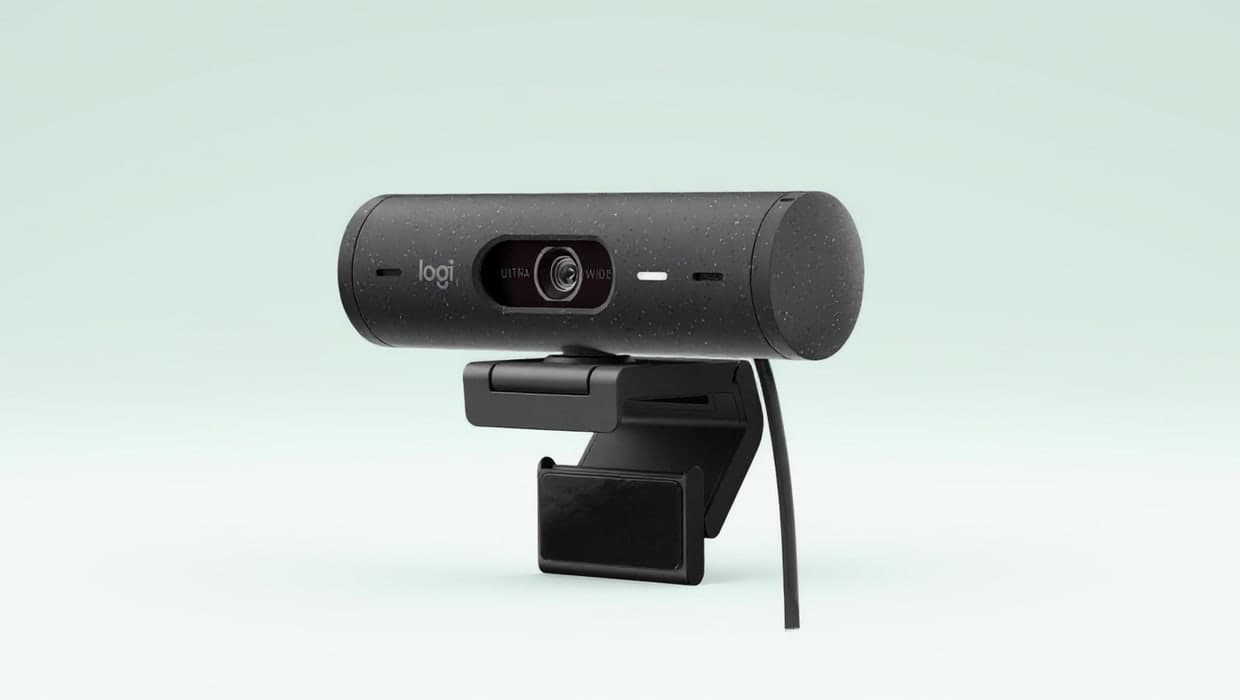
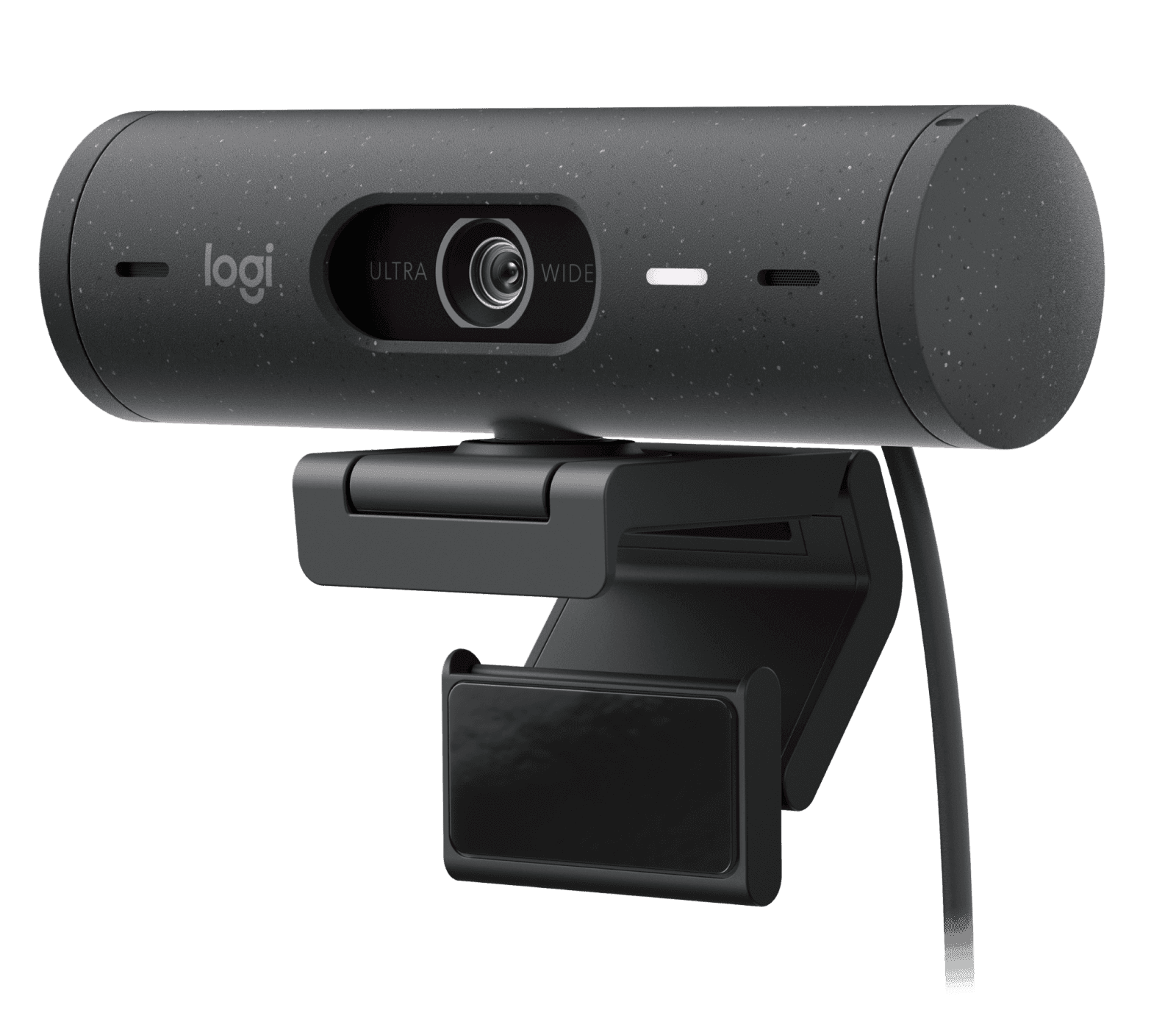
1. Logitech Brio 500 Webcam (960-001493)
Logitech’s Brio 500 covers what most work calls need, and Logitech lists it as certified for Microsoft Teams, Zoom and Google Meet. It records 1080p at 30fps with autofocus, has a stereo microphone and an integrated privacy shutter, and connects over USB-C. You can set its field of view to 90°, 78° or 65°, and the free Logi Tune app adds RightSight auto-framing, which keeps you centered if you move. Its video tops out at 1080p, and it needs a free USB-C port.
Pros
- Certified for Microsoft Teams, Zoom and Google Meet
- Autofocus with three field-of-view settings
- Stereo mic and integrated privacy shutter
Cons
- 1080p at 30fps at most (60fps only at 720p)
- Auto-framing needs Logi Tune, which isn’t available for ChromeOS
Best simple upgrade
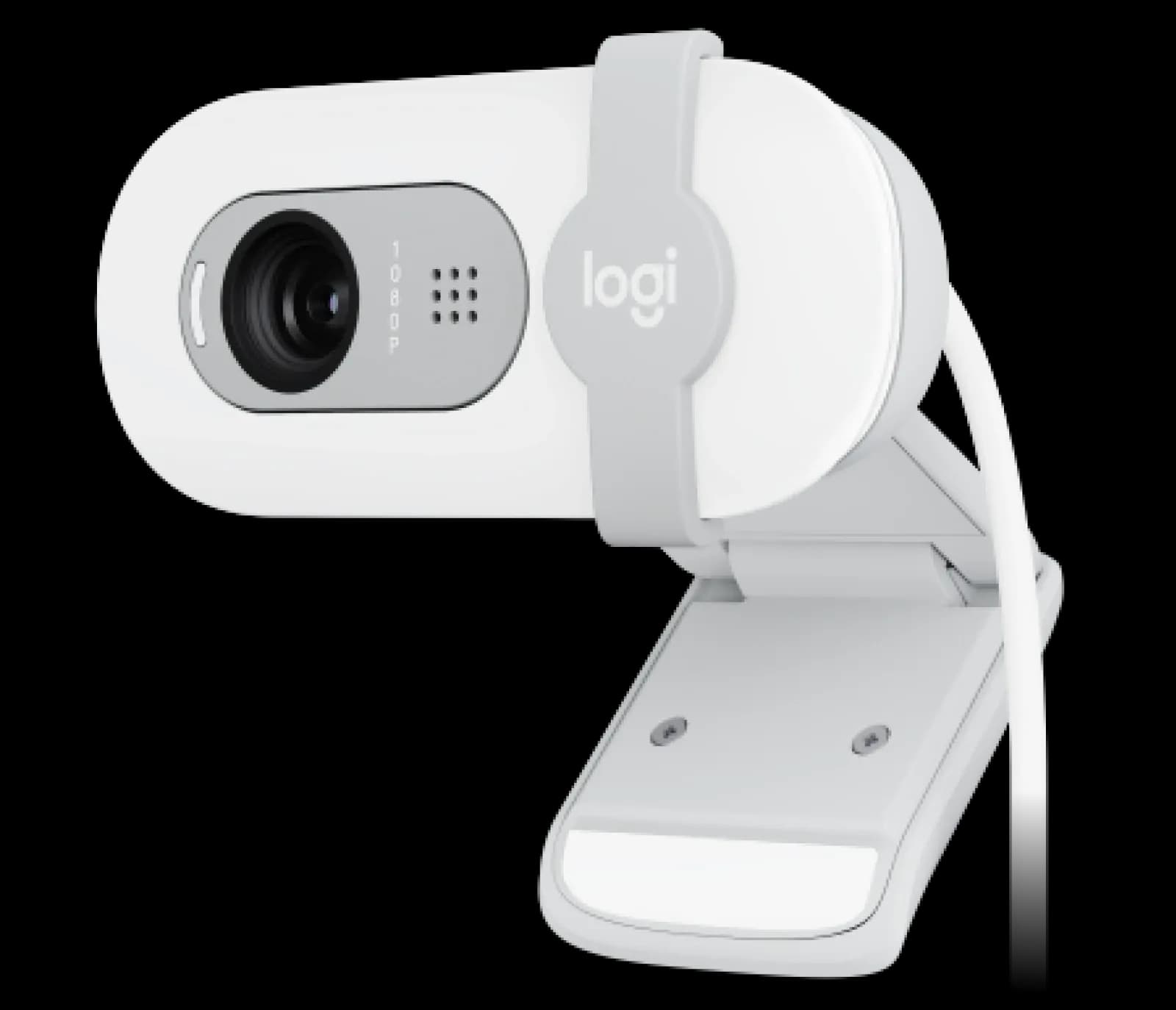
2. Logitech Brio 100 Webcam (960-001616)
The Brio 100 is Logitech’s no-frills Full HD webcam: 1080p at 30fps, a built-in omnidirectional mic, an integrated privacy shutter and RightLight 2 auto-light balance. It plugs into a USB-A port, which suits older laptops and desktops. The trade-offs are a fixed-focus lens and a narrower 58° field of view, which frames one person at a desk rather than a room. Logitech says it works with Teams, Google Meet and Zoom, but its spec sheet lists no platform certification.
Pros
- USB-A plug-and-play
- Built-in mic and integrated privacy shutter
- 1080p at 30fps
Cons
- Fixed focus, not autofocus
- No Teams or Zoom certification listed
Also at: Logitech
Best 4K webcam
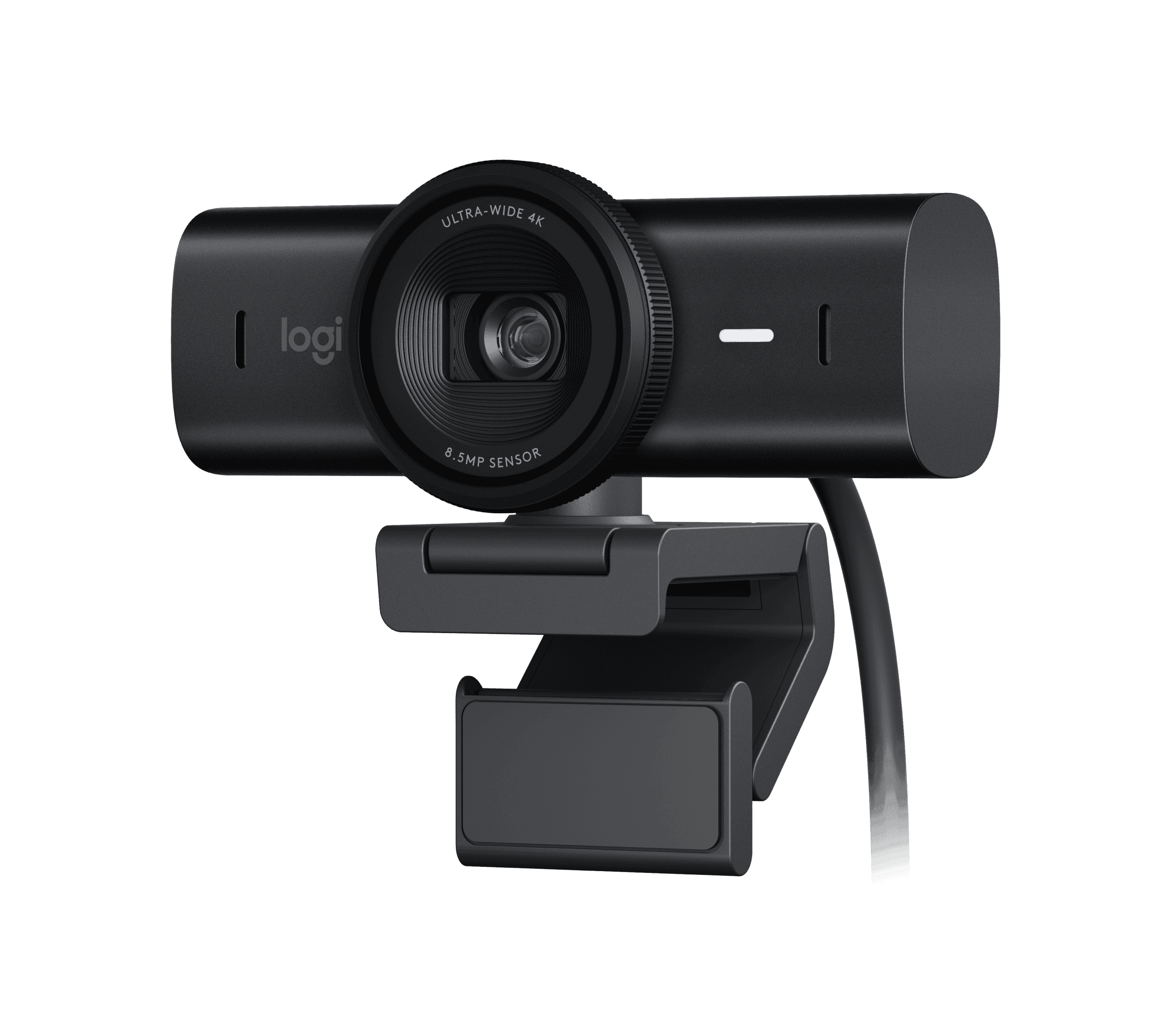
3. Logitech MX Brio 4K Webcam (960-001558)
The MX Brio is Logitech’s most capable webcam here: 4K at 30fps or 1080p at 60fps from an 8.5MP Sony STARVIS sensor, with autofocus, dual beamforming noise-reducing mics and a built-in privacy shutter you rotate to block the lens. Like the Brio 500, it is certified for Microsoft Teams, Zoom and Google Meet. Show Mode lets you tilt it down to share notes on your desk, and Logi Options+ or G HUB add fine image controls. It needs a USB-C port that supports USB 3.0.
Pros
- 4K at 30fps or 1080p at 60fps
- Certified for Microsoft Teams, Zoom and Google Meet
- Show Mode, 1/4-inch tripod thread and privacy shutter
Cons
- Needs a USB-C port that supports USB 3.0
- Fine image controls need Logitech’s software
Also at: Logitech
Best for auto framing
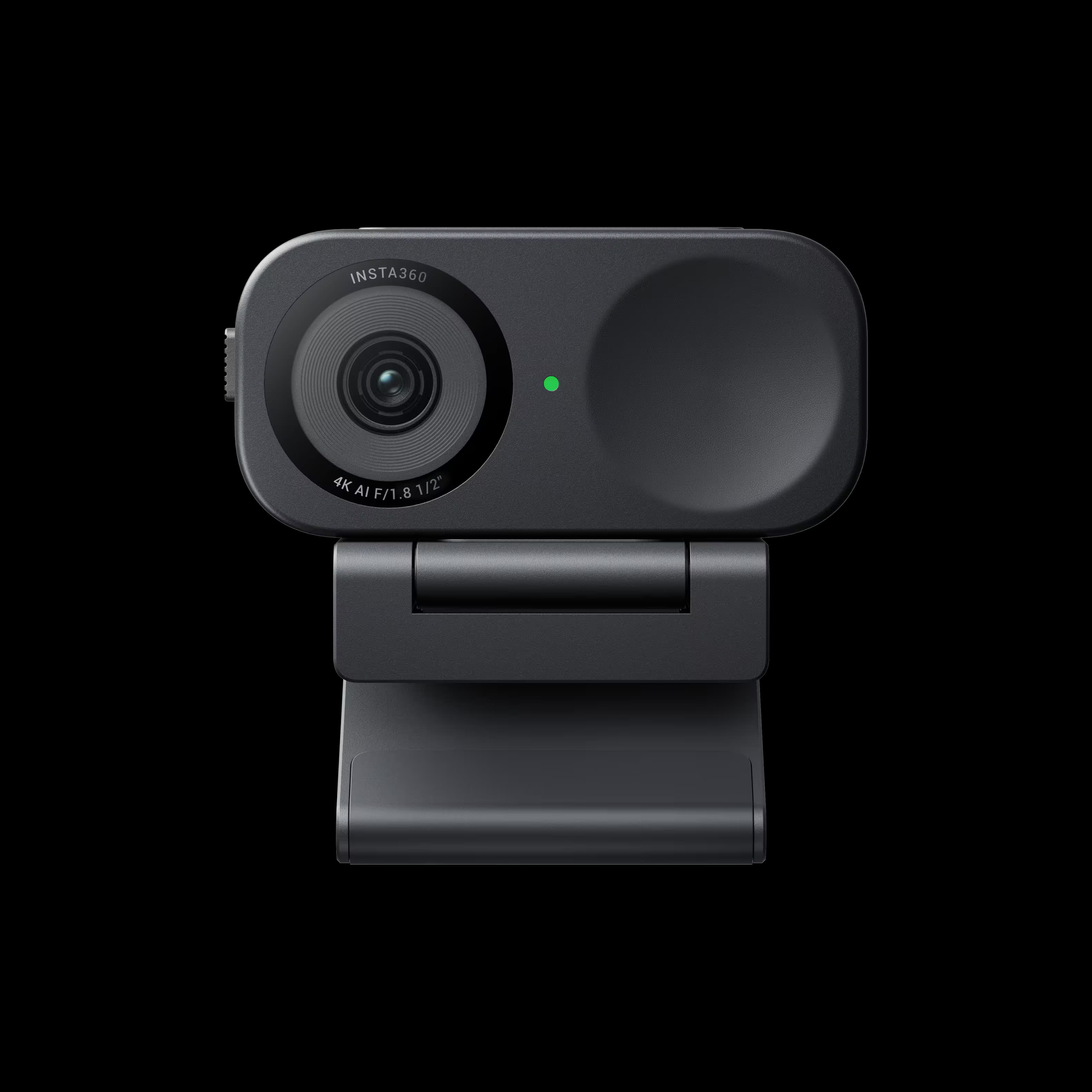
4. Insta360 Link 2C 4K AI Webcam (CINSABNA)
Insta360’s Link 2C pairs a 1/2-inch sensor with 4K at 30fps or 1080p at 60fps, phase-detection autofocus from 4 inches, and HDR in every resolution and frame rate. Its Auto Framing zooms to keep one person or a whole group in view, and its built-in audio uses AI noise canceling. It has a privacy shutter, a magnetic mount with a tripod point, and Insta360 lists its connection as USB-C, with a USB-C to USB-A adapter as the alternative. Insta360’s page calls the Link 2 series officially Zoom certified; the field of view is fixed at 79.5°.
Pros
- 4K at 30fps, 1080p at 60fps, HDR in all modes
- Auto Framing for one person or a group
- Officially Zoom certified, per Insta360
Cons
- Link Controller software doesn’t support ARM-based Windows
- Fixed 79.5° field of view (digital zoom only)
Also at: Best Buy
The best webcam for Zoom meetings for most people is the Logitech Brio 500: a 1080p autofocus webcam with a stereo mic and privacy shutter that Logitech lists as certified for Microsoft Teams, Zoom and Google Meet. If you only want a simple step up, the Brio 100 plugs into any USB-A port. For 4K, the Logitech MX Brio is also Teams and Zoom certified, and the Insta360 Link 2C adds automatic framing for one person or a group.
Below: how the four compare, whether an external webcam is worth it over your laptop’s camera, and what each spec means on a real call.
The short version
- Best overall: Logitech Brio 500. 1080p with autofocus, three field-of-view settings, certified for Teams, Zoom and Google Meet.
- Best simple upgrade: Logitech Brio 100. 1080p, built-in mic and privacy shutter over USB-A; fixed focus.
- Best 4K webcam: Logitech MX Brio. 4K at 30fps or 1080p at 60fps, certified for Teams, Zoom and Google Meet.
- Best for auto framing: Insta360 Link 2C. 4K, a 1/2-inch sensor and Auto Framing; officially Zoom certified, per Insta360.
How they compare
Webcam | Top video modes | Field of view (diagonal) | Focus | Mic | Connection | Certified for |
|---|---|---|---|---|---|---|
Logitech Brio 500 | 1080p/30fps, 720p/60fps | 90°, 78° or 65° | Autofocus | Stereo | USB-C | Teams, Zoom, Google Meet |
Logitech Brio 100 | 1080p/30fps | 58° | Fixed focus | Omnidirectional | USB-A | None listed |
Logitech MX Brio | 4K/30fps, 1080p/60fps | 90°, 78° or 65° | Autofocus | Dual beamforming | USB-C (USB 3.0) | Teams, Zoom, Google Meet |
Insta360 Link 2C | 4K/30fps, 1080p/60fps | 79.5° (fixed) | Phase-detection autofocus | AI noise-canceling | USB-C (USB 2.0) or USB-C to USB-A adapter | Zoom |
All four have a built-in microphone and a physical privacy shutter.
Is an external webcam worth it over your laptop camera?
Often, yes, but check your laptop first. Its spec page lists the camera’s resolution, and if it already records 1080p with decent light, a new webcam may change less than you expect. If you’re still choosing a laptop, camera quality is one of the things we compare in our guide to laptops for working from home.
An external webcam earns its place in a few situations:
- You work with the lid closed. If your laptop sits closed on a stand while you use an external monitor, its built-in camera is out of action. A webcam clipped to the monitor solves that.
- You want the camera at eye level. A webcam on top of your main monitor looks at you straight on, rather than from the angle of a laptop screen off to one side.
- You want features a laptop camera lacks. Autofocus, a choice of field of view, auto-framing, a physical privacy shutter and dedicated microphones are all listed features on these webcams, and you can check your laptop’s spec page to see which it already has.
If none of those apply, better lighting and a clean background may do more for how you look on calls than a new camera.
What matters in a webcam for Zoom meetings and Teams calls
Resolution and frame rate
1080p (Full HD) at 30fps is the baseline for every webcam here. 4K models such as the MX Brio and Link 2C record more detail, which helps when the camera zooms or crops to frame you, and they can also run 1080p at 60fps for smoother motion. Keep expectations realistic: Insta360’s own page notes that video resolution is subject to platform limitations, so a 4K camera doesn’t guarantee a 4K picture on the other end of a call.
Field of view
Field of view decides how much of the room the camera sees. A narrow view, like the Brio 100’s 58°, frames one person at a desk and hides more of the room behind you. A wide view shows more of the room, which suits two people sharing a camera. The Brio 500 and MX Brio let you switch between 90°, 78° and 65°, so one webcam covers both. The Link 2C is fixed at 79.5° and uses digital zoom and Auto Framing to tighten the shot.
Autofocus or fixed focus
Autofocus keeps you sharp as you lean in or sit back, and lets the camera focus on something you hold up. The Link 2C’s phase-detection autofocus works from 4 inches away. A fixed-focus lens, like the Brio 100’s, is set for a typical sitting distance and doesn’t adjust.
Built-in microphones
Every pick has a built-in mic, so you can take a call without a headset. They differ in type: the Brio 100 has one omnidirectional mic with a range of up to 3 feet; the Brio 500 has a stereo mic; the MX Brio has dual beamforming, noise-reducing mics; and the Link 2C uses AI noise canceling with three audio modes. If you share a room or take many calls, a headset or dedicated microphone is still worth considering.
Privacy shutter
All four webcams have a physical shutter you close over the lens between calls. On the MX Brio you rotate it, and on the Brio 100 you slide it. It’s a simple, visible way to know the camera isn’t showing anything.
Connection: USB-A or USB-C
Check which ports you have free. The Brio 100 uses USB-A, which suits older laptops and desktops. The Brio 500 needs a USB-C port. The MX Brio needs a USB-C port that supports USB 3.0. Insta360 lists the Link 2C’s connection as a USB-C cable (USB 2.0) or a USB-C to USB-A adapter, so it fits either. If your laptop is short on ports, a dock adds more; see our guide to docking stations for two monitors.
What “certified for Teams and Zoom” means
A certified webcam is one the maker lists as certified by that platform on its spec sheet. Logitech lists both the Brio 500 and the MX Brio as certified for Microsoft Teams, Zoom and Google Meet. Insta360’s page says the Link 2 series is officially Zoom certified. An uncertified webcam still works in these apps: Logitech lists the Brio 100 as compatible with Teams, Google Meet and Zoom, just without certification. If your employer’s IT team only supports certified devices, pick one of the certified three.
Setting up your webcam
Mount the webcam on the screen you look at most, so you’re looking toward the lens during a call. The Brio 500 and MX Brio come with a clip that fits laptops and monitors, the Link 2C comes with a magnetic mount, and the MX Brio and Link 2C also have a 1/4-inch point for a tripod if the clip doesn’t suit your setup. If you’re still planning your desk around a new screen, our guide to home-office monitors covers sizes and resolutions.
A few settings are worth a look once it’s plugged in:
- Select it in the app. Zoom and Teams both let you pick your camera and microphone in their settings; choose the webcam, or your laptop’s built-in camera may stay active.
- Install the maker’s software if you want the extras. Auto-framing on the Brio 500 needs Logi Tune, fine image controls on the MX Brio need Logi Options+ or G HUB, and the Link 2C’s framing and modes are set in Insta360’s Link Controller.
- Check your computer supports that software. Logi Tune isn’t available for ChromeOS, and Link Controller doesn’t support ARM-based Windows laptops.
How we chose
These recommendations are research-based: we have not tested these products ourselves. Every figure quoted here comes from the manufacturer’s or a retailer’s own published spec sheet (linked under Sources), not from a shopping listing title. We started from real webcams that major US retailers sell and read every spec from the maker’s own page. We left out models whose specs we couldn’t read from the manufacturer, and webcams built mainly for streaming. We also looked at:
- Certification. We only call a webcam certified for Teams or Zoom when its maker says so on its spec page.
- The basics for calls. At least 1080p, a built-in microphone and a physical privacy shutter on every pick.
- Focus and framing. Autofocus and a choice of field of view ranked higher than a fixed lens.
- Connection. A mix of USB-A and USB-C, so there’s a pick for older and newer computers.
- Where you can buy it. We link only to retailers we confirmed sell the exact model new; we don’t compare their prices.
FAQs
Is 1080p good enough for Zoom and Teams meetings?
For most calls, yes: every webcam in this guide records at least 1080p. 4K webcams add detail for zooming and framing, but Insta360 notes that video resolution is subject to platform limitations, so 4K on the camera doesn’t guarantee 4K on the call.
Do I need a webcam certified for Microsoft Teams or Zoom?
Not usually. Uncertified webcams still work in both apps; Logitech lists the Brio 100 as compatible with Teams, Google Meet and Zoom without certification. Choose a certified model, such as the Brio 500 or MX Brio, if your workplace only supports certified devices.
Do these webcams work with a Mac?
Yes. Logitech lists macOS support for the Brio 500 (macOS 10.10 or later) and Brio 100, and its Logi software for the MX Brio runs on macOS and Windows. Insta360’s Link Controller software for the Link 2C needs macOS 11.0 or later.
Will a USB-C webcam work with a USB-A port?
Only with an adapter. Insta360 lists a USB-C to USB-A adapter as a connection option for the Link 2C. The Brio 500 and MX Brio need a USB-C port, and the MX Brio’s port must support USB 3.0.