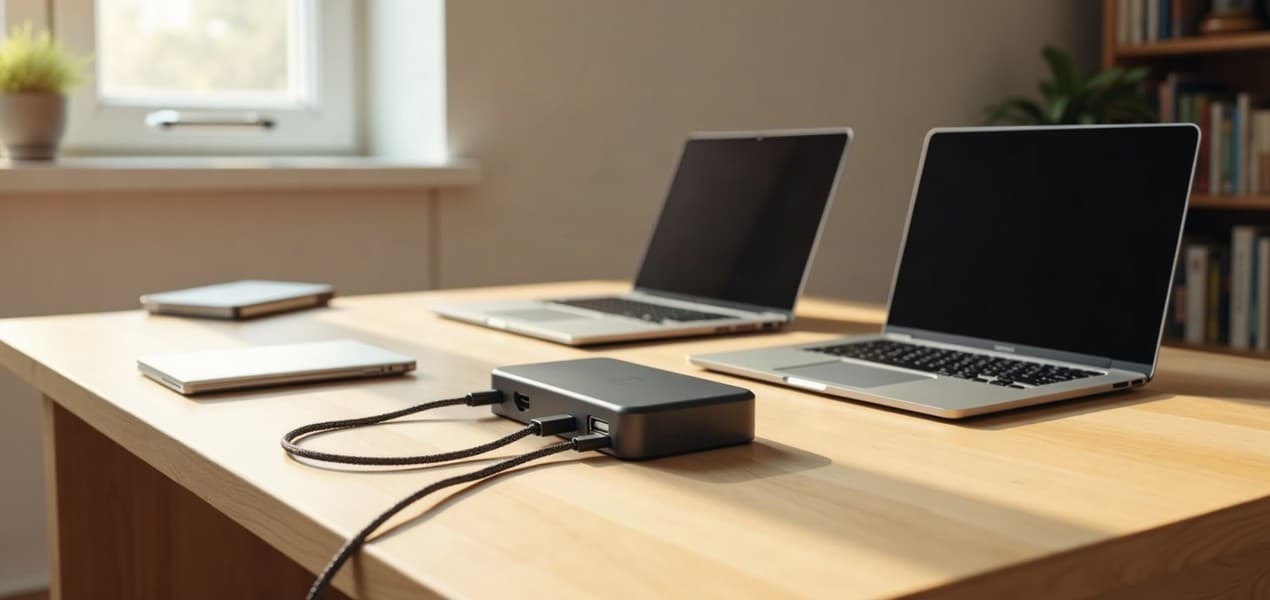
The best Thunderbolt dock for most MacBooks is the CalDigit TS4. One Thunderbolt 4 cable charges the laptop at up to 98W and connects 18 ports, including 2.5 Gigabit Ethernet and two extended screens on any M4, M5, Pro or Max Mac. If your MacBook Pro has Thunderbolt 5, the CalDigit TS5 adds 140W charging and three or four screens on M5 Pro and M5 Max chips. If your monitors are HDMI, or you use Windows, get the Plugable TBT4-UDZ.
Our picks at a glance
- View at CalDigit
Best for most MacBooks
- View at CalDigit
Best for Thunderbolt 5 MacBook Pros
- View at Plugable
Best for HDMI monitors and Windows
The picks in detail
- Top pick
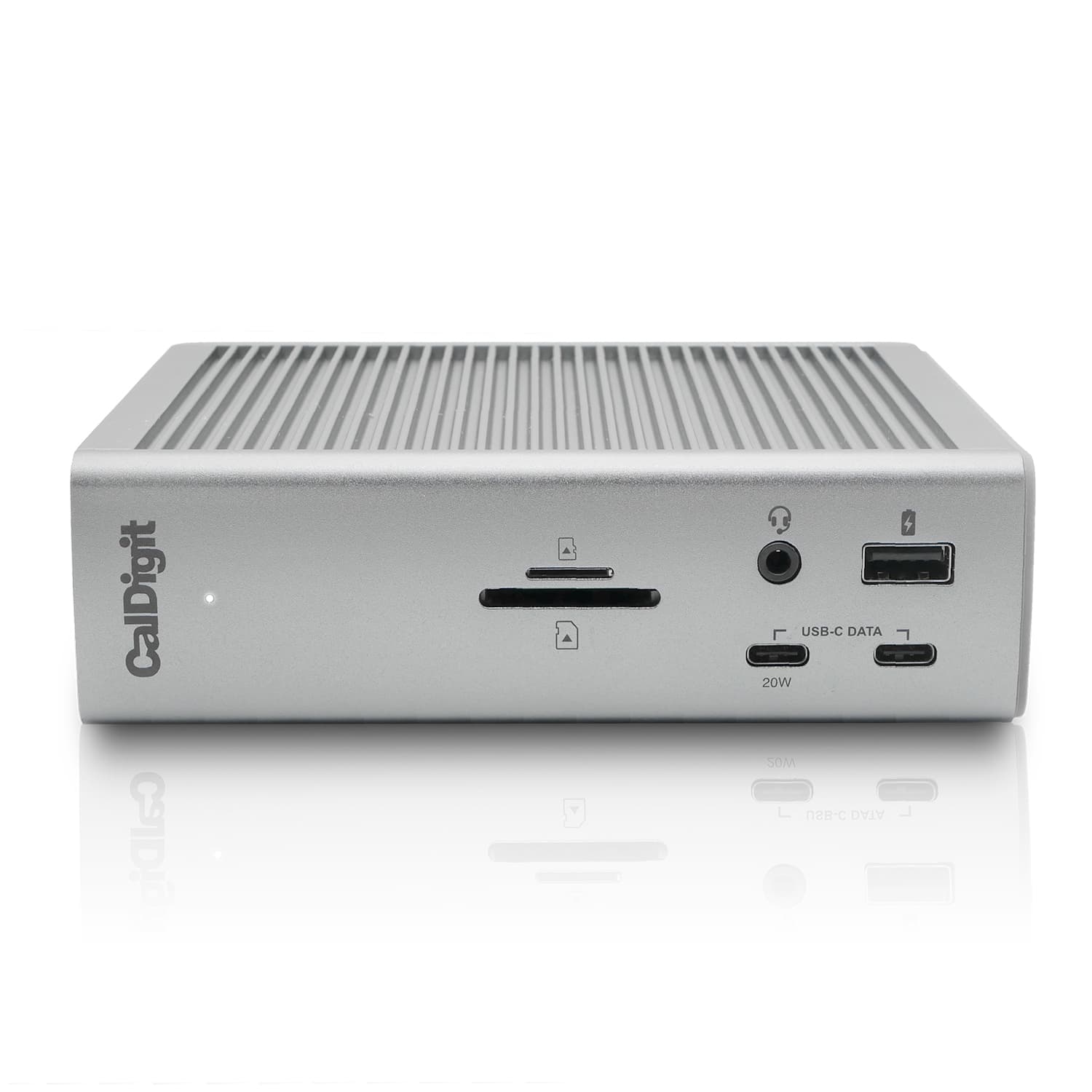
Best for most MacBooks
CalDigit Thunderbolt Station 4 (TS4)
The CalDigit TS4 is the Thunderbolt dock most MacBook owners should buy.
View at CalDigitOne Thunderbolt 4 cable gives the laptop up to 98W of charging and 18 ports: three Thunderbolt 4, three 10Gb/s USB-C and five 10Gb/s USB-A ports, SD and microSD readers, 2.5 Gigabit Ethernet and a DisplayPort 1.4 output. The host port sits at the back, so the cable runs out of sight. Two extended screens work on Macs with an M4 or M5 chip or any Pro or Max chip, and on Windows Thunderbolt 3 and 4 laptops. Buy it if you want one cable for a desk full of accessories and your monitors take DisplayPort or USB-C. Skip it if both your monitors are HDMI-only: it has no HDMI port, and the Plugable TBT4-UDZ plugs them in directly.
What we like
- 18 ports, including 2.5 Gigabit Ethernet and SD and microSD readers
- Up to 98W of laptop charging from a 230W power supply
- Two extended screens on M4, M5, Pro and Max Macs; 2-year warranty
Watch out for
- No HDMI port, and an HDMI adapter on a Mac is limited to 4K at 60Hz
- Only one dedicated video output; the second screen goes on a Thunderbolt port
- Known sleep problems on Apple silicon Macs (Ethernet dropping, drives ejecting after wake), fixed by Thunderbolt firmware 39.x or later and a current macOS, per CalDigit’s support page
- Best for Thunderbolt 5 MacBook Pros
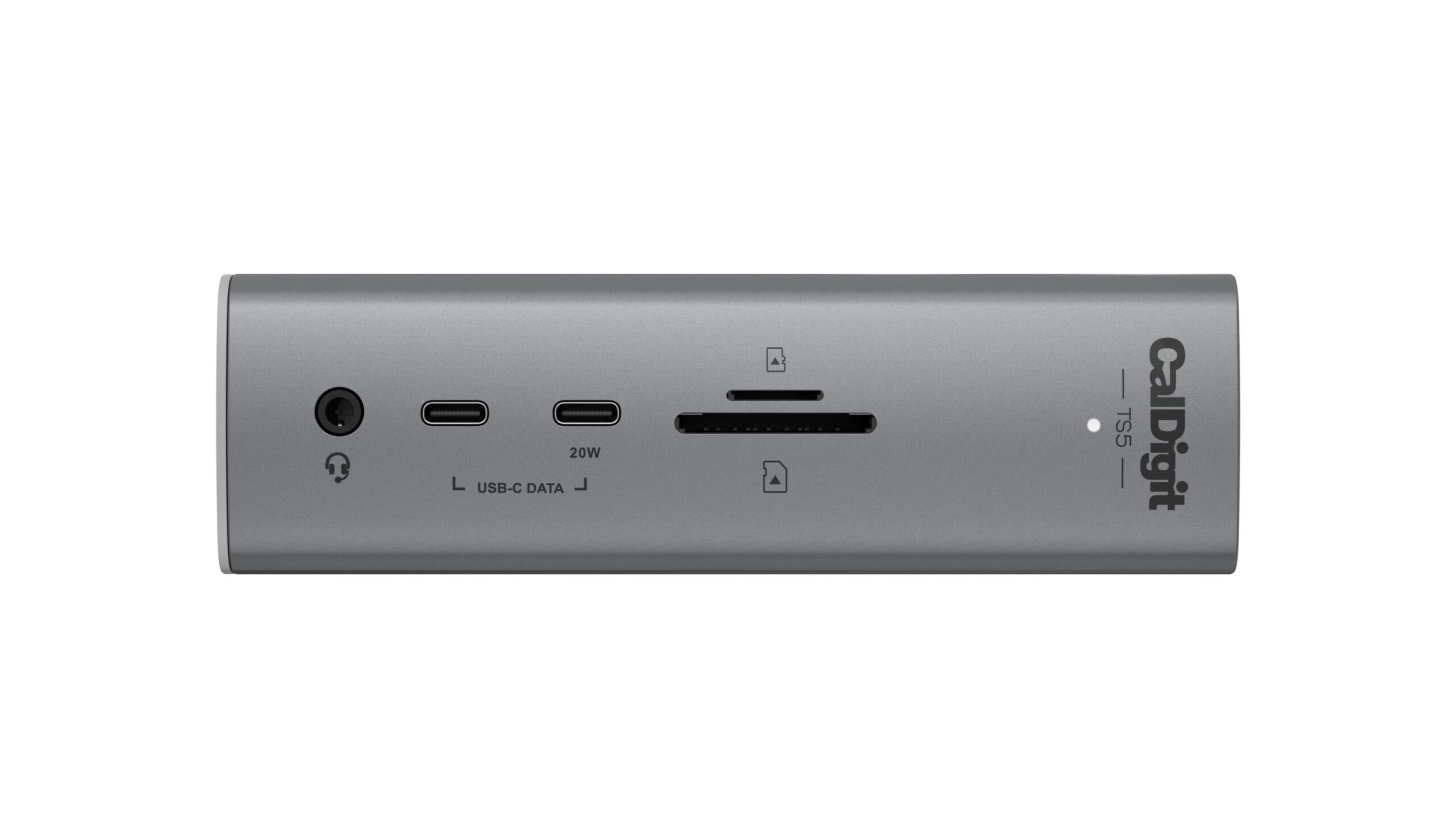
CalDigit Thunderbolt Station 5 (TS5)
The CalDigit TS5 is the dock for a MacBook Pro or Windows laptop that already has a Thunderbolt 5 port.
View at CalDigitIt connects at 80Gb/s (up to 120Gb/s in Bandwidth Boost mode), charges the laptop at up to 140W, and has four Thunderbolt 5 ports (one for the laptop), three 10Gb/s USB-C ports, two USB-A ports, SD and microSD readers and 2.5 Gigabit Ethernet: 15 ports in all. It is the only pick that drives three screens on a Mac with an M5 Pro chip and four on an M5 Max. It has no fan. Buy it if your laptop has Thunderbolt 5, its charger is rated above 100W, or you use fast Thunderbolt storage. Skip it on a Thunderbolt 4 laptop: it works, but you pay for speed the laptop cannot use, and it needs macOS 15 or Windows 11.
What we like
- Up to 140W of laptop charging, the most of the three
- Three screens on an M5 Pro Mac and four on an M5 Max
- No fan; 1.0 m Thunderbolt 5 cable and 2-year warranty
Watch out for
- No HDMI or DisplayPort outputs: every screen needs a USB-C cable or adapter
- Full speed needs a Thunderbolt 5 or USB4 v2 laptop; needs macOS 15 or Windows 11
- MacRumors found SSDs on its USB-C ports sometimes vanished until a restart; CalDigit’s firmware 71.1 targets monitor and USB stability
- Best for HDMI monitors and Windows
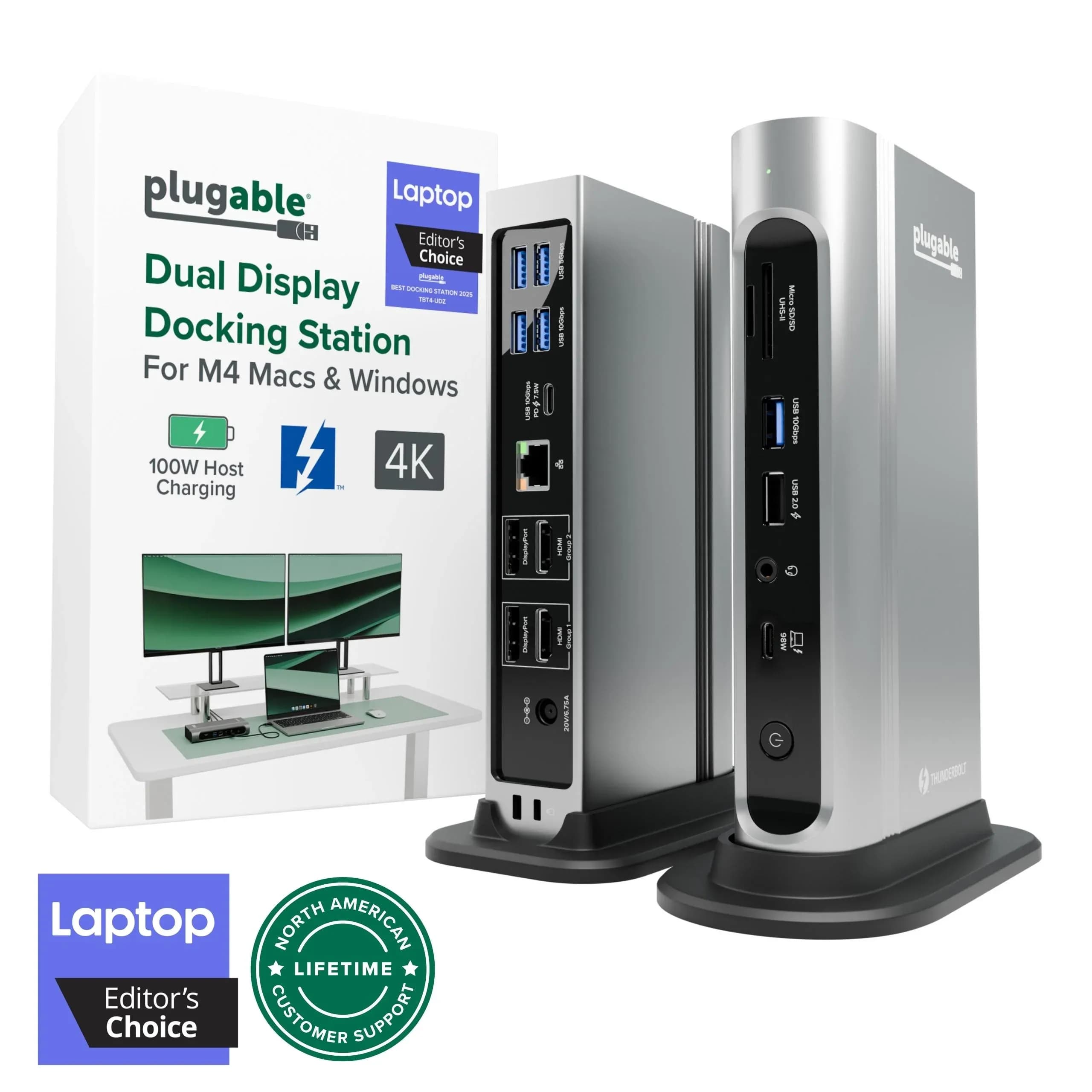
Plugable TBT4-UDZ Thunderbolt 4 16-in-1 Dock
The Plugable TBT4-UDZ is the pick if your monitors use ordinary HDMI or DisplayPort cables.
View at PlugableIt has two HDMI 2.0 and two DisplayPort 1.2 outputs, 16 ports in all, 2.5 Gigabit Ethernet and up to 100W of laptop charging (98W certified). On a Mac with an M4, M5 or any Pro or Max chip it gives two extended 4K 60Hz screens, and a base M3 can do the same with the lid closed. A Windows Thunderbolt 4 or USB4 laptop can run up to four 4K 60Hz screens from it. Buy it for HDMI monitors, a Windows laptop or a desk shared by both. Skip it if you have a USB-C or Thunderbolt monitor, or a monitor that runs above 60Hz: Plugable does not support either.
What we like
- Two HDMI and two DisplayPort outputs: monitors plug straight in
- Up to four 4K 60Hz screens on a Windows Thunderbolt 4 or USB4 laptop
- Up to 100W of laptop charging (98W certified); 2-year warranty
Watch out for
- USB-C and Thunderbolt monitors, refresh rates above 60Hz, HDR and adaptive sync are not supported
- Firmware updates, which fix flicker and screens not waking from sleep, run only on a Windows PC
- Four screens on Windows may mean switching off the laptop’s own screen
A Thunderbolt dock connects to your laptop's Thunderbolt port and carries video, data and charging on that one cable. For how docks, hubs and connection types work, start with our guide to USB-C and Thunderbolt docking stations.
The short version
- Best for most MacBooks: CalDigit TS4. Thunderbolt 4, up to 98W, 18 ports, one DisplayPort output.
- Best for Thunderbolt 5 MacBook Pros: CalDigit TS5. Up to 140W, four Thunderbolt 5 ports, three screens on M5 Pro and four on M5 Max.
- Best for HDMI monitors and Windows: Plugable TBT4-UDZ. Two HDMI and two DisplayPort outputs, up to four screens on Windows.
- No Thunderbolt dock adds screens to a Mac. The number of external displays is set by the Mac's chip, and Apple states a hub does not raise it. Base M1 and M2 Macs get one screen through any of these docks.
How the docks compare
Dock | Laptop connection | Charging | Video outputs | Two extended screens on a Mac? | Screens on Windows |
|---|---|---|---|---|---|
CalDigit TS4 | Thunderbolt 4 (40Gb/s) | Up to 98W | 1 DisplayPort 1.4, plus 2 Thunderbolt 4 | Yes: M4, M5, Pro and Max | 2 (Thunderbolt 3 or 4) |
CalDigit TS5 | Thunderbolt 5 (80Gb/s, up to 120Gb/s) | Up to 140W | 3 Thunderbolt 5 | Yes: M4, M5, Pro and Max; 3 on M5 Pro, 4 on M5 Max | 2 (Thunderbolt 4), 3 (Thunderbolt 5) |
Plugable TBT4-UDZ | Thunderbolt 4 (40Gbps) | Up to 100W (98W certified) | 2 HDMI 2.0, 2 DisplayPort 1.2 | Yes: M4, M5, Pro and Max; base M3 with the lid closed | Up to 4 (Thunderbolt 4 or USB4) |
All three have 2.5 Gigabit Ethernet, SD and microSD readers and a 2-year warranty. Charging is the most each dock can send to the laptop; check it against the wattage printed on your laptop's own charger.
Known problems to know before you buy
Spec sheets don't list these, but the makers' own support pages do.
- CalDigit TS4 and sleep on Apple silicon Macs. CalDigit's support page lists Ethernet disappearing, drives ejecting and Thunderbolt ports going unresponsive after the Mac wakes, plus kernel panics on macOS 12.0 to 12.2.1. The fix is a current macOS and TS4 Thunderbolt firmware 39.x or later, which you can install from a Mac. Update the firmware the day the dock arrives.
- CalDigit TS5 and USB-C drives. In its June 2026 review, MacRumors found SSDs on the TS5's USB-C ports sometimes didn't appear until a restart; Thunderbolt 5 drives worked fine. CalDigit's current firmware (71.1 for the TS5) is aimed at monitor and USB stability. To install it you need macOS 14.6 or later, and CalDigit asks you to unplug your monitors and other devices first.
- Plugable TBT4-UDZ firmware needs Windows. Plugable offers firmware updates for display flicker, black screens, screens not detected after sleep and DisplayPort screens that aren't detected while HDMI works. The updater runs only on a Windows 10 or 11 PC with Thunderbolt or USB4, not on a Mac. If you only own a Mac, you would need to borrow a Windows laptop or ask Plugable support.
- Fan noise. The TS5 has no fan, and MacRumors found it stayed lukewarm. CalDigit and Plugable don't say whether the TS4 or TBT4-UDZ has one.
Best Thunderbolt dock for MacBook Pro and MacBook Air
Two things about your MacBook decide which dock fits: the port it has and how many screens its chip drives. A dock cannot change either.
Which port your Mac has. Apple lists Thunderbolt 5 on the 14-inch MacBook Pro with a Pro or Max chip from 2024 or later and the 16-inch MacBook Pro from 2024 or later. Thunderbolt 4 is on MacBook Air from 2025, the 14-inch MacBook Pro with M4 or M5, and the 14-inch and 16-inch Pro and Max models from 2021 to 2023. MacBook Air from 2020 to 2024 and the 13-inch MacBook Pro with M1 or M2 have a Thunderbolt / USB 4 port.
How many screens your chip drives. Apple lists two external displays for MacBook Air and MacBook Pro with M4 or M5, and for M2, M3 and M4 Pro chips. M2, M3 and M4 Max chips support four, the M5 Pro three and the M5 Max four. A base M3 runs two only with the lid closed, and base M1 and M2 Macs support one.
What that means for the picks:
- MacBook Air with M4 or M5, or a 14-inch MacBook Pro with M4 or M5: the CalDigit TS4, or the Plugable TBT4-UDZ for HDMI monitors. Both give you the two screens the Mac supports.
- MacBook Pro with a Thunderbolt 5 port: the CalDigit TS5 if you want the faster storage, more charging or a third or fourth screen on an M5 Pro or M5 Max. Otherwise the TS4 works fine at Thunderbolt 4 speed. Note that Max chips support four screens, but the TS4 and TBT4-UDZ give two of them.
- MacBook Air with M1 or M2, or a 13-inch MacBook Pro with M1 or M2: any of these docks gives you one external screen. For two, you need a DisplayLink dock, which our best dual monitor docking stations guide covers.
One more Mac detail: current Macs output up to HDMI 2.0b over Thunderbolt, so an HDMI adapter on the TS4 or TS5 is limited to 4K at 60Hz. For higher refresh rates, use a USB-C or DisplayPort cable. If you are choosing a screen for the same desk, see our best monitors for MacBook Pro.
Best Thunderbolt dock for Windows laptops
Most Windows laptop owners should buy the Plugable TBT4-UDZ. Its HDMI and DisplayPort outputs suit the monitors most Windows desks already have, and on a Thunderbolt 4 or USB4 laptop it runs up to four 4K 60Hz screens. Many Thunderbolt 4 laptops need their own screen switched off for four, and Windows may mirror the screens until you set them to extend. On a Thunderbolt 3 laptop it runs two.
Check your laptop's spec sheet first. Windows laptops vary in Thunderbolt support, charging and display limits, and we have not checked individual models.
- CalDigit TS4: two screens on Windows Thunderbolt 3 and 4 laptops (some makers limit Thunderbolt 3 to one), and one on a plain USB-C laptop. It needs Windows 10 (20H2) or later.
- CalDigit TS5: needs Windows 11, a Thunderbolt 4 or newer port, an Intel 12th Gen or newer processor and Thunderbolt firmware 43.3 or newer. It runs two screens on a Thunderbolt 4 laptop and three on a supported Thunderbolt 5 laptop. CalDigit's requirements name Intel processors only, so on an AMD or Snapdragon laptop, check with CalDigit before you buy.
If you are still choosing a laptop, our business laptops for home offices guide covers ports and specs.
How to choose a Thunderbolt dock
Match the dock to your laptop's port, your charger and your monitors' inputs, in that order.
Thunderbolt 4 or Thunderbolt 5?
Thunderbolt 4 is enough for most desks. Thunderbolt 5 pays off only when the laptop has a Thunderbolt 5 port: the TS5 needs an 80Gb/s Thunderbolt 5 or USB4 v2 connection for its full speed. The clearest gain is storage. The TS5's Thunderbolt ports reach up to 6,200MB/s with an external drive, against 3,200MB/s on the TS4. Our Thunderbolt 5 vs Thunderbolt 4 vs USB4 comparison explains what else changes. If you plan to plug fast drives into the dock, our best external SSDs guide covers them.
Match the charging to your laptop's charger
Look at the wattage on the charger that came with your laptop. If the dock supplies the same or more, it can replace that charger on your desk. If it supplies less, the laptop usually still charges, just more slowly. The TS4 supplies up to 98W, the TBT4-UDZ up to 100W (98W certified) and the TS5 up to 140W, so a laptop with a charger above 100W needs the TS5.
Count your monitors' inputs
This is where the three docks differ most:
- HDMI monitors: the TBT4-UDZ takes two directly. The TS4 and TS5 need a USB-C-to-HDMI adapter (or an active DisplayPort-to-HDMI adapter on the TS4's DisplayPort output).
- USB-C or Thunderbolt monitors: the TS4 and TS5 drive them from their Thunderbolt ports. The TBT4-UDZ does not support them.
- High refresh rate, HDR or 5K and above: Plugable does not support any of these on the TBT4-UDZ. The TS4 reaches 6K 60Hz on two screens only with an M1 Pro, M1 Max or M1 Ultra Mac, and 4K 60Hz on two screens with other laptops.
Use the cable in the box
The TS4 comes with a 0.8 m Thunderbolt 4 cable, the TBT4-UDZ with a 1.0 m Thunderbolt 4 cable and the TS5 with a 1.0 m Thunderbolt 5 cable. If you need a longer one, buy a certified 40Gb/s Thunderbolt 4 cable for the TS4 and TBT4-UDZ, or a certified 80Gb/s Thunderbolt 5 cable for the TS5.
How we chose
This guide is research-based. We have not tested these docks. Every figure comes from the maker’s own product page or support pages, or from Apple’s support pages, all linked under Sources. We looked for Thunderbolt docks that work with both Macs and Windows laptops and are still sold new in the US, then compared the laptop connection, charging, video outputs, Mac and Windows screen limits, ports and warranty from each maker's page. We also read the makers' support pages and recent reviews for documented problems. An earlier version of this guide included the Kensington SD5780T. Kensington now lists it as discontinued, so we removed it. We did not cover every brand: docks from Dell, HP, Lenovo, Belkin and OWC are not included. We link to stores we could confirm sell each exact model, and we don't compare their prices.
Questions people ask
What is the best Thunderbolt dock for a MacBook?
For most MacBooks, the CalDigit TS4: one Thunderbolt 4 cable, up to 98W of charging, 18 ports and two extended screens on M4, M5, Pro and Max Macs. If your MacBook Pro has Thunderbolt 5, the CalDigit TS5 adds 140W charging and more screens on M5 Pro and M5 Max chips.
Can a Thunderbolt dock run two monitors on a MacBook Air?
Yes, on a MacBook Air with M4 or M5, which supports two external displays. A base M3 MacBook Air runs two only with the lid closed, and an M1 or M2 MacBook Air gets one through any Thunderbolt dock; for two, you need a DisplayLink dock.
Is a Thunderbolt 5 dock worth it with a Thunderbolt 4 laptop?
Usually not. The CalDigit TS5 works with Thunderbolt 4 laptops, but it runs at the laptop’s speed, and on Windows it still drives two screens. Its 140W charging is the main gain, and only if your laptop’s charger is rated above 100W.
Will a Thunderbolt dock work with a Windows laptop?
Yes, if the laptop has a Thunderbolt, USB4 or video-capable USB-C port. All three docks support Windows, but the TS5 needs Windows 11 and an Intel 12th Gen or newer processor, and the number of screens depends on your laptop’s port.
Why does my Mac only show one screen through my dock?
Most likely your Mac has a base M1 or M2 chip, which supports one external display, or a base M3 with the lid open. A dock cannot raise a Mac’s display limit. On the TS4, also check that its Thunderbolt firmware is up to date.
Sources we used
- CalDigit Thunderbolt Station 4 (TS4)
- CalDigit Thunderbolt Station 5 (TS5)
- Plugable TBT4-UDZ Thunderbolt 4 16-in-1 Docking Station
- CalDigit: Thunderbolt dock sleep mode related issues (TS4, Apple silicon Macs)
- CalDigit: TS5 Plus, TS5 and Element 5 Hub macOS firmware update procedures
- Plugable: Does my TBT4-UDZ need updated firmware?
- MacRumors: CalDigit TS5 and Element 5 review (June 2026)
- Apple: Identify the ports on your Mac
- Apple: How many displays can be connected to MacBook Pro
- Apple: How many displays can be connected to MacBook Air
- Kensington SD5780T product page (marked discontinued)