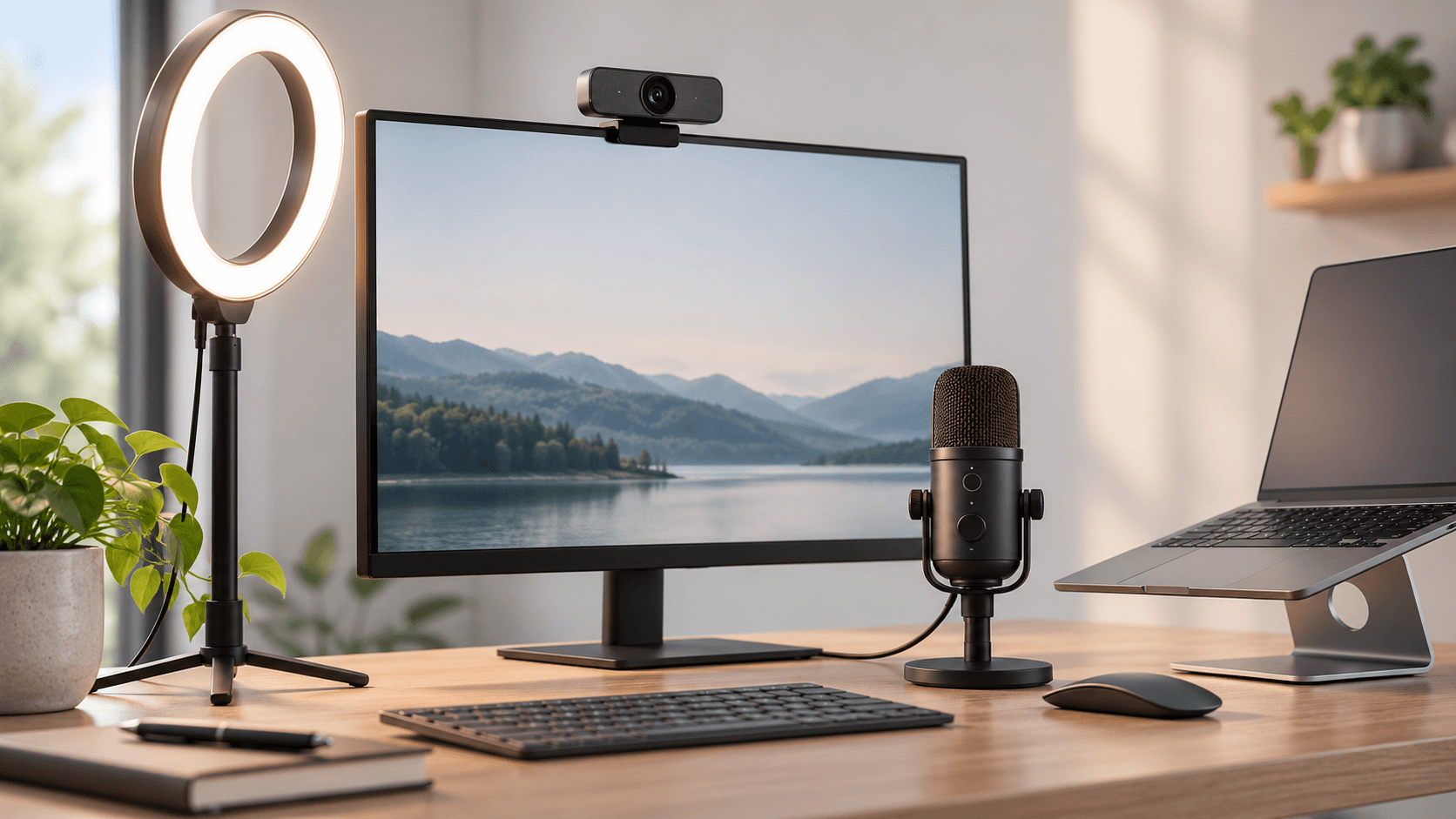
Most people can look good on video calls without buying anything. Fix four things, in this order: put a light in front of you, raise the camera to eye level, tidy what is behind you, and get your microphone close to your mouth in a quiet room. Each costs little or nothing, and each does more for how you come across than an expensive camera. This guide covers all four, then the built-in Zoom, Microsoft Teams and Google Meet settings that help with each one.
The short version
- Light: face a window or lamp so the light lands on your face, not behind your head. Google’s own meeting tips say the same: sit in a well-lit area, ideally with light on your face and not behind, to avoid creating a silhouette.
- Camera: put the lens at about eye level and look at it when you speak. Keep your head and shoulders in the frame.
- Sound: a quiet room, a microphone close to your mouth and headphones matter more than the video. Turn on the noise suppression your app already has.
- Background: keep it simple and tidy. Blur or a background image is a backup, not a fix. Microsoft warns that blurring or replacing your background may not prevent sensitive information from being visible.
- Habits: join a few minutes early, check your camera and microphone, and mute when you are not talking.
- Spend money last: try the free fixes first. If you then want a better camera, see our guide to the best webcams for Zoom and Teams.
What people notice first
People on the other end are judging a few simple things, mostly without realizing it. Can I see their face clearly? Do they seem to be looking at me? Can I hear them without effort? Is something distracting behind them?
Notice that none of those questions is about camera resolution. A sharp 4K image of a face in shadow, taken from below, with an echoing voice, still looks unprofessional. A modest camera with good light at eye level and clear sound looks polished. So work through the sections below in order, and stop when the call looks and sounds the way you want.
Lighting for video calls
The light on your face is the biggest single change you can make, and often it needs nothing new. A dim room gives any camera, including the one in your laptop, less to work with, and a lamp you already own is usually the quickest fix.
Put the light in front of you
Face the light source. That can be a window in front of you or beside your screen, or a desk lamp placed behind your monitor and pointed toward you. Avoid sitting with a window or bright lamp behind you: your face turns into a dark shape. That is the silhouette Google’s tips warn about.
If your only window is behind you, turn your desk around if the room allows it, or close the blind and use a lamp in front of you instead. Daylight changes through the day, so check your picture at the time of your usual calls, not just once.
Soft light beats harsh light
A bare bulb or a lamp shining straight at your face from close by can look harsh. Bounce the light off a wall, or use a lamp with a shade, so the light is softer. If you do buy a light for video calls, put it in front of you and slightly above eye level rather than off to one side.
Let the app help in low light
Zoom and Google Meet both have settings for dim rooms. Zoom’s Adjust for low light setting improves video brightness and quality in low-light surroundings, and you can choose Auto or Manual. Zoom’s Portrait lighting dims your background while brightening you in the foreground. Google Meet’s studio look uses AI to fix issues caused by low light or low quality webcams, and studio lighting lets you adjust the position, brightness and color of a simulated light. Google lists both as features that need an eligible Google Workspace or Google AI plan, and studio lighting also has processor and browser requirements, so they will not appear for everyone.
These are a help, not a replacement. Software brightening cannot add detail that was never captured, so a real light in front of you still gives the cleaner picture.
Camera position and framing
Eye level, and look at the lens
A camera that looks up at you from a low laptop puts the ceiling behind you and makes people look at your chin. Raise the camera until the lens is about level with your eyes. On a laptop, that usually means putting it on a stand or a stack of books and using a separate keyboard. With a monitor, an external webcam clipped to the top of the screen sits near eye level by itself.
Then do the hard part: look at the camera lens when you speak, not at the faces on your screen. Looking at the lens is what makes the other person feel you are looking at them. Look at the screen when you are listening.
Frame your head and shoulders
Sit so your head and shoulders fill most of the picture, with a little space above your head. Too much empty room above you makes you look small, and cutting off the top of your head looks careless. Sit at a comfortable distance so you are not leaning in toward the camera.
Zoom’s Auto-framing setting adjusts your camera view to keep you centered, even if you move, shift in your seat, or sit closer or farther from the camera. Some webcams do this in the camera itself, and our webcam guide lists which of the picks offer it.
Check the preview before you join
Zoom has a Show video preview option that always shows the preview dialog when you join a video meeting, and its Mirror my video preview setting flips only how you see yourself (Zoom notes it is useful if your camera flips your video by default). In Teams, the pre-join screen shows your video before you enter. Use these previews. The small self-view during a call rarely shows what others see, so glance at it before you join, adjust, and then stop watching it.
Do you need a better camera?
Sometimes. A separate webcam helps in some situations: your laptop stays closed on a stand while you work on an external monitor, you want the camera at eye level, or your laptop’s camera is poor. But it is the last thing to buy, after light and camera height. Our webcam vs laptop camera comparison helps you decide whether an upgrade is worth it, and our guide to the best webcams for Zoom and Teams covers what is worth buying. If you are still choosing a laptop, camera quality is one of the things we look at in our guide to laptops for working from home.
If you are planning a desk around a new screen, our guide to home-office monitors covers sizes and resolutions, and a monitor is also the natural place to mount a webcam.
Sound: how to sound professional on video calls
People forgive a grainy picture faster than they forgive bad sound. If the audio is echoing, crackling or full of noise, others have to work to follow you. So if you only have time to improve one thing, improve your audio.
Start with the room and the mic distance
Choose the quietest room you can, and close the door and window. Hard, bare rooms echo, so a room with a rug, curtains or soft furniture sounds better than an empty one. Turn off noisy fans and mute notification sounds on your computer.
Then get the microphone close. A microphone near your mouth picks up your voice loudly compared to the room, which is what makes it sound clear. A laptop’s built-in microphone is usually farther from your mouth than a headset’s. A headset or earbuds with a mic, or a separate USB microphone, puts the microphone closer. Our guide to the best USB microphones for remote workers compares four.
Wear headphones
Google’s tips suggest wearing headphones or earbuds for better audio. Headphones also stop the sound from your speakers leaking back into your microphone, which is one cause of echo. If you take many calls, a comfortable pair is worth having.
Turn on noise suppression
All three apps can filter background noise, but where the setting lives differs, and availability depends on your plan or admin:
App | What it filters | Where to find it |
|---|---|---|
Zoom | By default the app uses noise suppression and echo cancellation. Its Noise removal mode is the default and you can adjust the level of suppression | Settings, then Audio, then Microphone modes |
Microsoft Teams | Noise suppression is on by default, with a Background noise only option and a Voice isolation option | Settings and more, then Settings, then Devices; or More actions, then Audio settings during a meeting |
Google Meet | Removes noises like typing, closing a door, room echo or construction sound; it does not cancel voices, such as a TV or people talking | Settings, then Audio, then Noise cancellation |
A few details worth knowing, all from the vendors’ own pages:
- Zoom offers Personalized audio isolation, which it recommends for crowded environments. It uses your voiceprint to suppress background noise, and you can optionally record a short voiceprint by reading a Zoom-provided script. Its Original sound for musicians mode turns noise suppression off, so leave it for music and don’t use it for meetings.
- Teams says noise suppression is on by default and carries over to your next meeting or call. Its Voice isolation uses AI to block surrounding noise, and also filters out sound from other speakers to prevent echoes. It needs a voice profile, which Microsoft says takes about 30 seconds to make, and recommends recording it in a quiet place with a high-quality microphone. Microsoft also says to turn suppression off for high-fidelity microphones in a low-noise environment such as a quiet studio; for most home offices, leave it on.
- Google Meet cancels non-speech noise. It does not cancel voices, so someone talking in the next room may still come through. Meet shows how much noise is being removed with a ring around the voice indicator next to your self-preview. Noise cancellation is on by default for many Google Workspace editions and off by default for some education editions. Google Workspace with Gemini users get studio sound in its place.
Software cannot fix everything: a quiet room and a close microphone still do the heavy lifting.
Set your microphone level, and test it
Zoom lets you pick your microphone, test it (it records test audio and plays it back), and set the input volume. It also has an Automatically adjust microphone volume option to keep a consistent level, which Zoom suggests turning off if your audio fades in and out. Teams has Automatically adjust mic sensitivity and a Make a test call option in its device settings. In Google Meet, Google advises a quick sound check before you start a meeting, and you can test your speakers in the audio settings.
Do this once, when you set up, and again whenever you change your microphone or headphones.
Make sure the right microphone is selected
A common cause of bad sound is the app using the wrong microphone, such as the laptop’s when you meant to use your headset. Google’s tips say to make sure Meet is using the correct camera, microphone and speakers, and Zoom, Teams and Meet all let you choose your devices in their settings. Check before important calls.
Mute when you are not speaking
Muting is the simplest way to sound professional. Keyboard clicks, coughs and background conversation all vanish when you are muted. Zoom has a setting to always mute your microphone when joining a meeting, which is a good default in larger meetings. Unmute when you speak, and then mute again.
Your background
Keep the real background simple
Look at what is behind you in your preview. A tidy wall, a plain bookshelf or a plant is fine. Piles of laundry, an open door with people walking through, and clutter behind you distract from what you are saying. Move your chair rather than your whole room if that solves it. Keep anything private out of the shot, since blur is not a guarantee (see Microsoft’s warning below).
Blur or replace it, if you must
All three apps can change your background, though how well depends on your lighting and device:
- Zoom: in Video & effects settings, choose None, Blur, an existing virtual background, or Add to upload an image or video. You can also create one with Zoom AI.
- Teams: on the pre-join screen select Effects and avatars, then choose Standard blur or Portrait blur, or a background image. To use your own, upload a .JPG, .PNG or .BMP file, and use Preview to see it first. Teams keeps your choice for all your meetings and calls until you change it. Microsoft notes background effects are not available on Linux or with optimized virtual desktop infrastructure.
- Google Meet: select Apply visual effects at the bottom right of your self view, then choose Blur your background, Slightly blur your background, a pre-uploaded background or your own image. Google says you can use this only if your organization supports it.
A word of caution, and one from Microsoft: blurring or replacing your background may not prevent sensitive information from being visible to other people in the call. If something private is behind you, move it.
Your settings in Zoom, Teams and Google Meet
A quick reference, so you can set each app up once.
Zoom
- Open Settings and go to Video & effects. Pick your Camera and check the preview.
- Under Appearance, try Adjust for low light and Portrait lighting if your room is dim, and Auto-framing if you move around.
- Go to Audio. Choose your microphone and speaker, use Test microphone and Test speaker, and check the microphone mode. Noise removal is the default.
- In the joining options, consider muting your microphone on joining.
Microsoft Teams
- Open Settings and more, then Settings, then Devices. Pick your speaker and microphone and use Make a test call.
- Check the Noise suppression setting. Choose Background noise only, or Voice isolation if you have set up a voice profile.
- Before a meeting, use the pre-join screen to check your video and choose a background under Effects and avatars.
Google Meet
- Before you join, open More options then Settings. Under Video, choose your camera. Under Audio, choose your microphone and speakers.
- Turn on Noise cancellation in the Audio settings if it is not already on.
- Use Apply visual effects on your self view for blur or a background. If your organization has Google Workspace with Gemini, try studio look and studio lighting as well.
Every app remembers most of these choices, so this is a one-time job, plus a quick check after you change equipment.
A checklist to run before an important call
- Light: is the main light in front of you, and is your face clearly visible in the preview?
- Camera: is the lens at about eye level, and are your head and shoulders in the frame?
- Background: is it tidy, and is nothing private visible?
- Devices: are the right camera, microphone and speakers selected?
- Sound check: have you used the app’s microphone test or a test call?
- Noise: are fans, notifications and other noisy things off, and the door closed?
- Headphones: are they on, so the speakers do not feed back into your microphone?
- Mute: are you muted until you need to speak?
Habits that make the biggest difference
Equipment sets the ceiling, but habits decide where you land.
- Join a little early. Use the extra time to check the preview and the microphone, not in front of everyone.
- Look at the lens when you are making a key point, and at the faces when listening.
- Speak clearly and pause for turns. Overlapping speech is hard to follow on any call.
- Dress as you would for the same meeting in person.
- Close what you do not need. Teams warns that a device running too many apps may not be able to support voice isolation, and other apps’ notification sounds can leak into the call.
- Record a short test once. Record a few seconds of yourself in the app and watch it back. It is the quickest way to see what others see and hear.
Where to spend money, in order
If you decide to buy something, do it in this order, because each step gives more benefit than the one after it:
- A light in front of you, if your room is dim. A lamp you already own may be enough.
- Headphones or a headset with a microphone, for a close microphone and no echo.
- A stand or a mount to lift the camera to eye level.
- A webcam, if your built-in camera is poor or unused. See our best webcams for Zoom and Teams.
- A separate USB microphone, if you take many calls and want the best sound. See our best USB microphones for remote workers.
How we wrote this
We have not tested these apps or settings ourselves. Every feature described here comes from the maker’s own help page, linked under Sources, read on 29 September 2026. Menus, plans and admin policies change, so check the linked page if a setting looks different on your screen. This guide recommends no products and links to no shops; our camera and microphone picks are in the guides linked above.
Questions people ask
How do I look good on video calls without buying anything?
Face a window or lamp so the light is on your face rather than behind you, raise your camera to eye level, tidy the background and look at the lens when you speak. Google’s own meeting tips recommend sitting in a well-lit area, ideally with light on your face and not behind, to avoid a silhouette.
Should I blur my background or use a virtual background?
Either works if your app supports it. Zoom offers Blur, images and videos, Teams offers Standard blur or Portrait blur, and Google Meet offers blur and slight blur, if your organization allows it. A tidy real background is still best, because Microsoft notes that blurring or replacing your background may not prevent sensitive information from being visible.
Is noise suppression on by default in Zoom, Teams and Meet?
In Zoom, the app uses noise suppression and echo cancellation by default. In Teams, noise suppression is turned on by default. In Google Meet it depends on your account: it is on by default for many Google Workspace editions and off by default for some education editions.
What is voice isolation?
It is a mode that uses your voice profile to keep your voice and filter out other sound. Microsoft Teams calls it voice isolation and says it needs a voice profile that takes about 30 seconds to make. Zoom’s version is called Personalized audio isolation, which it recommends for crowded environments and which uses your voiceprint.
Do I need a new webcam to look professional?
Not first. Light and camera height usually change the picture more than a new camera, so fix those before you spend money. If your built-in camera is still poor, or your laptop is closed on a stand, see our guide to the best webcams for Zoom and Teams.
Sources we used
- Changing settings in the Zoom Workplace desktop and mobile app (Zoom)
- Change your background in Microsoft Teams meetings (Microsoft)
- Reduce background noise in Microsoft Teams meetings (Microsoft)
- Manage audio settings in Microsoft Teams meetings (Microsoft)
- Voice isolation in Microsoft Teams calls and meetings (Microsoft)
- Filter out noise from your meeting on Google Meet (Google)
- Tips for video meetings (Google Workspace Learning Center)
- Enhance your video & audio with Gemini in Google Meet (Google)