
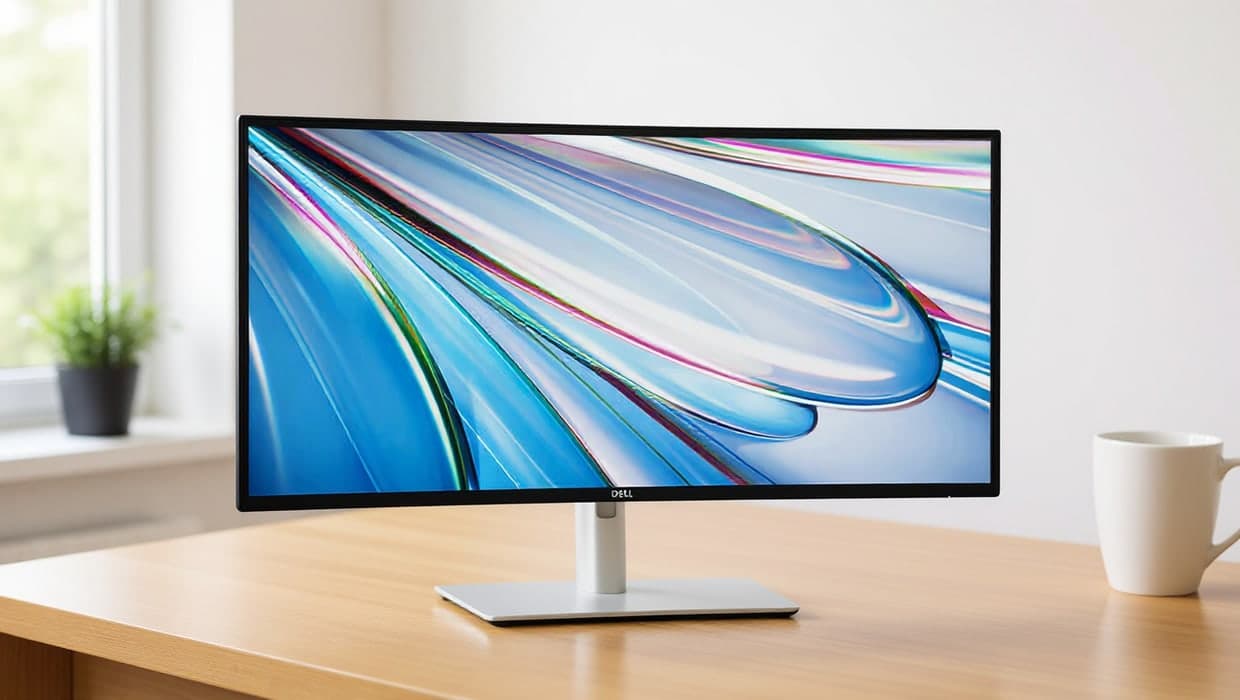
A monitor is one of the few upgrades that changes how every single day of work feels: more screen for spreadsheets and browser tabs, sharper text for long reading sessions, and less neck strain than hunching over a laptop. This guide covers the choices that actually matter, then points you to our specific picks for the setup you have in mind.
The short version
- Screen size: 27" suits most desks; go to 32" or an ultrawide only if you have the desk depth for it.
- Resolution: 1440p (QHD) is the sweet spot for a 27" monitor; 4K only pays off at 32" or larger, or for detail-heavy work like photo editing.
- Connectivity: if your laptop has USB-C or Thunderbolt, a monitor or dock that uses it can carry video, data and charging over one cable.
- Picks: see Best Ultrawide Monitors for Work, Best USB-C Monitors and Best Monitors for MacBook Pro for our specific recommendations.
Screen size: 24, 27 or 32 inches
At a normal desk viewing distance (roughly arm's length), screen size and resolution work together to decide how sharp and how spacious a monitor feels:
- 24-inch monitors suit shallow desks or a secondary screen next to a laptop. Text stays sharp at 1080p, but there's less room for side-by-side windows.
- 27-inch is the most common home-office size: enough space for two documents side by side at 1440p, without needing a desk deeper than about 60cm to sit at a comfortable distance.
- 32-inch gives noticeably more room, but needs either a deeper desk or a lower resolution accepted at close range; 4K at 32" keeps text sharp even sitting close.
If you're choosing between one large monitor and two smaller ones, an ultrawide (34" or wider, 21:9 aspect ratio) replaces a two-monitor setup with a single continuous screen — see our dual monitor setup guide for how that compares to running two separate displays.
Curved or flat
A curved screen keeps the far left and right edges of a wide monitor roughly the same distance from your eyes as the centre, which some people find more comfortable on an ultrawide or 32"+ screen over a long session. A flat screen keeps every line in a spreadsheet or document perfectly straight, with no curve to account for. Neither is objectively better: it comes down to personal preference, and is worth trying in person if you can before choosing an ultrawide.
Resolution: 1080p, 1440p or 4K
- 1080p (1920×1080) is fine for a 24" secondary screen, but looks soft on anything larger at a normal viewing distance.
- 1440p (2560×1440, "QHD") is the sweet spot for 27": sharp text, and less demanding on your laptop's graphics than 4K.
- 4K (3840×2160) pays off on 32" and larger screens, or for detail-heavy work like photo or video editing. Windows and macOS both scale 4K well, so text isn't too small, but graphics-heavy tasks in some older laptops may struggle to drive it smoothly.
USB-C and connectivity
If your laptop has a USB-C or Thunderbolt port, a monitor that supports the same standard can carry video, data (for a webcam or keyboard plugged into the monitor) and charging over a single cable — see Best USB-C Monitors for real picks. If your monitor doesn't offer this, or you need more ports than the monitor itself provides, a separate docking station handles the rest: see our guide to docking stations.
Beyond USB-C, check what video inputs a monitor actually has before buying: HDMI is the most universal, DisplayPort is common on Windows laptops and generally supports higher refresh rates and resolutions, and older laptops may only offer one or the other. If you already own cables or a dock, matching the monitor's inputs to what you have avoids an extra adapter purchase.
Panel type: IPS, VA and TN
Most home-office monitors use one of three panel technologies:
- IPS panels are the most common choice for office use: accurate colour and wide viewing angles, meaning the image doesn't wash out when viewed slightly off to the side. The trade-off is usually a lower contrast ratio than VA panels.
- VA panels typically offer higher contrast (deeper blacks), which can suit dim rooms, at the cost of colour shifting slightly when viewed from an angle.
- TN panels are the least common in current monitors aimed at office work; they're cheaper but have the narrowest viewing angles and weakest colour accuracy of the three.
For general office work, either IPS or VA is a safe choice; IPS is the more common recommendation when colour accuracy matters (design or photo work), VA when you mainly want strong contrast in a dim room.
Matte or glossy screens
A matte (anti-glare) finish scatters reflections, which matters if your desk faces a window or bright light — most office-oriented monitors use a matte finish for exactly this reason. Glossy screens can look more vivid in a controlled-lighting room, but show reflections clearly in bright or mixed lighting, which is why they're less common for general office monitors.
Refresh rate for office work
Refresh rate (measured in Hz) matters far more for gaming than for office work: 60Hz, the standard rate, is completely sufficient for documents, spreadsheets, email and video calls. A higher refresh rate makes scrolling and cursor movement look smoother, which some people notice and appreciate even outside gaming, but it isn't something to pay extra for unless you specifically want it.
Buying for a specific setup
- Ultrawide, single-screen setup: Best Ultrawide Monitors for Work
- USB-C laptop, want one cable: Best USB-C Monitors
- MacBook Pro specifically: Best Monitors for MacBook Pro
- Two monitors instead of one wide screen: Dual Monitor Setup: How to Set Up Two Monitors for Work
- Want your monitor higher, or need desk space: Best Dual Monitor Stands and Arms
Frequently asked questions
Is a bigger monitor always better for a home office?
Not necessarily. A monitor larger than your desk depth comfortably allows means sitting further back or turning your head more to see the edges. Match the size to your actual desk and viewing distance, not just the biggest one available.
Do I need a graphics card upgrade for a 4K monitor?
For everyday office work, no — any laptop or desktop from the last several years can drive a 4K display at a normal refresh rate. A dedicated graphics card matters more for gaming or heavy video editing than for documents and browsing.
One ultrawide monitor or two separate monitors?
Both give you extra screen space; the difference is whether you want one continuous canvas (ultrawide) or two distinct windows with a visible gap between them (dual monitors). See our dual monitor setup guide for a fuller comparison.