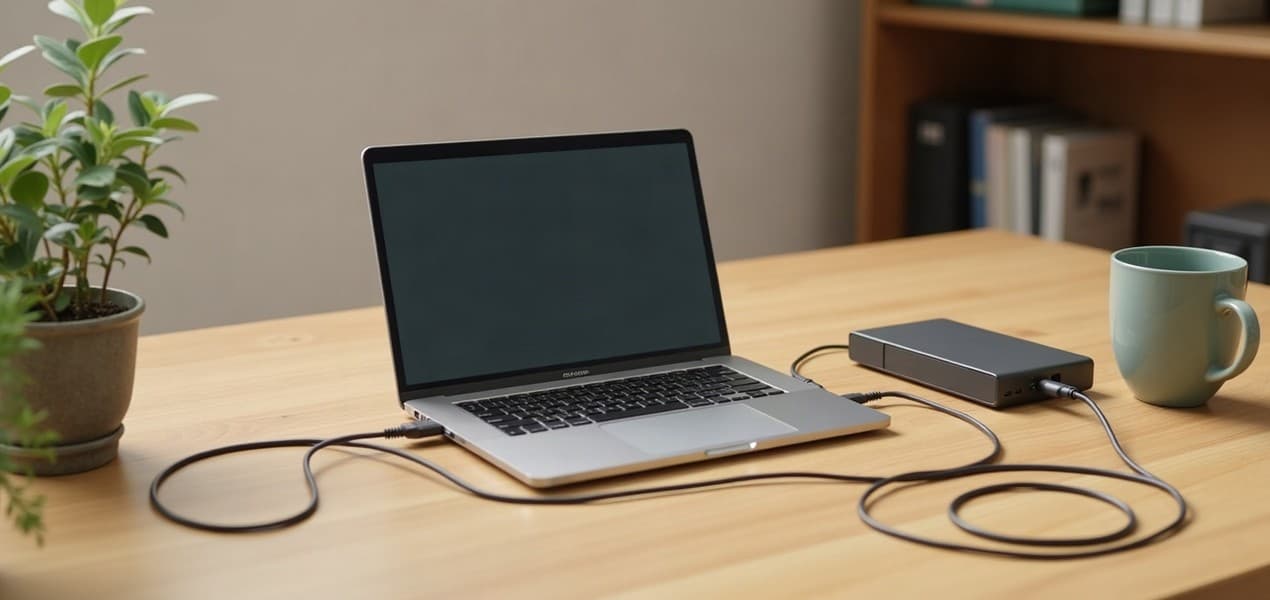
Most people should back up a work computer in three layers: an external drive at the desk running File History (Windows) or Time Machine (Mac), a cloud backup service such as Backblaze or IDrive for the copy that lives somewhere else, and a restore test to prove both work. That is the 3-2-1 rule: three copies of every important file, on two different kinds of storage, with one copy offsite. It comes from US-CERT's Data Backup Options paper, published by Carnegie Mellon University for US-CERT and hosted by CISA (the US Cybersecurity and Infrastructure Security Agency).
Our picks at a glance
- View at Adorama
Backup drive for most Windows PCs and Macs
- View at Newegg
Backup drive for big computers
The picks in detail
- Top pick
Backup drive for most Windows PCs and Macs
Samsung Portable SSD T7 Shield 2TB (MU-PE2T0S/AM)
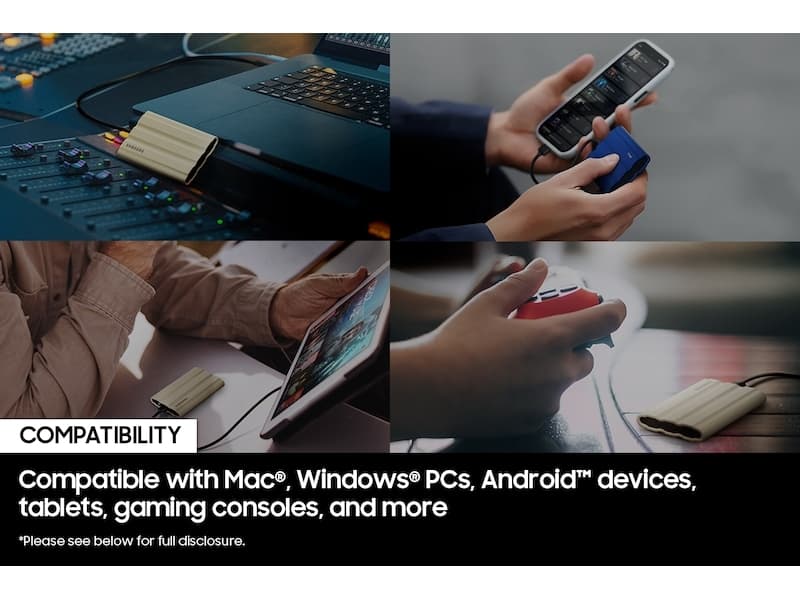
Samsung’s T7 Shield is the drive most people should use for the copy at their desk.
View at AdoramaIt runs at USB 3.2 Gen 2 (10Gbps), is rated IP65, and has AES 256-bit hardware encryption with Samsung’s Portable SSD Software, which matches the CISA advice to password-protect and encrypt removable media. Both a USB-C to C and a USB-C to A cable come in the box, so it plugs into a new laptop or an older desktop. It weighs 98g and comes in 1TB, 2TB and 4TB. Skip it if your computer holds more than 2TB: you want a backup drive at least twice that size, and the T7 Shield stops at 4TB.
What we like
- AES 256-bit hardware encryption
- USB-C to C and USB-C to A cables included
- IP65 rated; 98g
Watch out for
- 3-year limited warranty, shorter than the SanDisk’s five
- Tops out at 4TB
- Backup drive for big computers
SanDisk Extreme Portable SSD 2TB (SDSSDE61-2T00-G25)
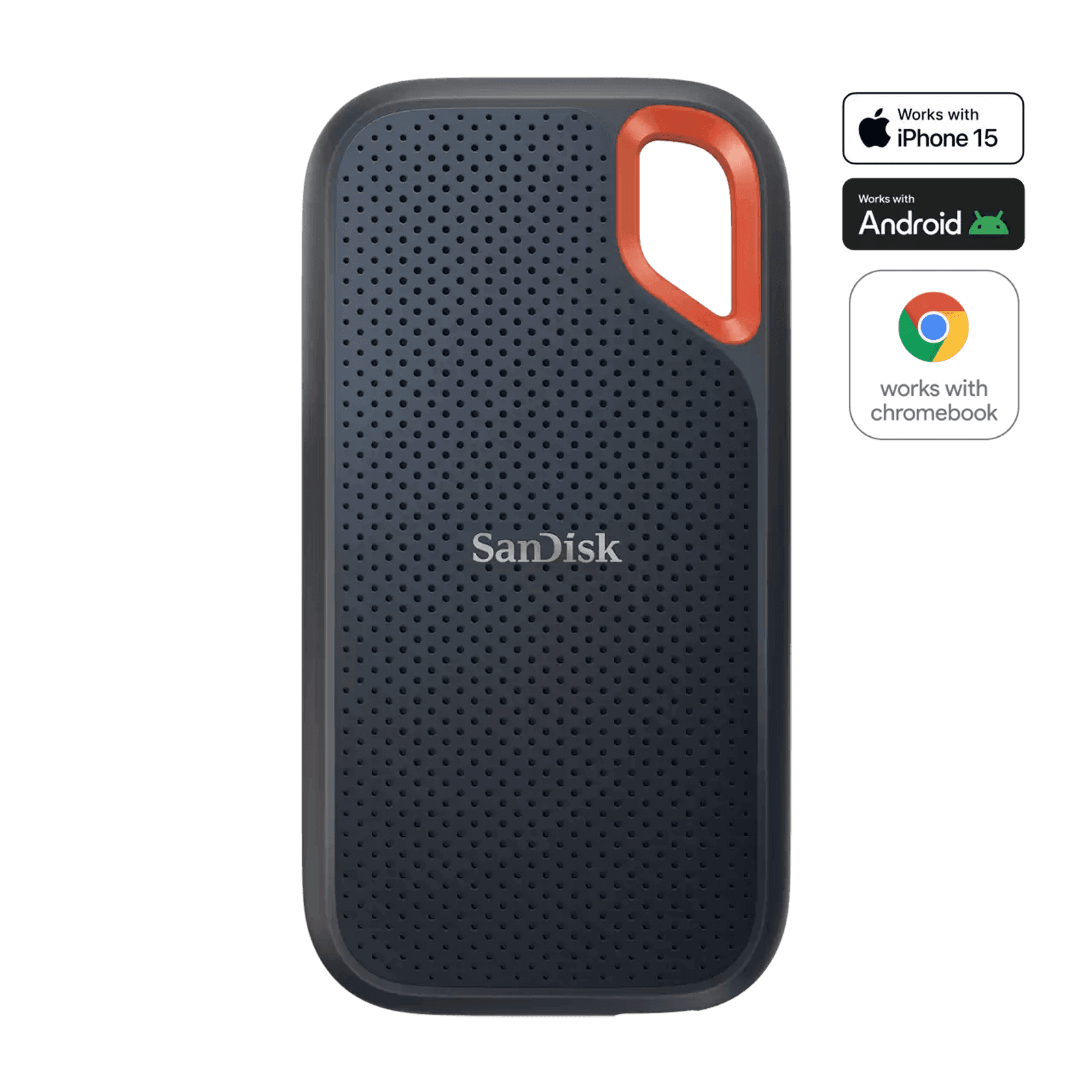
The SanDisk Extreme Portable SSD is the pick when your computer has more storage than a 4TB drive can back up twice over: it comes in sizes up to 8TB.
View at NeweggIt connects over USB-C (USB 3.2 Gen 2), comes with a USB-C cable and a USB-A adapter, has password protection with 256-bit AES hardware encryption, works with Windows 10+ and macOS 11+, and has a 5-year limited warranty. In 2023, though, owners widely reported Extreme Portable SSDs, mostly 4TB units, losing their data, and Western Digital, SanDisk’s owner at the time, released a firmware update on May 31, 2023. For a drive whose whole job is keeping a copy, that matters: run SanDisk’s updater before the first backup, or buy the T7 Shield if you don’t need more than 4TB.
What we like
- Sizes from 500GB to 8TB
- Password protection with 256-bit AES hardware encryption
- 5-year limited warranty
Watch out for
- Widely reported data loss in 2023 (mostly 4TB units), fixed by a firmware update: update it before first use
- A portable drive is easy to take with you, so give it a fixed place on the desk
This is our complete guide to backing up a home-office computer, on Windows and Mac. For the hardware, our best external SSDs guide compares four backup drives, our best NAS for a home office covers network storage for several computers, and NAS vs external drive vs cloud names the cloud backup services and which situation each suits.
A backup lowers the risk of losing your files. It cannot remove that risk, and nothing here is a guarantee. If your computer belongs to your employer, read the section on work computers below before you copy anything anywhere.
The short version
- The rule: 3 copies of each important file (1 working copy and 2 backups), on 2 different kinds of storage, with 1 copy offsite.
- Copy 2, at your desk: an external drive. On Windows, use File History. On a Mac, use Time Machine.
- Copy 3, away from your desk: a cloud backup service, or a second drive kept in another building. OneDrive and iCloud Drive are sync services, not backups; they help, but they are the weaker choice for this copy.
- Work computer? Check your employer's rules first. Windows Backup does not work with work or school Microsoft accounts.
- Finish with a test: restore one file from each backup. A backup you have never restored from is a guess.
The 3-2-1 backup rule, in plain English
The 3-2-1 backup rule says to keep 3 copies of any important file (1 primary and 2 backups), on 2 different media types, with 1 copy stored offsite. The US-CERT paper gives "outside your home or business facility" as an example of offsite, and credits the rule to Peter Krogh's The DAM Book: Digital Asset Management for Photographers.
Here is what each number means in a home office:
Number | What it means | Example |
|---|---|---|
3 copies | The file on your computer, plus two more | Your Documents folder, a backup on a drive, a backup in the cloud |
2 media types | Different kinds of storage, so one hazard doesn't reach every copy | The computer's internal drive, an external drive, and an online service |
1 offsite | One copy stored away from the building | A cloud backup service, or a drive kept at another location |
The paper also explains why a backup on the same drive as the originals is weak: if that internal drive is damaged, stolen or corrupted, you lose the primary and the backup together. A second folder on the same disk is not a second copy in any useful sense.
Is it your computer or your employer's?
Before you set anything up, work out who owns the files and who is responsible for them. Two things follow from that.
Your employer may already have rules. They may have their own backup arrangements, or limits on where work files can be stored. Ask your IT team before you copy work files to a personal drive or a personal cloud account. Only your employer can tell you what it allows.
Some consumer tools won't work on a work account. Microsoft's Windows Backup app is built for consumer devices signed in with a personal Microsoft account; work or school accounts won't work, and the "Remember my apps" setting isn't available for them. If you sign in to Windows with a work account, use File History and your employer's own tools instead.
If the computer is yours and you work for yourself, the whole plan below applies as written.
What to back up
Start with the files you could not easily recreate: documents, spreadsheets, project folders, photos, and any exports from apps that keep their own data. Then check what each tool covers by default, because they differ:
- Windows Backup can send your Desktop, Documents, Pictures, Videos and Music folders to OneDrive, and optionally settings such as installed apps, accessibility, accounts, Wi-Fi networks and passwords, personalization and language preferences.
- File History automatically backs up your libraries, including Documents, Pictures, Videos and Music, plus any custom libraries and the Desktop folder. Folders that live elsewhere can be added to a library.
- Time Machine backs up your files, including apps, music, photos, email and documents.
If you keep work files somewhere unusual, such as a folder at the top of a drive, check that the tool actually covers it. The simplest test is the last step of this guide: restore a file from that folder.
A 3-2-1 plan for a home office
This is one way to apply the rule, using tools Microsoft and Apple describe on their own support pages for the local copy.
Copy | Where it lives | Windows | Mac |
|---|---|---|---|
| Your computer's internal drive | Your normal folders | Your normal folders |
| An external drive at your desk | File History | Time Machine |
| A cloud backup service, or a drive kept elsewhere | Backblaze or IDrive, or a second drive stored away | Backblaze or IDrive, or a second Time Machine disk stored away |
The order matters. Set up the drive at your desk first, because it is the quickest to restore from. Add the offsite copy second, because it protects against the events that take out your whole desk: a fire, a flood, a burglary.
Step 1: Choose a backup drive
A backup drive is an external drive that plugs into your computer's USB or Thunderbolt port and holds a copy of your files. Three choices matter: how much space, what type, and whether it is encrypted.
Space. Apple advises a backup disk with at least twice the storage capacity of your Mac, so a 1TB Mac ideally gets a 2TB disk. Microsoft gives no figure for File History, but the same logic holds on a PC, because File History keeps earlier versions of your files and those add up. Apple also says to use a Time Machine disk only for Time Machine, not for other files.
Type. For a drive that never leaves your desk, a portable hard drive is fine: it is bulkier and more prone to damage than an SSD, but neither matters much on a desk. Pick an SSD if the drive travels, or if you want it small and quick. Solid-state drives have no moving parts, which the CISA paper notes lets them be small, resist shock and access data quickly. Our external SSD guide compares four by port, speed, ruggedness and encryption.
Encryption. If the drive will hold client or personal files, choose one with password protection or hardware encryption. CISA's advice for removable media includes password-protecting them and encrypting their data when possible.
Our two picks for the drive at your desk are below the guide.
Step 2: Back up a Windows PC to an external hard drive with File History
File History is a Windows feature that saves copies of your files to an external drive or a network location, so you can restore earlier versions. Microsoft's instructions apply to Windows 11 and Windows 10:
- Connect an external drive to your PC, or make sure a network location is set up for your backups.
- Open the Control Panel. Under System and Security, select Save backup copies of your files with File History.
- Select Turn on.
- If no drive is selected, choose Select drive, pick your external drive or network location, and select OK. If prompted, you can move existing files to the new drive or start fresh.
- To include a folder that isn't in a library, find it in File Explorer, right-click it, select Show more options, then Include in library.
Once it is on, File History backs up to that drive on a schedule, with nothing to copy by hand. Windows 10 support ended on 14 October 2025, and Microsoft recommends moving to Windows 11.
Step 3: Back up a Mac with Time Machine
Time Machine is the Mac's built-in backup. With a USB drive or other external storage, it backs up your files automatically and lets you recover older versions, deleted files, or files you can no longer open. These are Apple's steps for macOS Ventura 13 or later; older versions have their own steps on Apple's site.
- Connect the external storage device to your Mac.
- From the Apple menu, choose System Settings. Click General in the sidebar, then click Time Machine.
- Click Add Backup Disk (or the + button), select your device, and click Set Up Disk.
- Your Mac might ask whether to erase the device so it can be used for Time Machine. Use a new or empty drive, or copy off anything you need first.
- If you turn on Encrypt Backup, you are asked to create a backup password. You need it to restore files, so store it somewhere other than the Mac.
- After setup, your Mac starts backing up immediately. To back up now, choose Back Up Now from the Time Machine menu in the menu bar.
Time Machine keeps hourly backups for the past 24 hours, daily backups for the past month, and weekly backups for all previous months, and deletes the oldest when the disk is full. The first backup takes a while, but you can keep working while it runs, and later backups only copy what changed. Eject the disk, or shut down the Mac, before you unplug it.
Still choosing a Mac? Our MacBook Air vs MacBook Pro comparison may help, and the size of its internal storage sets how big your Time Machine disk should be.
Step 4: Add the offsite copy
An offsite copy is a backup stored somewhere other than your home or office, so a fire, a flood or a theft at your desk doesn't take every copy with it. The CISA paper puts it plainly: remote backup can protect your data against natural disasters and failures of local devices, but it depends on your internet connection, and you may become locked into one provider. You have two ways to do it.
Option A: a cloud backup service (best for most people)
A backup service runs on your computer, copies your files to the provider on a schedule, and keeps earlier versions, so you can go back to last week's file after a deletion, a bad edit or ransomware. Two services cover most home offices:
- Backblaze Computer Backup backs up the user data on one Mac or PC and the external drives plugged into it. It keeps 30 days of versions by default, with one year or forever as options. It doesn't back up a NAS or network drives.
- IDrive backs up several PCs, Macs and phones into one account, keeps up to 30 previous versions of each file, and can back up a Synology or QNAP NAS as an add-on.
Both sell business plans for small teams. Our NAS vs external drive vs cloud guide compares them with the other services, and the providers' own pages are linked under Sources. Read the service agreement, including how it handles encryption and restores, before you trust a provider with work files.
Why OneDrive and iCloud are the weaker choice
Windows Backup sends your Desktop, Documents, Pictures, Videos and Music folders to OneDrive. To turn it on, sign in with a personal Microsoft account, search for Backup in the Start menu, open Windows Backup, expand Folders, switch on the folders you want, and select Back up. A free Microsoft account includes 5 GB of OneDrive storage, with more available to buy. If you get a backup error, being signed out of OneDrive or running out of space are among the causes Microsoft lists.
iCloud Drive can hold a Mac's Desktop and Documents folders, using your iCloud storage plan.
Both are sync: they keep the same files current everywhere, so a deletion, a damaged file or an encrypted one syncs too. What gets you an older copy back is the safety net, and it is short. OneDrive keeps 30 days of file versions (Microsoft 365 subscribers can also restore the whole OneDrive to a point in the last 30 days), and iCloud.com lets you recover deleted files for 30 days. If you notice a problem in month two, sync won't save you. Use OneDrive or iCloud for sharing and working across devices, and if one is all you have, know those 30-day limits. For the offsite copy, a backup service is safer.
Option B: a second drive kept elsewhere
A second external drive that lives in another building also counts as offsite. Time Machine can rotate between several backup disks, backing up everything that changed since each disk was last used, and Apple suggests keeping disks in both places if you work in two locations. Swap the drives on a schedule you will actually keep: a drive in a drawer is only as current as the last time you plugged it in.
Step 5: Protect the backup itself
Your backup holds everything your computer does, so treat the drive as carefully as the computer. CISA's advice for removable media is to:
- password-protect the device, and encrypt its data when possible;
- connect it only to systems that follow recommended network security practice, such as a firewall and antivirus;
- remove it from the computer when the backup is complete;
- secure it physically.
Physically separating backups from your computer also protects them from online attackers and power surges. Portable drives are easy to lose or have stolen, which is why encryption comes first on that list.
There is a trade-off. File History and Time Machine work best when the drive stays connected, and Time Machine picks up its schedule again when you reconnect a disk. One approach is to leave the desk drive plugged in and let the offsite copy, or a second drive that stays unplugged, provide the "disconnected" protection. Decide what suits you, and write it down.
Step 6: Test a restore
A restore test is the step most guides skip. Pick one file from a folder you care about and get it back from each backup. It takes a few minutes and tells you whether the backup works.
Windows, File History. Open File Explorer and go to the folder that used to contain the file. Right-click the folder name and select Restore previous versions. The Previous Versions tab lists the available versions. Select one, then either select Open in File History to preview it, or Restore. Restoring replaces the current version on your computer and can't be undone, so expand Restore and choose Restore to... to save it somewhere else.
Mac, Time Machine. Apple has a separate page on restoring specific files with Time Machine. To restore everything to the same Mac or a different one, use Migration Assistant: connect and turn on the backup disk, open Migration Assistant, choose to transfer from a Mac, Time Machine or startup disk, select your backup disk and a backup, and choose which categories of files to transfer. If you need to reinstall macOS, do that first. Large transfers can take hours.
Cloud copy. Sign in to your backup service from a browser or another device and restore one file, ideally an older version of it. That checks the file is there, that versions are kept, and that you can sign in when you need to.
Put a reminder in your calendar to repeat the test. How often is up to you; the point is that you do it before you need it.
Which setup fits you
Your situation | A sensible plan |
|---|---|
Self-employed on a Windows PC | File History to an external drive, plus Backblaze or IDrive for the offsite copy |
Self-employed on a Mac | Time Machine to an external disk, plus Backblaze or IDrive, or a second Time Machine disk stored elsewhere |
Several computers, or a family sharing photos | A NAS as the shared local copy, plus a cloud copy of the NAS. See our best NAS for a home office |
Employee, working on your own computer | Ask IT what is allowed, then apply the plan to the files you are permitted to keep |
Employee, working on a company laptop | Follow your employer's backup process. Don't move work files to personal storage without approval |
Travel with a laptop | Keep the desk drive at home and let the cloud service cover trips. A rugged SSD from our external SSD guide suits a drive that travels |
Replacing your computer soon | Complete a backup and a restore test before the old machine is wiped. Our guide to laptops for working from home covers the new one |
Common mistakes
- Backing up to the same drive as the originals. A second folder on the same internal disk is not a second copy.
- Having one backup and calling it 3-2-1. The rule needs the working copy plus two backups, one of them offsite.
- Counting a NAS or RAID as the offsite copy. A NAS in your home is in the same building as your computer, and RAID mainly guards against a failed drive.
- Never testing a restore. Try it now, while nothing depends on it.
- Forgetting the Time Machine password. If you turned on Encrypt Backup, you need it to restore.
- Sharing one backup disk between Time Machine and other files. Apple says to keep a Time Machine disk for Time Machine only.
- Treating a sync folder as the backup. A deletion or a damaged file in a synced folder syncs everywhere, and the safety net is usually 30 days.
- Ignoring the employer's rules. For a work computer, that is the first question, not the last.
Our drive picks
We chose two portable SSDs for the drive at your desk because they are small, list hardware encryption, and come with the cables most computers need. Both are from our best external SSDs guide, where you can see how they compare with two faster drives. The T7 Shield is the one most people should buy; the SanDisk Extreme is there for computers that need more than 4TB, with the firmware caveat on its card. A portable hard drive works too, for a backup that never leaves the desk.
How we put this guide together
We have not tested these drives, services or backup tools, and we did not run these backups ourselves for this guide. We started from the US-CERT paper for the 3-2-1 rule, then wrote only the steps that Microsoft's and Apple's current support pages describe, and took the backup services' features and retention periods from the providers' own pages. If a menu on your version of Windows or macOS differs, follow the vendor's page linked under Sources. We link to US retailers that sell the exact drive models; we don't show or compare prices.
Questions people ask
What is the 3-2-1 backup rule?
Keep 3 copies of any important file (1 primary and 2 backups), on 2 different media types, with 1 copy stored offsite, for example outside your home or business. It is described in the US-CERT paper Data Backup Options, hosted by CISA.
How do I back up my computer to an external hard drive?
On Windows, connect the drive and turn on File History in the Control Panel under System and Security. On a Mac, connect the drive, then go to System Settings, General, Time Machine, and add it as a backup disk. Both tools then back up automatically.
How big should my backup drive be?
At least twice your computer’s storage. Apple advises that for Time Machine, so a 1TB Mac ideally gets a 2TB disk, and the same logic holds for File History, which also keeps older versions of your files.
Can I use Windows Backup on a work computer?
Not with a work or school Microsoft account: Windows Backup is built for personal Microsoft accounts. Use File History and ask your IT team what your employer requires.
Is OneDrive or iCloud enough as a backup?
Not on their own. Both are sync services: a deletion or a damaged file syncs too, and you get about 30 days to recover older versions or deleted files. For the offsite copy, a backup service such as Backblaze or IDrive is safer, alongside a drive at your desk.
How do I know my backup works?
Restore a file from it. On Windows, right-click a folder in File Explorer and choose Restore previous versions. On a Mac, use Time Machine for specific files or Migration Assistant for a full restore. Restoring to a different location avoids overwriting the current version.
Sources we used
- US-CERT (via CISA): Data Backup Options, the 3-2-1 rule and backup media
- Microsoft Support: Back up and restore with Windows Backup
- Microsoft Support: Backup and restore with File History
- Microsoft Support: Restore a previous version of a file stored in OneDrive
- Microsoft Support: Restore your OneDrive
- Apple Support: Back up your Mac with Time Machine
- Apple Support: Restore your Mac from a backup
- Apple Support: How to back up your Mac
- Apple Support: Use Time Machine to back up to multiple disks
- Apple Support: Recover deleted files on iCloud.com
- Backblaze: Computer Backup for personal use
- Backblaze Computer Backup docs: Supported backup data (exclusions and version history)
- IDrive: online backup features (versions, Trash, NAS)
- Samsung Portable SSD T7 Shield 2TB (MU-PE2T0S/AM) specifications
- Samsung Portable SSD T7 Shield user manual (box contents)
- SanDisk Extreme Portable SSD (SDSSDE61-2T00-G25) specifications
- SanDisk notice: Extreme Portable SSD V2, Extreme Pro Portable SSD V2 and WD My Passport SSD firmware update (May 31, 2023)
- Engadget: Western Digital promises to release firmware update for failing SanDisk Extreme SSDs (May 20, 2023)