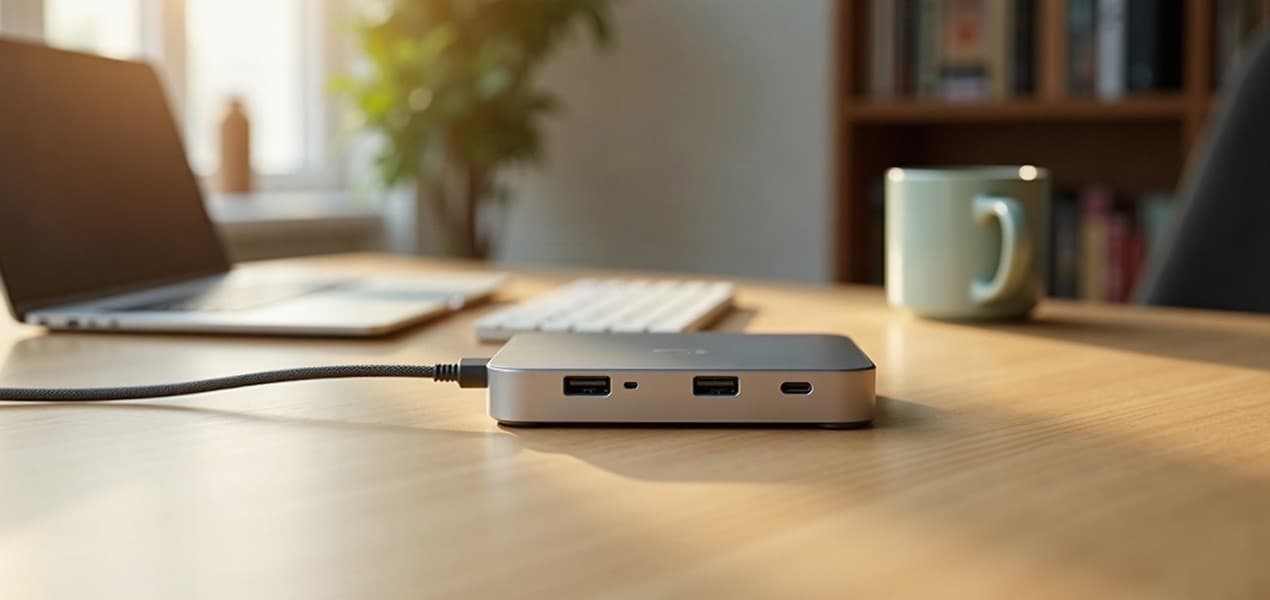
Most people should buy a Thunderbolt 4 dock. It drives two 4K monitors, charges the laptop over the same cable, and still works, with fewer features, on laptops that only have USB-C. Our top pick is the Plugable TBT4-UDZ, covered in our guide to the best dual monitor docking stations for laptops. A plain USB-C dock suits a Windows laptop without Thunderbolt. Don't buy one for two screens on a Mac: most use DisplayPort MST, which macOS doesn't support, so both screens show the same picture.
A docking station is a desk-side box that connects to your laptop with one cable and gives it monitors, keyboard and mouse, wired Ethernet, storage and charging. The catch is that "USB-C" describes the plug, not what the port can do. Whether a dock can drive two monitors, charge your laptop or run at full speed depends on your laptop's port (USB-C, USB4 or Thunderbolt), the dock and the cable between them. This guide explains each of those, and how to check your own laptop before you buy.
The short version
- A dock is a hub with its own power and more video outputs. It plugs into the wall, powers your peripherals and can charge the laptop. A hub only adds ports and usually draws power from the laptop.
- USB-C is a connector, not a speed. Two USB-C ports on the same laptop can support different things. Look for the Thunderbolt symbol or check the spec sheet.
- Thunderbolt 4 is the safe choice for most desks. Certification requires at least 40 Gbps and two 4K monitors, and it works with USB4 and USB 3 devices.
- Thunderbolt 5 is for the most demanding setups. It doubles the minimum to 80 Gbps and requires dual 6K display support, but you need a Thunderbolt 5 laptop and dock to use it.
- A plain USB-C dock is fine for a Windows laptop with only USB-C. It works with Thunderbolt laptops too, at the speed and features both sides share. On a Mac, most only mirror two screens.
- Your laptop sets the limits. A dock cannot add more screens than the laptop supports. On a Mac, a hub or dock does not raise the maximum number of displays.
What is a docking station?
A docking station turns a laptop's one or two ports into a full desk connection. You plug the dock into power and into your laptop, then plug your monitors, keyboard, mouse, Ethernet cable and other gear into the dock. When you sit down, you connect one cable; when you leave, you unplug it.
Most docks have at least one video output, and many add Gigabit Ethernet, audio and an SD card reader. Docks connect over Thunderbolt 4, Thunderbolt 3, USB-C or USB-A. This guide covers the USB-C and Thunderbolt kinds, because that is what nearly every current laptop uses.
What a dock does for a home office
- One cable, less clutter. Video, data and charging can share the same cable, so your desk has one lead going to the laptop.
- More ports than a thin laptop has. Many thin laptops have only a couple of ports. A dock adds USB-A and USB-C ports, HDMI or DisplayPort outputs and often an Ethernet port.
- Bigger screens. Docks are usually how a laptop drives one or two external monitors. See our dual monitor setup guide for the monitor side.
- Wired internet. If your laptop has no Ethernet port, a dock with one gives you a cabled connection. Our Wi-Fi 7 vs Wi-Fi 6 guide explains when a cable beats a wireless upgrade.
Docking station vs USB-C hub: what is the difference?
A hub adds ports. A dock also adds power and, usually, more video.
| USB-C hub | Docking station |
|---|---|---|
Main job | Adds ports (USB-A, HDMI, card reader) | Turns the laptop into a desktop setup |
Power | Typically pulls power from the laptop | Has its own power supply and can power the laptop and accessories |
Video | Often one screen | Video output is standard, often for one or more monitors |
Size | Small, easy to carry | Bigger, meant to stay on the desk |
Best for | Travel, occasional extra ports | A permanent desk with monitors and a charging laptop |
Some hubs accept a charger and pass power through to the laptop, and some docks are compact. So the labels overlap in shops. What matters is what the product does: check for its own power input, the number and type of video outputs, and how much power it sends to the laptop.
If you only need a couple of extra ports on the go, a hub is enough. If you want a permanent desk with monitors and a charged laptop, a dock is the better fit.
USB-C is a connector, not a speed
USB-C is the small, reversible plug. The USB Implementers Forum (USB-IF), which owns the standard, describes it as a slim connector with "scalable power and performance". The word "scalable" is the important one. The plug does not decide what the port can do.
Behind the same plug, a laptop's port can support very different things:
- Data speed. The port might run at a basic USB speed, or at USB4 or Thunderbolt speeds.
- Video. Not every USB-C port can send video to a monitor. Video needs the port to support DisplayPort Alt Mode or a USB4 or Thunderbolt connection.
- Charging. A port may or may not accept a laptop charger.
So a laptop with USB-C ports does not automatically work with every dock. Thunderbolt uses the same connector, but its certification sets higher minimum performance for cables, PCs and accessories. Apple's port guide for Macs groups its computers the same way, by what their ports are: Thunderbolt 5, Thunderbolt 4, Thunderbolt / USB 4, Thunderbolt 3, or plain USB-C.
How video, data and power share one cable
Three separate standards are involved when a dock works over a single cable:
- Video. DisplayPort Alternate Mode, published by VESA with the USB group, lets a USB-C cable carry full DisplayPort video, USB data and power at once. It can use just some of the cable's high-speed lanes for video, so the rest carry USB data at the same time. Docks use it, and a dock can convert the signal to drive HDMI, VGA or DVI monitors.
- Data. USB 3.2, USB4 or Thunderbolt carries data to your storage, webcam, keyboard and network port.
- Power. USB Power Delivery (USB PD) sends charging power to the laptop. The current revision allows up to 240W over a full-featured USB-C cable, up from a previous limit of 100W. Power can also flow either way: a monitor with its own wall supply can charge a laptop while it displays.
Your laptop's charger wattage is the number to match. A dock that sends less power than your laptop wants may charge it slowly or not keep up under load, so check the dock's power delivery figure against your laptop's charger before you buy.
USB4, Thunderbolt 4 and Thunderbolt 5 explained
USB4 and Thunderbolt are closely related, and both use the USB-C connector. USB4 is based on the Thunderbolt protocol specification that Intel contributed to USB-IF, which is why they work together. Our Thunderbolt 5 vs Thunderbolt 4 vs USB4 comparison goes deeper.
USB4 is the USB-IF standard. It doubles the maximum aggregate bandwidth of USB and can share one link between data and display. It offers up to 80 Gbps, but only over 80 Gbps certified cables, and it is backward compatible with earlier USB and with Thunderbolt 3.
Thunderbolt is Intel's certified version. Thunderbolt products are designed to work with USB 3 and USB4 products, and certification is mandatory for shipping computers, accessories and cables. That certification is why a Thunderbolt port is more predictable than a plain USB-C port.
Thunderbolt 4 sets a floor: at least 40 Gbps of bandwidth, support for dual monitors at up to 4K, and PC charging of up to 100W. Every Intel Evo and Intel vPro laptop has at least one Thunderbolt 4 port. It also requires the PC to wake from sleep when connected to a Thunderbolt dock.
Thunderbolt 5 doubles the minimum to 80 Gbps. A Bandwidth Boost mode raises one direction to 120 Gbps (with 40 Gbps the other way) when it detects heavy video traffic, and it allows charging up to 240W. Intel's technical brief sets the required display support at dual 6K; its marketing page goes further and promises dual 8K, with display stream compression. On a PC it needs Windows 11 version 23H2 or later, or Linux kernel 6.7 or later.
How they compare
| USB4 | Thunderbolt 4 | Thunderbolt 5 |
|---|---|---|---|
Connector | USB-C | USB-C | USB-C |
Minimum PC speed (Intel's table) | 20 Gbps | 40 Gbps | 80 Gbps, up to 120 Gbps with Bandwidth Boost |
Top speed (USB-IF / Intel) | Up to 80 Gbps over 80 Gbps certified cables | 40 Gbps | Up to 120 Gbps |
Monitors (Intel) | Not specified in Intel's table | Dual monitors at up to 4K, at minimum | Dual 6K required; Intel markets dual 8K with display stream compression |
Charging (Intel) | Not specified in Intel's table | PC charging up to 100W | Up to 240W |
Certification | Compliance with the USB4 specification | Mandatory Thunderbolt certification for computers, accessories and cables | Mandatory Thunderbolt certification for computers, accessories and cables |
Minimum power for accessories from a PC port | 7.5W | 15W | 15W |
The minimum figures are what certification requires, not what every product delivers. Intel's own footnote says performance "varies by use, configuration, and other factors". Intel also markets Thunderbolt in its own favor, so read its table as the standard's floor, not an independent test.
Do I need Thunderbolt 5?
Probably not yet. Thunderbolt 5 matters if your laptop already has a Thunderbolt 5 port and you plan to run very high-resolution or high-refresh displays, or fast external storage. Apple lists Thunderbolt 5 on its 14-inch MacBook Pro with a Pro or Max chip and 16-inch MacBook Pro introduced in 2024 or later, among others. Other Macs have Thunderbolt 4 or older ports.
For a typical home office with one or two monitors, Thunderbolt 4 already meets the need, with dual 4K and 100W charging as its minimums. A Thunderbolt 5 laptop connected to a Thunderbolt 4 dock simply runs at Thunderbolt 4 speed, so Thunderbolt 5 only pays off when both ends support it. Our guide to the best Thunderbolt docks for MacBook and Windows laptops covers both generations.
How many monitors can a dock drive?
A dock can only use what your laptop offers. Three limits apply, and the lowest one wins:
- The laptop's own limit. Every laptop has a maximum number of external displays it supports, set by its processor and graphics.
- The dock's video outputs. A dock with two video ports drives two screens at most.
- The link's bandwidth. More screens or higher resolutions and refresh rates need more bandwidth.
Apple documents the first limit clearly. A MacBook Air with an M4 or M5 chip supports up to two external displays. A MacBook Pro supports up to two with an M4, M4 Pro or M5 chip, up to three with an M5 Pro chip and up to four with an M5 Max chip. Base M1 and M2 Macs support one, and a base M3 MacBook Air supports two only with its lid closed. Apple adds that a supported hub or daisy-chaining "does not increase the maximum number of displays that you can connect". The dock can put both screens on one port, which frees the other port for charging, but it cannot add a third screen to a laptop that supports two. If you have an older Mac, check its exact model page before buying a dual-monitor dock.
For Windows laptops, the same rule applies, but the number differs by model. Look for "external displays" or "multiple displays" in the laptop maker's spec sheet. We have not verified figures for individual Windows laptops, so we do not list them here.
If your monitor has a USB-C port that supports video and charging, it can act as a simple one-cable dock on its own; see our best USB-C monitors for laptops.
Why some docks only mirror on a Mac
This is the most common reason a "dual monitor" dock disappoints a Mac owner. Many plain USB-C docks with two or three video outputs split one USB-C video signal between the screens using DisplayPort Multi-Stream Transport (MST). Windows supports MST fully. macOS does not support it for extended displays, so on a Mac every screen shows the same picture. The HP USB-C Dock G5 and the Lenovo USB-C Dual Display Travel Dock both work this way.
Thunderbolt docks avoid the problem: they send each screen its own signal in a way macOS understands, so a Mac that supports two displays gets two separate screens.
DisplayLink docks are the exception to the Mac's own limit. A DisplayLink dock has its own graphics chip and receives the picture as USB data through a driver, so its screens sit outside the Mac's native display count. That makes it the way to get two separate screens on a base M1 or M2 MacBook. The trade-offs are lower resolution, no copy-protected video such as Netflix, a driver to install and some extra processor load. Our dual monitor docking station guide lists which docks extend and which mirror on a Mac.
Do cables matter?
Yes. A dock is only as capable as the cable joining it to the laptop. USB4 reaches 80 Gbps only over 80 Gbps certified cables, so a random USB-C cable may not get there. Thunderbolt 5 universal cables support up to 120 Gbps at lengths up to 2 meters, and Thunderbolt cable makers face cable testing and quality audits.
A practical approach:
- Use the cable that came with the dock. It is the one the maker designed the dock around.
- Buy certified cables. Look for Thunderbolt or USB-IF certified markings when you replace one.
- Do not assume a charging cable carries video. Some USB-C cables are meant only for charging or slow data.
- Check the length. Universal Thunderbolt 5 cables are specified at up to 2 meters, which is plenty for most desks.
How to check what your laptop supports
Before buying, find out which kind of USB-C port you have. Try these in order:
- Look for the symbol. A Thunderbolt icon next to the USB-C port means Thunderbolt. On the 2021 and later iMac, the Thunderbolt symbol appears above each Thunderbolt / USB 4 port.
- Read the spec sheet. Search for your laptop's exact model on the maker's site and look for "Thunderbolt 4", "Thunderbolt 5", "USB4" or "DisplayPort" next to the ports.
- On a Mac, use Apple's guide. Apple's "Identify the ports on your Mac" page lists which Mac models have Thunderbolt 5, Thunderbolt 4, Thunderbolt / USB 4, Thunderbolt 3 and plain USB-C ports. Choose Apple menu, then About This Mac, and use your model name to look it up.
- On a Windows laptop, use the maker's spec sheet or Intel's tool. The Intel Driver and Support Assistant can also check a system for Thunderbolt ports.
- Check the charger. Note your laptop charger's wattage so you can compare it with the dock's power delivery figure.
Not sure which laptop to keep? Our guide to laptops for working from home covers the specs to look at, and our Best Monitors for MacBook Pro guide covers display choices for Apple laptops.
Which type of dock should you buy?
Match the dock to your laptop and your desk. This table is a starting point, not a substitute for your laptop's spec sheet:
Your situation | Dock type to look at | Why |
|---|---|---|
Laptop with Thunderbolt 4 ports, one or two monitors | Thunderbolt 4 dock | Meets Thunderbolt 4's minimums for dual 4K and 100W charging over one cable |
Laptop with Thunderbolt 5 and high-resolution or high-refresh screens | Thunderbolt 5 dock | Both ends need Thunderbolt 5 to use its 80 Gbps minimum and 120 Gbps boost |
Windows laptop with USB-C only (no Thunderbolt symbol) | USB-C dock that lists your laptop as compatible | A Thunderbolt dock works over USB-C, but it loses the Thunderbolt-only features |
Mac with an M4, M5, Pro or Max chip and two monitors | Thunderbolt dock | Plain USB-C docks that use MST only mirror on a Mac |
Base M1 or M2 Mac and two monitors | DisplayLink dock | The only way past the Mac's one-screen limit |
Laptop with USB4 ports | USB4, Thunderbolt or USB-C dock | Backward compatible; the connection runs at the best speed both sides share |
You only need a few extra ports | USB-C hub | Smaller, no separate power supply |
Monitor already has USB-C with charging | Possibly no dock | The monitor can act as a one-cable dock; you may only need a hub for extras |
Two more checks before you commit:
- Mixed laptops. If you share the dock between a Mac and a Windows laptop, check the dock's compatibility list for both.
- Power. Compare the dock's power delivery with your laptop's charger. If the dock sends less, plan to keep your own charger connected.
How we chose what to include
This guide is research-based. We have not tested these docks, and every figure comes from the source linked under Sources. We focused on the questions readers ask most: what a dock is, how it differs from a hub, what USB-C, USB4 and Thunderbolt mean, why some docks only mirror on a Mac, and what to check on your own laptop. Every figure comes from the standards bodies or from the companies that make the products:
- USB-IF for USB-C, USB4 and USB Power Delivery.
- VESA for DisplayPort over USB-C.
- Intel for Thunderbolt 4 and 5. Intel owns the Thunderbolt name, so we treat its marketing figures with care.
- Apple for which Mac ports and displays are supported.
- Plugable for how MST behaves on Windows and macOS.
- Kensington for how a dock maker describes docks and hubs.
This guide has no shop links; our buying guides, which carry affiliate links, explain how we pick products.
Questions people ask
What is a docking station for a laptop?
A docking station is a box that plugs into power and into your laptop, then gives you ports for monitors, a keyboard, a mouse, Ethernet and storage. Many modern docks connect over a single USB-C or Thunderbolt cable and can also charge the laptop.
What is the difference between a docking station and a USB-C hub?
A hub adds ports and usually draws power from the laptop. A dock plugs into the wall, can power the laptop and accessories, and usually has more video outputs.
Is a Thunderbolt dock the same as a USB-C dock?
No. Both use the USB-C connector, but Thunderbolt certification requires higher minimum performance. A Thunderbolt 4 dock needs a Thunderbolt laptop for its full speed. A plain USB-C dock also works with Thunderbolt laptops, at the speed both sides share.
Why does my USB-C dock only mirror two monitors on my Mac?
Most plain USB-C dual monitor docks use DisplayPort MST, which macOS does not support for extended displays, so both screens show the same picture. A Thunderbolt dock gives two separate screens on a Mac that supports two displays, and a DisplayLink dock adds them on a base M1 or M2 Mac.
Can a docking station add more monitors than my laptop supports?
A Thunderbolt or USB-C dock cannot. Your laptop sets the maximum number of external displays, and Apple states that a hub or daisy-chaining does not raise it on a Mac. The exception is a DisplayLink dock, which uses a driver and its own graphics chip.
How do I know if my USB-C port supports Thunderbolt or video?
Look for a Thunderbolt icon next to the port, or check your laptop maker’s spec sheet for Thunderbolt, USB4 or DisplayPort. Apple lists the port type for each Mac model on its "Identify the ports on your Mac" page. A USB-C port with no symbol may not support video.
Sources we used
- USB-IF: USB Type-C Cable and Connector Specification
- USB-IF: USB4
- USB-IF: USB Charger (USB Power Delivery)
- VESA: DisplayPort Alt Mode on USB Type-C (announcement)
- Intel: Thunderbolt Technology overview (Thunderbolt 4 and 5)
- Intel: Thunderbolt 5 technology brief (September 2023)
- Apple: Identify the ports on your Mac
- Apple: How many displays can be connected to MacBook Air
- Apple: How many displays can be connected to MacBook Pro
- Plugable: Understanding MST multi-display setups with Windows, macOS and DisplayPort
- Kensington: Docking Station vs USB Hub: Which Do I Buy?