
For Ethernet vs powerline vs mesh in an Australian home office, our first choice is Ethernet when a cable can reach the desk. Choose mesh when several rooms need better Wi-Fi. Consider a powerline adapter when cabling is impractical and wireless coverage remains poor, but test it in the actual power points you intend to use. No option can promise a particular speed in every home.
The picks in detail
- Top pick
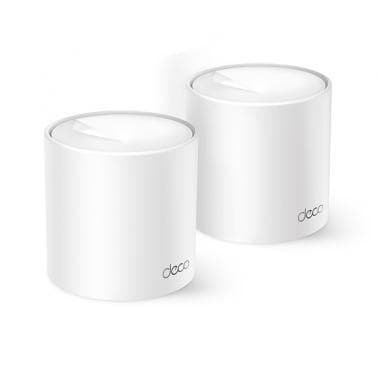
For a confirmed Wi-Fi coverage gap
TP-Link Deco X50 Pro AX3000 Wi-Fi 6 Mesh System, 2-pack
Consider this mesh system only after placement changes and a wired connection have been assessed.
View at MSYMatch the pack size to the rooms you need to cover, and check compatibility with your existing router or modem. Real coverage depends on the building and node placement; we have not tested it in your home.
Start with our complete Australian home-office Wi-Fi setup guide if you need to diagnose the connection before selecting equipment.
This is a research-based comparison. We have not tested these connections in your home or carried out our own product benchmarks. The decision table and test plan below are our editorial synthesis of the linked technical guidance, not measured results.
Ethernet vs powerline vs mesh: choose by the problem
Start with the location that needs fixing. One stationary work computer, a household of roaming devices and an office behind several walls are different problems.
Your situation | What we would try first | Main advantage | Main compromise |
|---|---|---|---|
One desk with a practical cable route | Ethernet from the router | A direct connection without a wireless hop | You need a suitable cable route |
Several rooms need coverage | Mesh Wi-Fi | Coverage for laptops, phones and tablets | Wireless nodes still need a good connection to each other |
Existing data sockets near the office | Ethernet, plus a wired access point or compatible mesh node | Wired desk connection and nearby Wi-Fi | Sockets must connect to the right equipment |
Renting, with no permanent changes planned | Router repositioning, then a small mesh setup if needed | Equipment can move with you | Placement may be limited by furniture and power points |
An isolated desk with poor Wi-Fi and no cable route | A powerline trial | Uses existing electrical wiring | Performance depends on the wiring and interference |
These are starting points, not a ranking of products. If your existing connection handles the full workday reliably, there is no reason to replace it solely because a newer networking standard exists.
For a desk that also accesses shared files, our Australian NAS guide covers the storage decision. This article focuses on getting the network connection to that desk.
First check whether the problem is Wi-Fi or the internet service
A faster nbn plan and a better home network solve different problems. Your home connection includes the service supplied by your provider and the route from your router to the device. A weak link inside the house can prevent the desk from benefiting from the service you already have. nbn explains the difference between wired and wireless connections.
Before ordering equipment, write down the actual symptom: calls freeze only in the study, uploads are slow everywhere, or the connection drops whenever you move rooms. That gives you a question to test instead of a vague target of “faster Wi-Fi”.
Our suggested first comparison is the same laptop at the desk and beside the router, followed by a direct Ethernet connection if available. Use the same test service and repeat at a similar time. A much better result near the router points towards coverage as something to investigate; poor results in all three locations warrant a conversation with your provider. Neither result alone proves which component is at fault.
Keep the provider's connection equipment and instructions in place during this comparison. Buying mesh does not automatically mean your existing modem or provider router can be removed. Ask the provider about your connection type and any phone service before changing that part of the setup.
Ethernet: our first choice for a fixed desk
Ethernet is the simplest option to assess when you can connect the router directly to the work computer. It avoids relying on radio coverage for that part of the connection. nbn notes that wiring devices can reduce Wi-Fi demand and recommends considering at least Cat 6 for new cabling. That recommendation does not mean every existing cable needs replacing. See nbn's cabling guidance.
Check what is already installed before buying anything. A data socket beside the desk is useful only if you know where its other end goes and how it connects to the router. Labelled ports and a simple sketch of the rooms are worth taking to an installer.
For a laptop without an Ethernet socket, check whether your existing dock has one. Otherwise, choose a compatible USB Ethernet adapter after checking the laptop's available ports and operating system. Compare the adapter's Ethernet specification with the router and any switch in the path; a connector that fits is not a promise of a particular transfer speed.
Australian cabling and rental considerations
For fixed data cabling and new wall sockets, use a registered cabler. ACMA identifies data-cabling installation and maintenance as work registered cablers undertake. Read ACMA's home and office cabling guidance.
If you rent, discuss any proposed permanent work with the property manager before arranging installation. For a temporary connection, plan the cable route around everyday use: doors must close, chairs must move, and the cable should not cross a walkway. If there is no sensible route, move to the wireless or powerline options rather than making an inconvenient cable run permanent.
Mesh: useful when the problem covers several rooms
Mesh uses multiple compatible units to extend Wi-Fi coverage. A satellite needs a useful connection back towards the main router; placing it at the worst dead spot can leave it with little signal to relay. Google recommends an open position between the router and the area needing coverage, followed by a mesh test and adjustments. Its room-distance guidance is specific to its products, not a guarantee for every home. Google's placement instructions.
For a study at the rear of the house, try a node in the intervening room or hallway before putting it behind the desk. Use the system's connection-quality check and then test from the actual work chair. A good app indicator is helpful, but your calls and file transfers are the tasks that matter.
A cable into a mesh node does not make the whole route wired
Connecting the laptop to a satellite with Ethernet wires only that final segment. If the satellite communicates with the main router over Wi-Fi, the route still includes a wireless link.
Ethernet backhaul means the mesh units themselves use Ethernet for their connection. On compatible systems, this can remove the wireless link between those units. Follow the manufacturer's wiring diagram: TP-Link, for example, gives different Deco layouts for router mode and access-point mode. TP-Link's Ethernet backhaul guide (see Sources).
Before buying a kit, check whether the specific satellite has Ethernet ports and supports the backhaul arrangement you want. “Mesh” describes the system, not an identical set of ports on every device.
Powerline adapters: try the intended sockets before committing
A powerline adapter carries networking data over electrical wiring. A basic arrangement connects one adapter to the router and a second near the desk. Not every model also supplies Wi-Fi, so check whether you need an Ethernet outlet, wireless coverage, or both. TP-Link's powerline FAQ (see Sources).
The attraction is practical: no new data cable across the house. The uncertainty is equally practical: you cannot judge the wiring between two power points by looking at the rooms. Circuit layout, filtering and electrical interference can affect the connection. Do not assume adapters will work well across separate circuits or out to a detached office. The manufacturer's FAQ describes several wiring limitations, so use it alongside the exact model's instructions.
Ignore headline speed as a prediction for your desk
The powerline rate on the box is not the same as useful data throughput. TP-Link distinguishes those figures and notes that an adapter's Ethernet port can also limit the result. Treat labels such as AV1300 as product specifications, not a promise that a speed test will reach that number. TP-Link's explanation of powerline rates (see Sources).
For a trial, plug the adapters into wall power points as instructed, rather than a filtered power board. TP-Link identifies power strips, motor-driven appliances and some power supplies as possible sources of reduced performance. Try the intended desk location during normal household activity, not only during a quiet five-minute setup. Powerline troubleshooting guidance (see Sources).
Our purchasing recommendation is to check the seller's trial or change-of-mind return conditions before ordering. Do not assume a product can be returned just because the particular wiring in your home delivers a disappointing result.
A practical home-office test plan
Use a short written log to compare the options. You need the work laptop, access to its usual work applications, an Ethernet cable and adapter if required, and any mesh or powerline equipment you are evaluating. The following is a suggested method, not a claim that we have performed these tests.
- Record the starting setup. Note the room, router location, connection method and time. Write down the problem you want to eliminate.
- Run a baseline. Compare the laptop at its normal desk with the same laptop near the router. Where practical, add a direct Ethernet test. Keep the test service consistent.
- Change one thing. Move a mesh node, change a powerline socket or connect Ethernet. Avoid changing the internet plan and the home network together, because you will not know which change helped.
- Repeat your real work. Join a test call, share a screen and upload a representative file. If you use an approved work VPN, test with it enabled as you normally would.
- Check a busy period. Repeat while the household is using the connection normally. For powerline, include times when your usual appliances are running.
- Choose on repeatability. Record dropouts and interrupted tasks alongside download and upload results. Keep the arrangement that reliably meets your work needs, rather than the one with the highest single reading.
If calls still look poor after the connection is stable, separate network interruptions from camera and lighting problems. Our Australian webcam guide for Zoom and Teams covers the camera side; a new webcam is not a fix for a dropping connection.
What we would choose in three common situations
A rented flat with one unreliable study: first test a better router position, then a small mesh arrangement if there is a suitable place for the intermediate node. Trial powerline only if those changes do not suit the layout. Avoid buying a large kit before identifying where its units would go.
A house with working data sockets: map the existing ports first. We would use the office socket for the desk and investigate a compatible wired access point or mesh node if the room also needs Wi-Fi. Ask a registered cabler to assess unidentified or faulty fixed cabling.
A detached office or difficult outbuilding: treat this as a separate site-planning problem. Neither a powerline range claim nor an indoor mesh coverage claim establishes that it will work there. Describe the distance, buildings and existing connections to a qualified installer before choosing equipment.
The useful question is not which technology wins everywhere. It is which route gets a dependable connection to the places you work, with installation and upkeep you can manage.
Questions people ask
Is Ethernet better than mesh for working from home?
For a fixed desk with a practical cable route, Ethernet is our first choice. Mesh is useful when several rooms need Wi-Fi, and compatible systems can use Ethernet between their nodes. You can use both in one home.
Will a powerline adapter deliver the speed printed on its box?
Do not expect that. The advertised powerline rate is not useful data throughput, and the electrical wiring, interference and Ethernet ports can limit performance. Test the actual power points you intend to use.
Does connecting my laptop to a mesh node with a cable remove Wi-Fi?
Only from the laptop-to-node segment. If that node still connects to the main router wirelessly, your traffic still crosses a wireless link. Ethernet backhaul means wiring the connection between compatible mesh units.
Can I install new Ethernet wall sockets myself in Australia?
Use a registered cabler for fixed communications cabling and new data sockets. ACMA provides guidance on the work registered cablers undertake. Renters should also discuss permanent changes with their property manager.
Sources we used
- nbn — Wired vs wireless
- ACMA — Cabling in your home or office
- Google — Where to place your Wi-Fi devices
- TP-Link Australia — Ethernet backhaul for Deco
- TP-Link Australia — Powerline device FAQ
- TP-Link Australia — Powerline rate versus throughput
- TP-Link Australia — Slow powerline troubleshooting
- Selected product: manufacturer specifications and compatibility