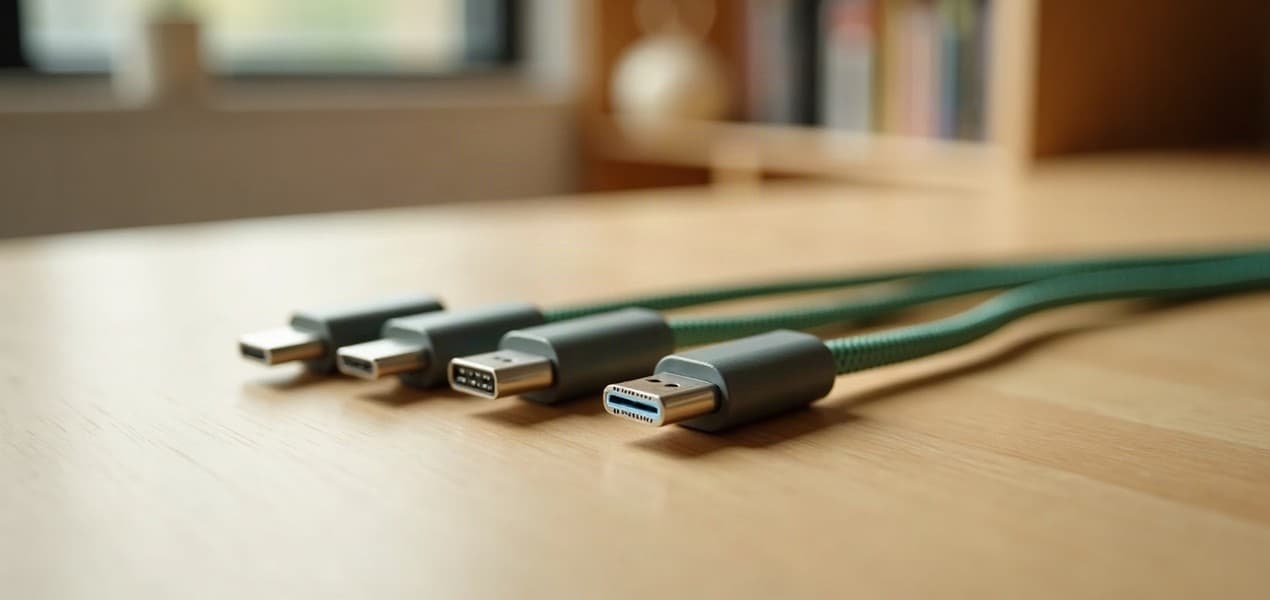
Choose between Thunderbolt 5, Thunderbolt 4 and USB4 by checking your laptop and displays first. For an ordinary office setup, a compatible existing dock may already do everything you need. Thunderbolt 5 offers more bandwidth, but it cannot give an older laptop a faster port or override that laptop's external-display limits. USB-C describes the connector shape; it does not establish all the connection's capabilities.
The picks in detail
- Top pick
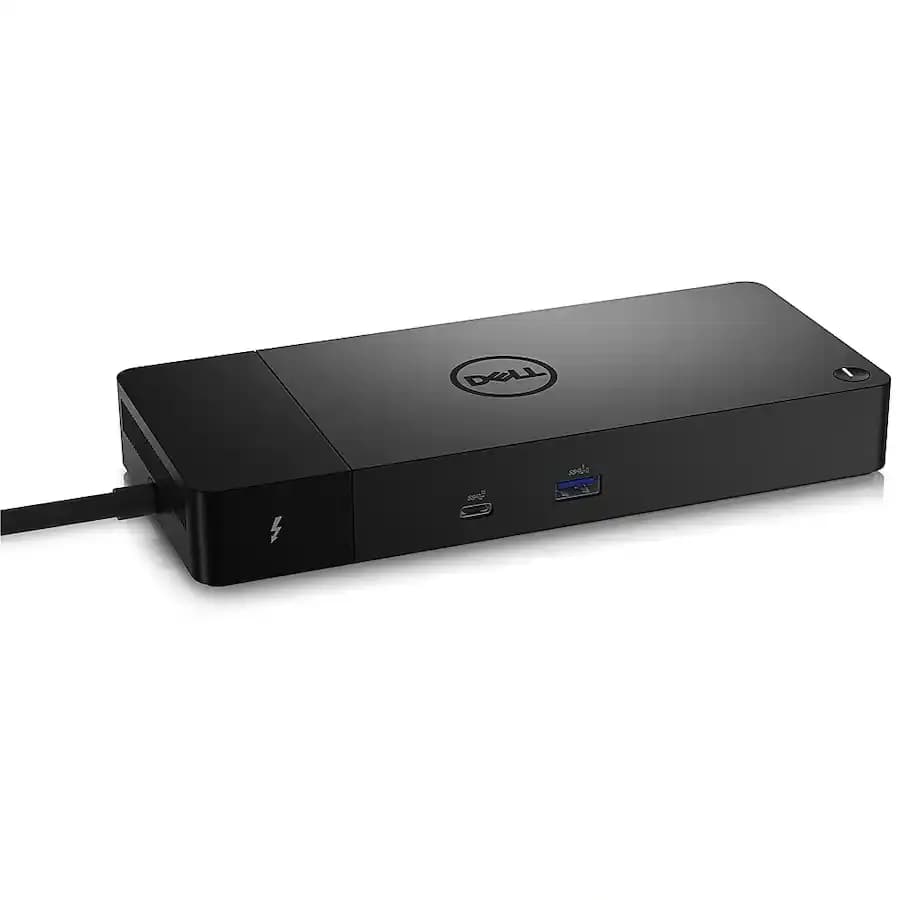
For a compatible Thunderbolt setup
Dell WD22TB4
This Thunderbolt 4 dock is worth comparing when your laptop needs more desk connections.
View at Big WCheck the manufacturer’s compatibility list, supported displays and charging requirements for your exact laptop. A USB-C socket alone does not establish compatibility. This is a research-based selection, not a hands-on test.
For choosing and connecting the complete desk arrangement, see our Australian USB-C and Thunderbolt dock setup guide.
This comparison is research-based. We have not tested these docks, cables or standards ourselves. The specification summary comes from Intel and USB-IF documentation; our purchasing checklist is editorial guidance. Sources are listed at the end.
Thunderbolt 5 vs Thunderbolt 4 vs USB4: the useful differences
Start with the advertised capabilities of the exact devices, then use the standard as context. USB4 is a family with different supported speeds, so “USB4” alone is not a complete specification.
Connection | Bandwidth context | Practical question for a buyer |
|---|---|---|
Thunderbolt 4 | 40Gbps connection bandwidth | Does the dock support your laptop and required screen arrangement? |
Thunderbolt 5 | 80Gbps bidirectional bandwidth; display-focused Bandwidth Boost can reach 120Gbps in one direction | Is your laptop Thunderbolt 5, and does your workload benefit? |
USB4 | Implementations vary; current USB4 specifications include up to 80Gbps | What speed, display features and compatibility does this product actually list? |
USB-C | A connector, not a bandwidth specification | Which protocols and charging functions does this port support? |
Intel documents Thunderbolt's bandwidth requirements and Bandwidth Boost. USB-IF describes USB4 operation scaling to the mutually supported capabilities of the connected devices. These are link specifications, not promised file-copy speeds. See the Intel overview, technology brief and USB-IF source entries.
Begin with your laptop, not the dock's port count
Find the exact laptop model and its technical specifications. Record which port you plan to use, the supported connection standard, external-display limits and charging requirements. A photograph of a USB-C socket is not enough evidence.
For a Mac, Apple recommends identifying the model and checking how many displays it supports. A dock with multiple video outputs does not by itself establish how many independent desktops your Mac can drive. Read both Apple's documentation and the dock maker's model-specific compatibility notes; see Apple's external-display guide under Sources.
For a Windows laptop, follow the manufacturer's port and display documentation for the precise configuration. Similar model families may offer different ports. If you use a company laptop, also ask whether its support policy permits the dock and any software it requires.
Our Australian USB-C monitor guide is useful when deciding whether a monitor's built-in connectivity can replace a separate dock. Make that decision before paying for duplicate ports.
When Thunderbolt 4 is the sensible choice
We would keep or shortlist a compatible Thunderbolt 4 dock when it already supports the required screens and peripherals. Ordinary documents, a keyboard, a webcam and Ethernet do not automatically create a reason to change standards.
Write a list of the connections you genuinely use during a working day. For each one, note whether it must be on the dock or can remain connected directly to the laptop. This often reveals that the important constraint is the arrangement of ports rather than the headline bandwidth.
If a seller lists support for two displays, read the conditions: resolution, refresh rate, laptop platform, connection method and any restrictions. Treat a missing condition as a question to resolve before ordering. The point is not to buy the newest label, but to buy a documented match for your actual setup.
When Thunderbolt 5 is worth investigating
Thunderbolt 5 is worth considering when you have a compatible host and a demanding display or data workflow that exceeds the capabilities of your current arrangement. Examples to investigate include high-resolution displays at higher refresh rates and workflows using fast external storage alongside screens.
Its 120Gbps Bandwidth Boost figure is not an always-on 120Gbps data connection in both directions. Intel describes an asymmetric mode for display-heavy traffic, with bandwidth allocated differently between directions. Keep that distinction in mind when comparing the largest number on two product pages.
Our recommendation is to identify the existing limit first. If you cannot name a task the current dock fails to support, postpone the upgrade. If you can name it, ask the manufacturer to confirm the new dock will support that task with your exact laptop, monitors and cables.
USB4 needs a closer specification check
USB4 can be an appropriate choice, but avoid treating the name as shorthand for a fixed list of features. Read the speed rating and the supported display and peripheral combinations. USB-IF's current documentation includes 80Gbps operation, so an old comparison saying every USB4 connection tops out at 40Gbps is incomplete.
Also distinguish the upstream connection to the laptop from downstream ports for accessories. A dock may have several USB-C sockets with different purposes. Label your intended connections on a sketch: laptop, each display, storage, Ethernet, power and any other peripherals.
For each socket, check the specification that applies to that socket. Do not assume a downstream USB-C port can drive a monitor merely because the upstream connection is fast. If a product page is ambiguous, ask the manufacturer rather than relying on a marketplace title.
Charging is a separate compatibility question
Read the dock's stated power delivery to the laptop, not only the rating on its power supply. Also check whether the laptop accepts charging through the port you plan to use. A compatible data connection and sufficient charging power are separate requirements.
Our suggested acceptance test is a normal busy session with the intended peripherals attached. Watch whether the laptop reports an inadequate charger or steadily loses battery charge while plugged in. If that happens, consult the supported charging arrangement before blaming the connection standard.
For Australian purchases, confirm the included mains lead or power adapter is the appropriate local version. A globally identical product name does not guarantee identical box contents across sellers. Keep the specification and order confirmation so you can compare what arrives with what was advertised.
Cable labels matter more than appearance
Choose the host cable for the intended standard and power requirement. The USB-C connector alone cannot tell you whether a cable supports the necessary data rate, display connection or charging capability. Start with the manufacturer's supplied host cable when one is included.
Intel's and USB-IF's documentation explain supported cable capabilities. Treat a replacement cable as part of the system: record its rating alongside the dock and laptop. Avoid adding adapters or extension cables during initial troubleshooting, because each extra component makes it harder to identify the failing link.
If a cable works for charging a phone, that is not a test of its ability to carry your display and storage traffic. Keep a known suitable cable with the dock rather than mixing it into a box of visually similar charging leads.
A seven-step checklist before you keep a dock
- Identify the host. Save the laptop model and the specification for the port you will use.
- List the screens. Record resolution, refresh rate and whether you need independent displays or mirroring.
- Check compatibility in writing. Match the dock maker's supported combinations to your list.
- Confirm charging. Compare the laptop's requirements with power delivered by the dock and its supplied adapter.
- Connect the minimum setup. Start with the laptop and one screen, using the documented cables.
- Add devices individually. Then test your normal arrangement, sleep and wake, and reconnecting after taking the laptop away.
- Record any failure. Note which device stops working and under what conditions before changing several things at once.
For Ethernet through the dock, remember that the network beyond it still matters. Our Australian Ethernet, powerline and mesh guide explains that part of the connection. A faster dock does not fix a weak wireless link elsewhere in the house.
Our decision rule
Choose a dock that has documented support for the work you need today, with a clear reason for any extra capacity. Keep a working Thunderbolt 4 arrangement when it already meets that need. Consider Thunderbolt 5 for a compatible, demanding setup, and evaluate USB4 by the actual product specification. In every case, verify the laptop, displays, charging and cables together before deciding that the standard's name settles the purchase.
Questions people ask
Is USB-C the same as Thunderbolt?
No. USB-C describes the connector. Check the laptop and accessory specifications to identify the protocols, speeds and charging functions supported.
Will a Thunderbolt 5 dock upgrade my older laptop port?
No. The connection depends on compatible capabilities at both ends. Check the dock’s supported fallback modes and your laptop’s specifications.
Does USB4 always mean 40Gbps?
No. USB4 implementations have different capabilities, and current specifications include 80Gbps operation. Read the exact product’s rated speed.
Can any dock run two independent displays on a Mac?
No. Confirm the Mac model’s display support and the dock’s compatibility conditions. Multiple sockets alone do not prove support for the arrangement you want.