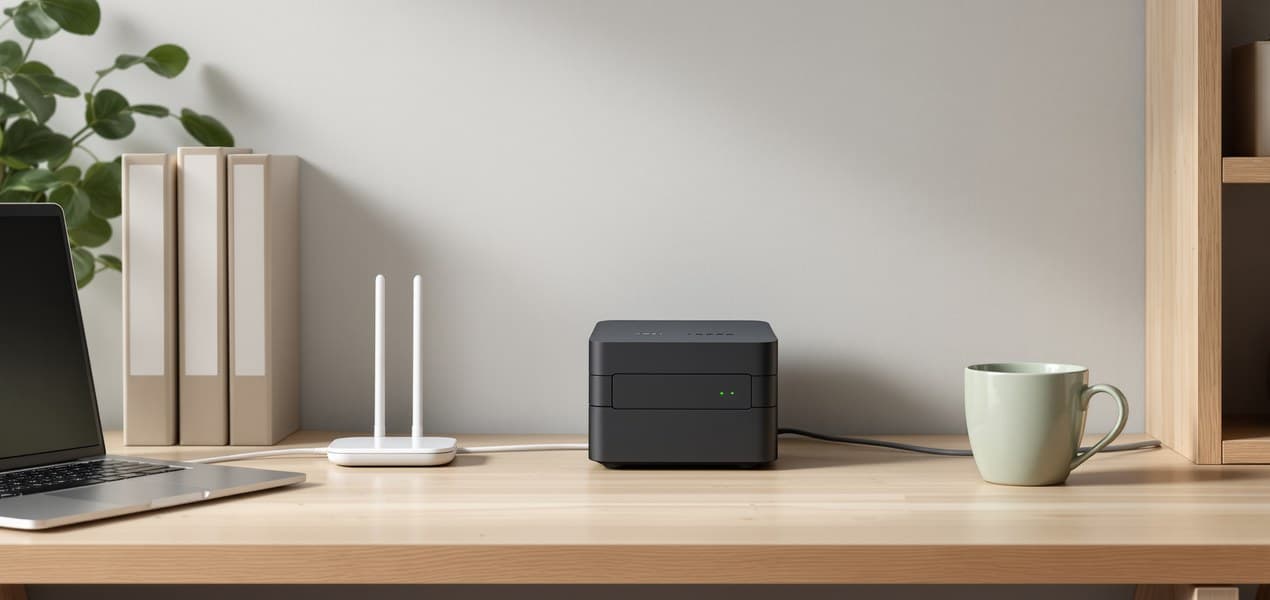
Most Australian home offices should buy the Synology DiskStation DS225+, a two-bay NAS with a 2.5GbE port, as long as you check Synology's drive compatibility list before buying drives for it. The four-bay DS425+ is the step up when several people share it, and the QNAP TS-233 is the no-fuss two-bay option.
Our picks at a glance
- View at Amazon AU
Best for most home offices
- View at Umart
Best if you want room to grow
- View at Umart
Simplest two-bay option
The picks in detail
- Top pick
Best for most home offices
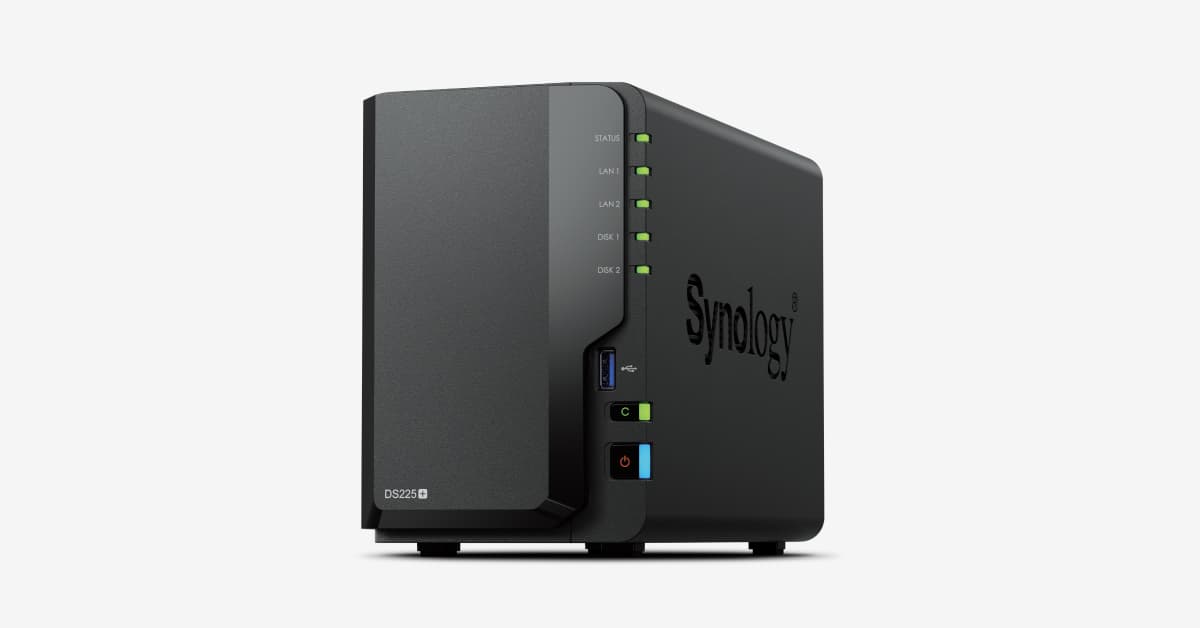
Synology DiskStation DS225+ (2-bay NAS)
The Synology DS225+ is the NAS most Australian home offices should buy.
View at Amazon AUIt is a two-bay box (3.5" hard drives or 2.5" SSDs, hot-swappable) with an Intel Celeron J4125, 2GB of memory you can take to 6GB, and both a 2.5GbE and a 1GbE port. Synology offers RAID 0, RAID 1, Synology Hybrid RAID, Basic and JBOD, up to 48TB raw on 24TB drives, and a 3-year warranty that the optional EW201 plan extends to five. Mind the drives: Synology launched it with full support only for its own and certified drives, and it took DSM 7.3 to open the door to others (details below). Buy it for a household or small office sharing files and backups. A single laptop doesn’t need it.
What we like
- 2.5GbE port plus a 1GbE port
- Memory expandable from 2GB to 6GB
- 3-year hardware warranty, extendable to 5 years
Watch out for
- Drive policy: launched requiring Synology or certified hard drives for full support; DSM 7.3 reopened third-party drives, but M.2 pools and cache still need listed drives
- Two bays means RAID 0, RAID 1 or Synology Hybrid RAID only, no RAID 5
- Best if you want room to grow
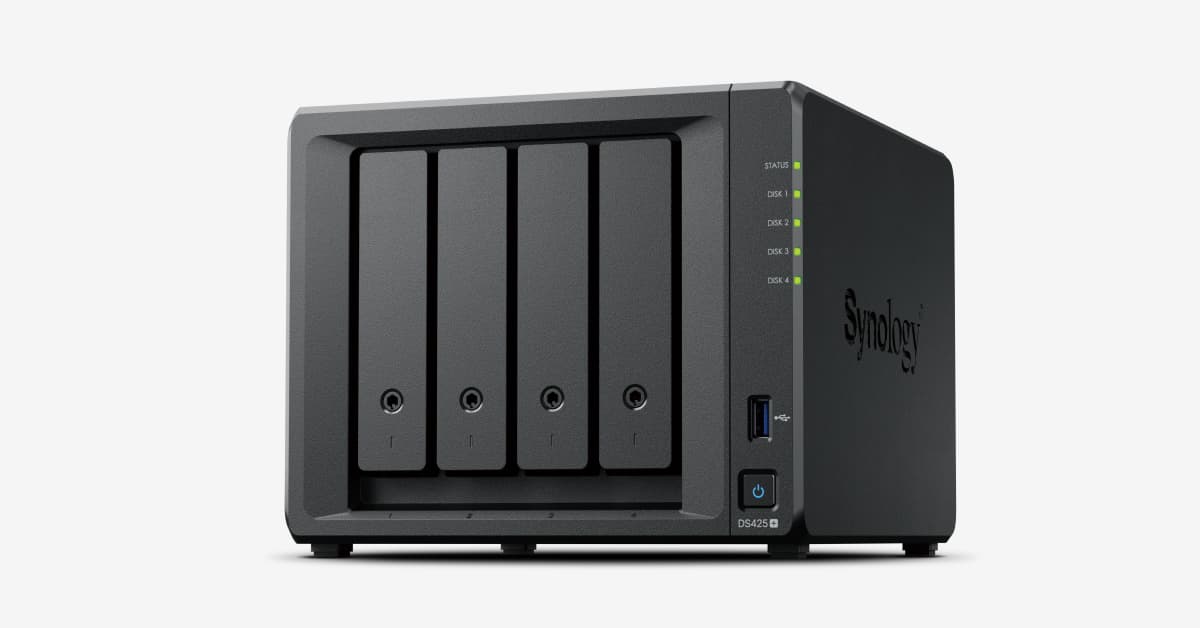
Synology DiskStation DS425+ (4-bay NAS)
The Synology DS425+ uses the same processor, memory and network ports as the DS225+ but has four drive bays plus two M.2 NVMe slots.
View at UmartWith four bays Synology lists RAID 5, RAID 6 and RAID 10 as well as RAID 0 and RAID 1, and its Australian page quotes up to 96TB of raw storage, based on 24TB drives. SSD cache needs select compatible SSDs, sold separately, and the M.2 slots aren’t hot-swappable. It is the one to get if a few people share it or your files are heading well past what two drives hold. If that isn’t you, the two-bay DS225+ is the better fit, with fewer drives to buy and the same drive-policy history.
What we like
- Four bays plus two M.2 NVMe slots
- RAID 5, RAID 6 and RAID 10 available
- 2.5GbE port plus a 1GbE port
Watch out for
- Same drive policy as the DS225+; M.2 storage pools and SSD cache need drives on Synology’s list
- A larger box and more drives to buy
- Simplest two-bay option
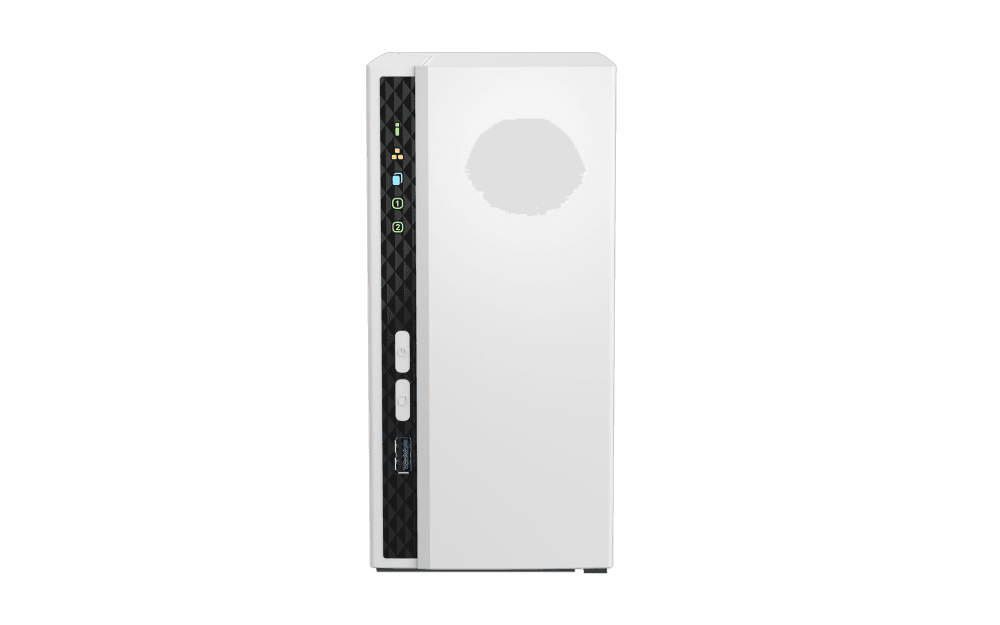
QNAP TS-233 (2-bay NAS)
The QNAP TS-233 is a two-bay tower with a 4-core ARM Cortex-A55 processor at 2.0GHz and 2GB of memory that QNAP says is on the board and not expandable.
View at UmartIt has one Gigabit Ethernet port, one USB 3.2 Gen 1 port and two USB 2.0 ports, and runs QTS. QNAP lists JBOD, single, RAID 0 and RAID 1 for two-bay models, and a 2-year standard warranty. It is the simple choice: plain storage and backups over gigabit Ethernet, with no Synology drive list to work around. Look elsewhere if you want to run apps on the box or use faster networking.
What we like
- Two hot-swappable bays for 3.5" hard drives or 2.5" SSDs
- Screws for both drive sizes in the box
- Runs QNAP’s QTS operating system
Watch out for
- Gigabit Ethernet only, no 2.5GbE port
- Memory cannot be expanded
- 2-year standard warranty, shorter than Synology’s 3 years
A NAS (network-attached storage) is a box of drives on your home network that every computer can save to and back up to. Handy as that is, it lives under the same roof as your computers, so it can't be your only backup.
We have not tested these models. The figures below are from Synology's and QNAP's Australian product pages, linked under Sources.
The short version
- Best for most home offices: Synology DS225+. Two bays, Intel Celeron J4125, 2.5GbE and 1GbE ports, up to 6GB of memory.
- Best if you want room to grow: Synology DS425+. Four bays, two M.2 NVMe slots, and RAID 5, RAID 6 and RAID 10 on top of RAID 0 and RAID 1.
- Simplest two-bay option: QNAP TS-233. Two hot-swappable bays, one Gigabit Ethernet port, 2GB of memory that cannot be expanded.
- Before you buy: all three come without drives. Check Synology's compatibility list for the two Synology models, and plan an offsite copy.
How the three compare
All figures are the makers' own. Synology's storage figures are "raw" capacity, based on 24TB drives, so what you can use depends on the drives and the RAID setup you choose.
| Synology DS225+ | Synology DS425+ | QNAP TS-233 |
|---|---|---|---|
Drive bays | 2 x 3.5" HDD or 2.5" SSD | 4 x 3.5" HDD or 2.5" SSD, plus 2 M.2 NVMe | 2 x 3.5" HDD or 2.5" SSD |
Processor | Intel Celeron J4125, 4 cores, 2.0GHz (2.7GHz turbo) | Intel Celeron J4125, 4 cores, 2.0GHz (2.7GHz turbo) | ARM Cortex-A55, 4 cores, 2.0GHz |
Memory | 2GB DDR4, up to 6GB | 2GB DDR4, up to 6GB | 2GB on board, not expandable |
Network | 1 x 2.5GbE, 1 x 1GbE | 1 x 2.5GbE, 1 x 1GbE | 1 x Gigabit Ethernet |
USB ports | 2 x USB 3.2 Gen 1 | 2 x USB 3.2 Gen 1 | 1 x USB 3.2 Gen 1, 2 x USB 2.0 |
RAID options listed | Synology Hybrid RAID, Basic, JBOD, RAID 0, RAID 1 | Synology Hybrid RAID, Basic, JBOD, RAID 0, 1, 5, 6, 10 | JBOD, Single, RAID 0, RAID 1 |
Raw capacity quoted | Up to 48TB | Up to 96TB | Not verified |
Operating system | DSM | DSM | QTS 5.2.10 |
Warranty | 3 years, extendable to 5 | 3 years, extendable to 5 | 2 years standard |
Where to buy in Australia
- Synology DS225+: Amazon AU, Scorptec, Centre Com, Woolworths and Umart.
- Synology DS425+: Centre Com, Woolworths and Umart.
- QNAP TS-233: Scorptec, digiDirect, Big W, Centre Com, PLE Computers and Umart.
Check that the listing is the diskless unit, not a bundle with drives. Whichever shop you use, the Australian Consumer Law guarantees apply on top of the maker's warranty: if the NAS has a major fault, you can ask the retailer for a refund or a replacement, and those rights can still apply after the warranty has run out.
What is a NAS, and do you need one?
A NAS is a box with one or more drive bays and a network port. You plug it into your router, and computers on your network can save files to it, open them from it, or back up to it. It runs its own operating system, which you manage from a web browser or an app: Synology calls its system DSM and QNAP calls its system QTS.
You need one when two or more computers should share the same files or back up to the same place, or when you want your files at home rather than in a cloud account. For one laptop, an external drive does the job.
A NAS is not a backup by itself
RAID lets the NAS survive one failed drive. It does nothing about a deleted file, a corrupted one, a power failure mid-write, a fire or a flood, which is why QNAP says outright that RAID is not a backup and recommends at least two copies of your data, one stored offsite.
The Australian Cyber Security Centre's advice points the same way: disconnect your backup when you're not using it, keep an offline backup, and store a backup in a different location to your device. A NAS at home covers the first copy. The offsite one has to live somewhere else: a drive at another address, or a cloud service.
On a Synology, Hyper Backup can send the NAS's contents to a remote server, an external drive or cloud storage, including Synology's C2 Storage, which is a subscription.
How to choose a NAS for a home office
Start with the bays
More bays give you more RAID choices and more room. With two bays, both makers list RAID 0 and RAID 1. The four-bay Synology adds RAID 5, RAID 6 and RAID 10. If you are not sure, a two-bay model is easier to start with. If you know you will be storing a lot, or sharing between several people, look at four bays.
Drives are a separate purchase
None of these comes with drives, and with the Synology models, which drives you choose matters. When Synology launched its 2025 Plus models, including the DS225+ and DS425+, it limited full support to its own or certified hard drives, as Tom's Hardware reported at the time. DSM 7.3, released on 8 October 2025, now lets them build storage pools on third-party hard drives Synology hasn't validated. M.2 storage pools and SSD cache still need drives from its compatibility list, and unlisted drives get only limited support.
Before you set up storage, update to DSM 7.3 or later and check the current list for your model. The QNAP TS-233 has no such restriction in its history. We don't recommend specific drives.
Check the network port
A NAS can't run faster than your network. Both Synology models have a 2.5GbE port, and the QNAP has a single Gigabit port. A 2.5GbE port helps only if your router, switch or computer also supports it. If your office is mostly on Wi-Fi, the wireless connection will usually decide the speed, so use a cable to the NAS where you can.
Look at the processor, memory and software
The Synology models use an Intel processor and can take extra memory. The QNAP uses an ARM processor with fixed memory. For simple file storage and backups, any of them is a reasonable starting point on paper. If you want to run extra apps on the box, read the maker's software page for the app you have in mind first, because we have not tested any of them.
Warranty
Synology gives 3 years, extendable to 5 with the optional EW201 plan, which its Australian DS425+ page says applies in Asia, Africa and Oceania. QNAP gives 2 years as standard. The Australian Consumer Law guarantees last for a reasonable time for a product like this, which can run past either warranty, so a fault may still be the retailer's to fix after the warranty ends.
How to set up a NAS as a backup target
The exact steps depend on the maker, so follow the setup guide that comes with your model. In outline:
- Install your drives in the bays and connect the NAS to your router with a network cable.
- Complete the setup in your web browser and choose a RAID option that suits your drive count.
- Create a shared folder for backups and a separate user for each computer.
- On Windows, Microsoft says File History can save to a network location, so you can point it at the NAS share. On a Mac, follow Apple's and your NAS maker's instructions for Time Machine.
- Set up an offsite copy as well, and restore one file to prove it works.
Which is best for you
- One or two people, shared files and computer backups: the Synology DS225+.
- A small team, or files you expect to keep growing: the four-bay Synology DS425+ gives you more bays and more RAID choices.
- A basic two-bay box and a gigabit network is enough: the QNAP TS-233.
- One laptop and a simple backup: you may not need a NAS at all. An external drive can be enough.
More backup and storage guides are in our Australian storage section.
How we chose
We have not tested these NAS models. We chose from Synology and QNAP boxes stocked by Australian retailers, read each maker's Australian product page for the specs, warranty and box contents, and added the Synology drive policy because it is the most widely reported problem with these two models. We didn't pick drives, and we don't show or compare prices.
Questions people ask
What is the best NAS for a home office in Australia?
The Synology DS225+, a two-bay NAS with a 2.5GbE port and memory that can grow to 6GB. Check Synology’s drive compatibility list before you buy drives. For four bays, the DS425+ is the step up.
Can I use any hard drive in a Synology DS225+ or DS425+?
On DSM 7.3 or later you can build storage pools on third-party hard drives Synology hasn’t validated, but M.2 pools and SSD cache still need drives from its compatibility list, and unlisted drives get only limited support.
What if my NAS fails after the warranty ends?
The Australian Consumer Law guarantees are separate from the maker’s warranty and can still apply after it ends. For a major fault you can ask the retailer for a refund or a replacement.
Does a NAS come with hard drives?
Not these three. All are sold diskless, so budget for drives separately.
Is RAID the same as a backup?
No. RAID keeps the NAS running when a drive fails; it doesn’t protect against deletion, corruption, fire or flood. QNAP recommends at least two copies, one stored offsite.
Is a NAS an offsite backup?
Not if it sits in your home or office. The ACSC advises storing a backup in a different location to your device, so a NAS under the same roof is one of your copies, not the offsite one.
Do I need a 2.5GbE port?
Only if the rest of your network can use it. A 2.5GbE port on the NAS needs a router, switch and computer that also support 2.5GbE. Otherwise it runs at the speed of the slowest link.
Sources we used
- Synology DiskStation DS225+ specifications (Australia)
- Synology DiskStation DS425+ specifications (Australia)
- QNAP TS-233 hardware and software specifications (Australia)
- Synology: DSM 7.3 release (third-party drive support on 2025 models), 8 October 2025
- Synology Knowledge Center: Drive compatibility policies for systems from 2025 (DSM 7.3 and above)
- Tom’s Hardware: Synology requires self-branded drives for some consumer NAS systems
- Tom’s Hardware: Synology walks back compatibility policy for 2025 NAS units with DSM 7.3
- QNAP Blog: RAID = Backup?
- Australian Cyber Security Centre: Set and perform regular backups
- ACCC: Repair, replace, refund, cancel (consumer guarantees)
- ACCC: Warranties
- Microsoft Support: Backup and restore with File History