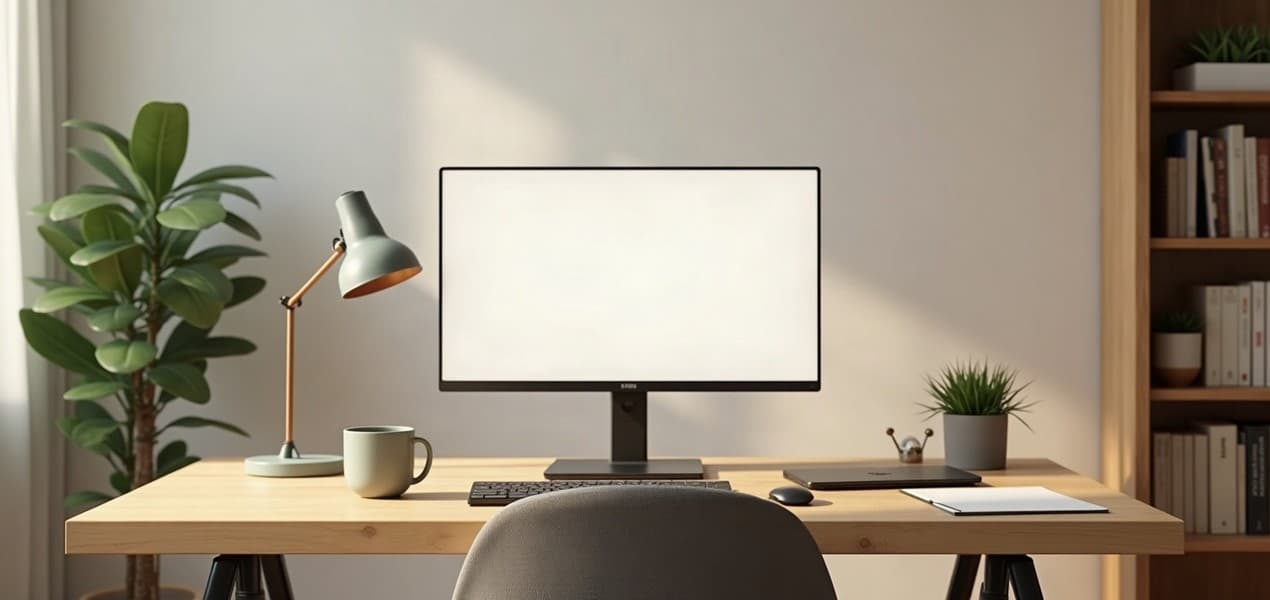
Set up a home office in Australia by planning the room, measuring the furniture and mapping the computer connections before buying individual products. Start with the tasks you perform and the equipment you already own. Then choose the desk arrangement, screen position, input devices, lighting and network route as one system. A coherent setup matters more than replacing everything at once.
The picks in detail
- Top pick

For calls with an external screen
Logitech Brio 500 Webcam (960-001493)
Consider the Brio 500 if you need a camera positioned independently of your laptop.
View at Amazon AUIt is a 1080p USB-C webcam with a privacy shutter. Check the USB connection and improve your lighting first. This selection is based on product documentation, not hands-on testing.
This complete guide is research-based. We have not tested these furniture or equipment combinations ourselves. The worksheets and examples are our suggested planning method, not measured results or health advice. Product documents listed under Sources illustrate specification and installation checks; they are not a claim that a particular desk suits everyone.
The quick plan: build the workspace in this order
Make the decisions that constrain later choices first. The room and existing equipment determine what furniture and connections are practical.
Stage | Decide | Record |
|---|---|---|
Work needs | Main tasks, calls, paperwork and shared use | A short list of essential requirements |
Room | Available area, light, access and power | Measurements and a simple layout |
Furniture | Fixed desk, converter or full sit-stand desk | Dimensions, movement and load requirements |
Computer setup | Laptop, displays and input devices | Model numbers and connection diagram |
Services | Network route and approved file storage | What needs installation or support |
Acceptance | Whether the normal workday is practical | Observations and unresolved problems |
Treat this as a sequence, not a shopping list. If the existing desk or display already works, keep it in the plan. Identify the actual shortcoming before deciding that a replacement is necessary.
Step 1: describe the work the room must support
List the activities that happen at the desk: writing, spreadsheets, calls, drawing, reading documents or handling physical materials. Note which activities happen together. A workspace used mainly for a laptop and calls needs a different layout from one that also handles large paper documents.
Include the frequency of moving between home and another office. A laptop that is disconnected daily needs an accessible connection point. A computer that rarely moves can be arranged differently, with less emphasis on a single quick connection.
If the room is shared, record who uses it and when. Consider whether equipment needs to move, whether documents must be packed away, and how the next user restores their arrangement. A setup that works only for one person's exact position may not suit a shared desk.
Separate must-haves from optional improvements. Essential requirements might include approved work equipment, a reliable call connection and room for a particular document size. Optional improvements might be a second screen or a different finish. This helps you stage the work without losing sight of what matters.
Step 2: measure the room and the delivery route
Measure the usable area, not just the room's overall dimensions. Include door swings, cupboards, drawers, curtains, nearby shelves and the route through the room. Mark where the chair will move and where someone needs to walk behind it.
Locate the existing power and data connections. Record them on the sketch rather than assuming an extension or new socket can be added later. If fixed electrical or communications work is needed, make that a separate item for the appropriately qualified tradesperson.
Check the route by which new furniture would enter the room. Doorways, stairs and lifts can matter as much as the final footprint. Review packaging and assembly information before ordering, particularly for larger desks in apartments.
Our practical suggestion is to mark a proposed desktop footprint with removable paper or tape where suitable. This is a space-planning exercise, not an installation approval. Walk around it, open nearby storage and consider the chair movement before deciding the dimensions are workable.
Keep room access in the design
Do not fill every available centimetre with furniture. Think about everyday use: opening a drawer, reaching a window, moving the chair and accessing equipment for maintenance. A desk that technically fits can still make the room inconvenient.
If the space also serves as a guest room or dining area, include the changeover in your plan. Where will the laptop, cables and confidential paperwork go? A workspace that can be packed away predictably may be more useful than a larger permanent arrangement that disrupts the room's other purpose.
Step 3: choose the desk type around the existing furniture
A fixed desk, a desktop converter and a full sit-stand desk are different arrangements rather than a simple good-better-best ladder. Start with what you need to move and what you want to keep.
A converter raises a platform on top of an existing desk. Check its base, platform, keyboard tray and movement path separately. A full sit-stand desk moves the main work surface, but requires its own floor space, assembly and cable plan.
Our Australian converter versus standing desk comparison explains the trade-offs in detail. Use it to decide the furniture format, then return here to plan the complete room.
Do not choose solely on maximum height or a photograph with two screens. Check the lowest working position, the arrangement of input devices and the space for paperwork. If the desk is shared, each person's intended setup needs a practical way to be restored.
Step 4: read furniture specifications component by component
Separate desktop dimensions, frame dimensions, height range, movement clearance and capacity. Confirm whether a quoted height includes the top and how a stated load is defined. Product pages sometimes show several configurations together, so match every figure to the exact model you intend to buy.
Ergotron's WorkFit-T and WorkFit-TL specification sheet, for example, lists different platform and keyboard-tray dimensions. That illustrates why an upper shelf wide enough for monitors does not prove the input-device area is suitable. See the manufacturer sheet under Sources.
IKEA's Australian MITTZON operating instructions separately document movement, load and cable requirements. Read the manual for the proposed configuration, not only the product description. The example is useful because it makes those checks visible; it is not a recommendation that this model fits your room.
Create a small measurement record. Include the current furniture as well as any proposed replacement so you can see what would actually change. This prevents an attractive photograph from hiding a smaller usable surface or a more restrictive lowered position.
Account for the complete load
List the monitor and stand or arm, computer, dock, speakers, microphone and other equipment. For a converter, include its own weight when assessing the underlying desk. Follow each manufacturer's definition of allowable load and supported attachments.
Do not assume a clamp is appropriate for every tabletop. Check the desktop construction and the accessory's mounting requirements. If the documentation does not cover the arrangement, obtain confirmation instead of improvising a fixing based on a similar-looking setup online.
Step 5: plan the chair and input-device space together
Assess the space you need to sit, move the chair and use the keyboard and mouse. Consider the desk's underside, drawers and any tray. The visible desktop dimensions do not describe the entire working area.
Try the keyboard and mouse layout with the devices you actually use. Include a number pad, trackball, wrist support or other accessory where relevant. A tray that fits a keyboard can still leave too little room for your usual pointer movement.
Our Australian keyboard and mouse guide covers input-device choices. For this room plan, record their dimensions and the arrangement you find usable rather than assuming the same layout suits everyone.
This guide does not prescribe a medical posture or promise relief from discomfort. If you need an individual workstation assessment, use the appropriate professional or employer process. The planning task here is to identify fit, adjustment and practical constraints before ordering furniture.
Step 6: choose the screen arrangement before adding screens
Decide what the screen arrangement needs to accomplish. Two displays can be useful for separate tasks, but one suitable display may be enough. Start with the windows and documents you use rather than assuming more screens always make the setup better.
Record each display's dimensions, stand footprint and intended input. Allow room for the laptop if its own screen remains part of the arrangement. If using an arm, check mounting compatibility and the desk attachment requirements before treating the stand footprint as removable.
Our Australian USB-C monitor guide covers a connection option that may combine video, charging and peripheral ports. The laptop and monitor must support the intended functions; the connector shape alone is not sufficient.
Try the arrangement with readable text and representative documents. A display that looks impressive in a promotional photograph may not fit the way you read, compare or share information. Keep the room's light and reflections in mind while evaluating its position.
Step 7: draw the computer and cable connections
List the laptop, dock, displays, keyboard, mouse, camera, microphone, storage and network connection. Mark which items stay on the desk and which leave with you. Then identify the intended cable and port for each connection.
Check laptop display support against the exact model documentation. Apple, for example, directs users to model-specific display capabilities. Apply the same discipline to any platform instead of assuming a dock's number of video sockets determines the result.
For a USB-C or Thunderbolt dock, our Australian standards comparison explains the labels. The practical deliverable is a connection diagram showing how your particular equipment will work together.
If the desk moves, identify which connections move with it and which terminate at a fixed location. Follow the furniture and equipment instructions for routing and slack. Do not tidy cables permanently until the full intended movement and everyday reconnection have been checked.
Make frequently used connections accessible
Place the laptop connection where you can reach it without moving the display or crawling under the desk. Decide where removable drives, charging leads and headphones belong. Convenience is part of a successful setup, particularly when several people use the space.
Avoid hiding every connection merely to produce a clean photograph. Equipment still needs to be identified, unplugged and maintained. A simple label or accessible cable route can be more useful than a concealed bundle that nobody can troubleshoot.
Step 8: test the network at the proposed desk location
Check the connection where the work will happen before committing to the furniture position. Compare the same device and task near the router and at the proposed desk, then investigate any difference. A room that suits the furniture may still need a better network route.
nbn's wired-versus-wireless guidance explains that home networking is one part of the service path. Ethernet can be useful for a fixed desk, while compatible mesh or another planned arrangement can address coverage needs. A provider plan change is not automatically a fix for the last room in the house.
For the options, use our Australian Ethernet, powerline and mesh comparison. Record which segments are wired and which remain wireless, including any link between a mesh node and the main router.
ACMA identifies fixed data cabling and socket work as tasks for registered cablers. If a new data outlet is needed, arrange that work appropriately and discuss permanent changes with the property manager when renting. Do not make furniture placement depend on an unverified assumption about an existing socket.
Step 9: plan lighting and calls with the room in use
Evaluate the room at the times you normally work. Note where daylight falls, whether reflections affect the screen and whether the background is suitable for calls. A room can look different in the morning and afternoon, so one quick inspection may miss the relevant condition.
Our suggested test is a short recording or approved test meeting from the proposed position. Check whether the picture and sound are adequate for the task before buying another camera or microphone. Treat this as your own acceptance check, not a claim that we have measured the room.
Separate problems before choosing equipment. A connection interruption, an unclear microphone and an awkward camera angle are different issues. Changing all the equipment together can make it difficult to identify which change helped.
If calls are frequent, include the camera, microphone or headset in the physical plan. Check where their leads run, whether they obstruct document space and how they are stored when not in use. The desk should support the actual meeting arrangement, not just the computer.
Step 10: create a practical place for paperwork and accessories
Give frequently used objects a predictable place. This might include a notebook, headset, charger, reference documents or a removable drive. Decide which items need immediate access and which can live in nearby storage.
For confidential work, follow the employer's storage and handling requirements. Do not assume a home room removes those obligations. If the space is shared, include the end-of-day process in your plan so sensitive material is not left as an accidental part of the room layout.
Consider access before choosing storage furniture. A drawer unit under an adjustable desk can restrict movement; a shelf may occupy space needed by a raised display. Check the full intended range of the arrangement, not just its appearance when everything is lowered.
Our editorial preference is for a small number of purposeful storage locations rather than accessories for their own sake. Add a tray, drawer or stand when it solves a recurring problem you can describe. This keeps the workspace easier to maintain and avoids filling the surface with unused organisers.
Plan an Australian purchase as a complete delivery
Confirm the exact local configuration, included parts and power equipment before ordering. A worldwide model name may cover different packages. Check whether a desktop, frame, controller, cable tray or assembly service is included rather than assuming the photograph shows the supplied contents.
Read delivery information for your postcode and the building access arrangements. Ask where the items will be left and whether you will need help moving or assembling them according to the instructions. Keep that logistics decision separate from whether the final desk fits the room.
Review the seller's change-of-mind conditions before purchase, particularly if assembly affects them. This guide does not interpret individual retailer policies or legal rights. Keep the listing, invoice and model details so the product can be identified if support is needed.
For second-hand furniture, obtain the model and relevant instructions where possible. Check that required components are present and that the seller can describe the item accurately. Missing controls, fixings or a suitable power supply may change the practicality of the purchase.
Stage the setup rather than replacing everything
Prioritise the constraints that prevent useful work. A dependable connection, compatible display arrangement and workable surface may deserve attention before optional accessories. Keep functioning equipment until there is a reason to replace it.
One possible sequence is to rearrange the existing furniture, test the network and confirm the computer connections. Then address the most important limitation. This is an editorial planning approach, not a claim that every home office can be improved without buying anything.
After each change, repeat the task it was meant to improve. If moving a monitor solves the available-space problem, you may not need a different desk. If the desk still cannot support the required layout, the measurements now provide a clearer brief for a replacement.
Keep a list of deferred improvements with the reason for each. That avoids buying an accessory simply because it appears in a recommended setup photograph. A later purchase can then be judged against an actual need.
Three example room plans
A laptop desk in a shared living area: prioritise a straightforward connection and a repeatable pack-away process. Decide where work documents and peripherals go when the room changes use. A compact setup that can be restored easily may suit the household better than a permanent multi-screen installation.
A dedicated room used for calls and paperwork: reserve working area for documents before adding monitor stands and accessories. Test the camera background and lighting, then place frequently used items where they do not require moving the keyboard or screen.
A room shared by two remote workers at different times: agree on which equipment stays and which changes. Record display inputs, connection steps and any adjustable furniture settings. Test both users' computers and work tasks before calling the shared arrangement complete.
These are illustrative layouts rather than tested recommendations. Their purpose is to show how the same planning sequence changes with the household and work, instead of imposing one universal home-office photograph.
Complete a first-week acceptance check
Use the finished arrangement for the normal tasks before deciding that every detail is settled. Keep a short list of inconveniences rather than immediately adding more products.
- Check the work surface. Is there usable room for the actual computer, input devices and documents?
- Check access. Can the chair, drawers, doors and storage be used normally?
- Check all intended positions. For moving furniture, follow its instructions and verify the complete arrangement through the range you use.
- Check the connections. Confirm the screens, charging and peripherals work together.
- Check the network. Repeat the normal calls and file tasks from the work position.
- Check shared use. Make sure the next person can restore their setup without guessing.
- Check maintenance access. Know how to reach connections and find model information when support is needed.
- Record what remains. Distinguish a preference from a problem that prevents useful work.
A successful room does not have to remain frozen after the first week. Adjust the layout using what you learn, while respecting the equipment and furniture instructions. Keep the measurements and connection diagram so later changes can be made deliberately.
Your completed home-office plan
At the end, you should have a room sketch, furniture measurements, an equipment list, a connection diagram and a short record of the work tasks tested. Those documents are more useful than a shopping basket assembled from unrelated recommendations.
Start with the existing equipment, resolve the limiting parts and choose replacements that fit the complete arrangement. The result should be a workspace you can use, understand and maintain, with a clear reason for each item in it.
Questions people ask
What should I buy first for a home office?
Measure the room and list the work requirements first. Keep equipment that already works, then address the limitation that prevents useful work before buying optional accessories.
Is a standing desk always better than a converter?
No. Compare what needs to move, the existing furniture, the lowered position and the available space. The suitable choice depends on the complete arrangement.
How do I know whether a converter fits my desk?
Check the base footprint, platform, keyboard tray, movement path and weight requirements separately. Include the converter’s own weight when assessing the underlying furniture.
When should I test the Wi-Fi?
Test at the proposed desk position before committing to the furniture layout. Compare the same device and task near the router to investigate any coverage gap.
Does this guide promise health benefits from a desk setup?
No. It covers planning, fit, equipment and installation checks. Seek an individual workstation assessment through the appropriate professional or employer process when needed.