To choose a USB-C or Thunderbolt docking station for a UK home office, match the dock to the exact laptop, display arrangement and charging requirement first. Then check the ports and cables. A compatible dock can make arriving at the desk as simple as connecting one lead, but a USB-C socket alone does not establish video, charging or data capabilities. No dock label replaces a model-specific compatibility check.
The picks in detail
- Top pick
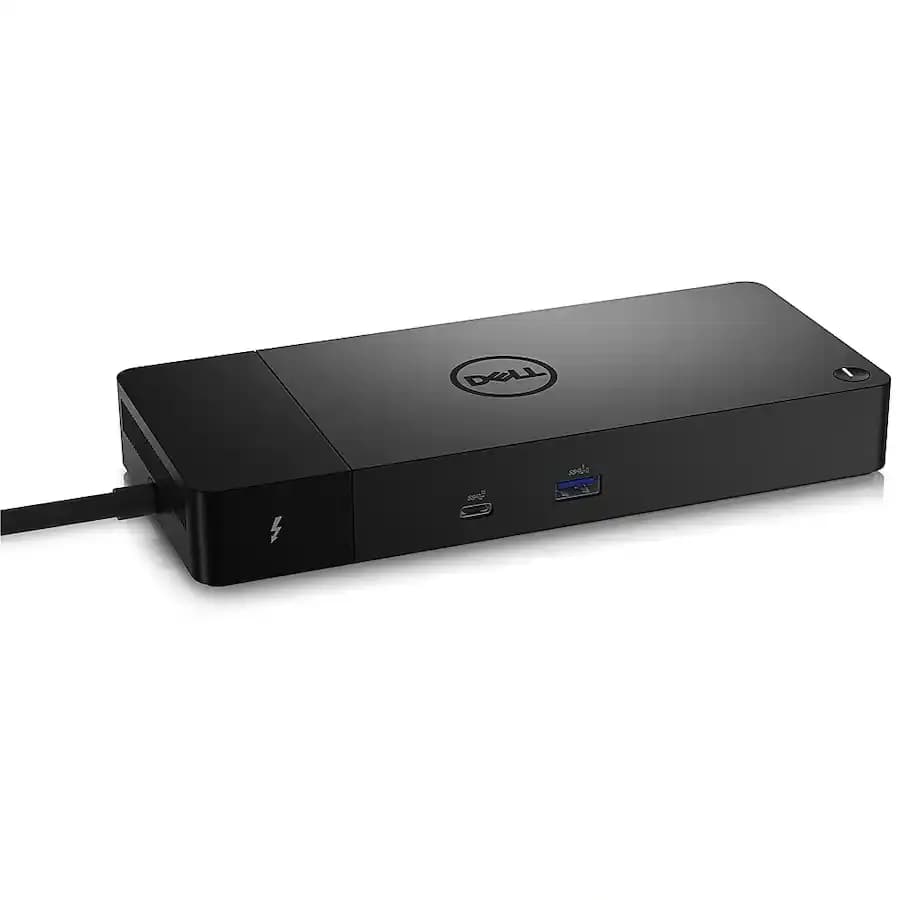
For a compatible Thunderbolt setup
Dell WD22TB4
This Thunderbolt 4 dock is worth comparing when your laptop needs more desk connections.
View at Amazon UKCheck the manufacturer’s compatibility list, supported displays and charging requirements for your exact laptop. A USB-C socket alone does not establish compatibility. This is a research-based selection, not a hands-on test.
This complete guide is research-based. We have not tested these docks or measured their performance. Standards and platform information comes from the primary references under Sources. The planning tables and acceptance tests are our editorial method for choosing and checking a setup, not benchmark results.
Quick answer: what should you buy?
Buy the least complicated arrangement that has documented support for the tasks you need. That may be a dock, a small hub or the connections already built into your monitor.
Your desk | Start by considering | Verify first |
|---|---|---|
A few extra ports while travelling | A compact hub | Required ports, host compatibility and power arrangement |
A permanent desk with several peripherals | A powered dock | Laptop charging, display combination and device support |
One USB-C monitor with useful built-in connections | The monitor's hub and charging functions | Video support and power delivered to the laptop |
Several independent displays | A documented multi-display dock arrangement | Exact laptop, operating system, resolution and refresh rate |
A shared desk for different laptops | A dock explicitly supporting each host | Behaviour and charging on both machines |
The categories overlap. Some hubs accept an external charger, and some docks are compact. Compare the actual specifications rather than treating the product name as a complete description.
What a docking station does
A dock collects desk connections in one place. Depending on the model, it can provide display outputs, USB ports, Ethernet, audio and charging through a host connection to the laptop. Each function has its own requirements.
Begin with the accessories you already use. Write down every connection and identify whether it needs to remain on the desk. A mouse receiver, external drive and Ethernet cable may be straightforward, while the display arrangement and power requirement need closer examination.
Also ask whether a dock is necessary. If one monitor already provides suitable video, charging and peripheral connections, another box may duplicate functions. Our UK USB-C monitor guide helps evaluate that possibility.
A dock is not a computer upgrade in itself. It cannot add memory or make an unsupported application compatible. Its purpose is to provide a useful connection arrangement within the capabilities of the host and connected equipment.
Map the complete connection before shopping
Draw a simple diagram with the laptop in the middle. Add the dock, each display, power supply and peripheral. Label the intended port and cable on every line. You do not need a technical drawing; a handwritten connection list is enough.
For each display, record resolution, intended refresh rate, connector and whether it must show an independent desktop. For the laptop, record the exact model and the specification of the port you plan to use. For power, record the supported charging arrangement.
Then identify unknowns. Perhaps the dock description says “dual display” without naming the supported Mac models, or a monitor lists USB-C without stating charging power. Resolve those points before comparing appearance or adding optional ports to the wish list.
Keep the diagram with the purchase information. It becomes a useful troubleshooting record and helps a seller understand the arrangement you are asking about. A question containing exact models and connections is much easier to answer than “will this work with my laptop?”
Understand USB-C, USB4 and Thunderbolt
USB-C describes the connector shape. The same shape can be used for different data, display and power capabilities. Check the host specification and the intended dock connection rather than inferring everything from the socket.
USB-IF describes USB4 as an architecture that can share a link between data and display traffic, with the connection using mutually supported capabilities. Current USB4 documentation includes up to 80Gbps operation over suitable certified cables; the name alone does not identify a particular product's speed.
Intel specifies 40Gbps bandwidth for Thunderbolt 4 and 80Gbps bidirectional bandwidth for Thunderbolt 5. Thunderbolt 5 also has a display-oriented Bandwidth Boost mode that can allocate up to 120Gbps in one direction. These are connection specifications, not promised file-transfer measurements.
Include calls in the connection plan: a USB microphone consumes a port and needs a practical cable route. Our UK USB microphone guide covers that part of the desk. Check host-port, display and charging support in the exact laptop and dock documentation.
A practical standards checklist
Do not ask only whether the laptop “has USB-C”. Ask which port supports the intended protocol, whether the dock supports that host, what happens in any fallback mode, and which cable is required. The answers may differ between ports on the same machine.
A dock designed for a faster connection may support an older host with limitations, but that support must be documented for the product. Do not assume every dock falls back in the same way. Equally, a faster laptop port cannot make a slower accessory exceed its own supported capabilities.
Check display support in four parts
Treat display compatibility as a combination of host, dock, cable and screen. Every part needs to support the intended arrangement. A product photograph with several monitors does not identify the conditions under which they work.
First, check the laptop's supported external displays. Apple directs Mac users to the specifications for their exact model. Use the equivalent manufacturer documentation for a Windows laptop. Record the display count and any conditions relevant to your intended configuration.
Second, check the dock's supported outputs together. The largest resolution listed for a single screen may not apply when multiple outputs are used. Read the combination table, if supplied, rather than combining separate headline claims.
Third, check the cable and adapter arrangement. Finally, confirm the monitor accepts the intended signal through the chosen input. If the documentation is unclear, ask the dock maker to confirm the full combination in writing.
Mirroring and extending are different requirements
Two connected screens do not necessarily mean two independent desktops. Decide whether you want mirroring, an extended workspace or one external screen plus the laptop's own display. Use that wording when checking compatibility.
A dock may support different arrangements on Windows and macOS. DisplayPort Multi-Stream Transport and software-driven display systems introduce further conditions. Avoid assuming that a Windows demonstration proves the same result on a Mac, or vice versa.
Our recommendation is to make the desired arrangement explicit in the purchase brief: name each screen and state what should appear on it. That removes ambiguity from claims such as “supports multiple monitors”.
Distinguish native displays from software-driven displays
Some docks use DisplayLink technology and require software. That is a different arrangement from a native display connection. Check the supported operating-system version, required installation and any limitations relevant to the applications you use.
DisplayLink's own macOS setup guidance describes installing its manager and granting the required system permissions, including Screen Recording permission. On a managed work computer, ask IT whether that installation is permitted before buying. See the official configuration guide under Sources.
Do not treat a driver requirement as either automatically unacceptable or automatically harmless. It is a practical compatibility question. If the company will not support the required software, the dock is not a suitable choice for that device, regardless of how many screens it can otherwise support.
When asking a seller about display support, request that they identify whether the arrangement is native or requires additional software. Record the answer alongside the supported model and operating-system information.
Treat charging as a separate specification
A dock's power supply rating is not necessarily the power delivered to the laptop. Read the stated host power delivery and compare it with the laptop's supported charging requirements. Also confirm that the selected laptop port accepts charging.
USB-IF's Power Delivery documentation describes capabilities up to 240W under the relevant specification. That is a standards capability, not a claim that every USB-C cable, dock or laptop can use it. The actual system needs compatible components.
If the supplied dock power is insufficient for your work pattern, the manufacturer may specify another charging arrangement. Verify it rather than assuming two connected power supplies combine their output. Follow the laptop and dock instructions.
During acceptance testing, look for charging warnings and whether the battery continues to fall during a representative session. A battery percentage rising while the machine is idle is not the same test as supporting your busiest normal work.
Plan the ports you need, not the largest total
Count the devices that must be attached at the same time. Separate permanently connected items from occasional accessories. A card reader used once a month may not deserve the same priority as a display connection used every day.
Check the function of each USB-C port on the dock. Some are intended for the host, some for data devices and some may support displays or charging. Similar-looking sockets are not necessarily interchangeable.
If local network storage is part of your work, include a representative file transfer in your checks. Our UK home-office NAS guide explains the storage decision. A working internet connection alone does not demonstrate that local file access is configured correctly.
Consider physical spacing too. Large connectors or receivers can obstruct adjacent ports. A product diagram showing the front and rear panels helps you decide where frequently used connections should sit.
Choose the host cable deliberately
Start with the manufacturer-supplied host cable when one is included and suitable for the documented setup. If replacing it, match the required data and power capabilities rather than choosing by connector shape alone.
USB-IF and Intel publish cable requirements associated with their standards. Check the cable's stated capability and the dock maker's instructions. A cable used successfully for charging a phone is not evidence that it supports the intended display and storage arrangement.
Choose a practical length for the desk. Plan where the dock will sit and where the laptop connects, then check that the route avoids tension and awkward bends. An unnecessarily complicated chain of adapters makes troubleshooting harder.
Label the intended host cable or keep it with the dock. This is particularly useful on a shared desk where visually similar charging leads are frequently swapped. A known working cable is a useful reference when something later stops behaving as expected.
Buying a dock for the UK
Confirm the exact model and regional package. A worldwide product name can be sold with different mains leads or bundled accessories. Check that the UK order includes the appropriate power equipment and the host cable you expect.
Read the local support and return information before ordering. Ask who handles a fault and what information they will need. A change-of-mind policy is a separate issue from a product not matching its documented capabilities; this guide does not interpret individual retailer terms.
Keep screenshots or copies of the relevant compatibility claims with the order confirmation. Include any manufacturer response about your particular laptop and screens. That makes it easier to explain the problem if the delivered arrangement does not behave as described.
For imported or second-hand docks, verify the power supply and host cable carefully. An incomplete package may require specific replacements. Do not assume any adapter with a matching barrel connector or USB-C plug is an approved substitute.
Shared desks and employer-managed laptops
A dock shared between two computers must satisfy two compatibility checks. Record the display and charging requirements for each machine, then test both rather than assuming one successful connection proves the other.
Consider the everyday handover. Which cable changes? Are keyboard and mouse receivers attached to the dock? Does a monitor need its input changed? A technically compatible setup can still be inconvenient if every handover requires several adjustments.
For a managed device, confirm driver installation, firmware-update procedures and support responsibility with IT. Do not change company policies to make a personally chosen dock work. If the organisation has an approved accessory list, start there.
Use separate notes for each host during testing. If one laptop works and the other does not, the difference helps narrow the investigation. It is more informative than repeatedly reconnecting everything without recording which combination failed.
Set up a new dock in a controlled order
The first setup should establish a known working arrangement before adding every peripheral. Follow the manufacturer's instructions, including the specified power and host connections.
- Check the delivered equipment. Match the dock, supply and cable to the order.
- Confirm required software. Install only approved components from the manufacturer's supported source.
- Connect the minimum arrangement. Start with the laptop and one display where the instructions allow it.
- Check display mode and resolution. Confirm the result matches the planned arrangement.
- Add the remaining display. Verify whether it extends or mirrors as intended.
- Add peripherals individually. Note any device that changes the behaviour.
- Test charging under normal work. Watch for warnings and unexpected battery discharge.
- Test sleep, wake and reconnection. Include taking the laptop away and returning to the desk.
These are proposed acceptance checks, not results from our own testing. Keep your actual observations with the connection diagram. If the manufacturer provides a different required sequence, follow it.
Troubleshoot by changing one part at a time
Begin with the symptom rather than the assumption that the dock is defective. Is the laptop not charging, one display blank, both displays mirrored, or a USB device missing? Record when the problem occurs and whether the arrangement ever worked.
Symptom | Useful first comparison | Information to collect |
|---|---|---|
Display is blank | Check the intended input and documented cable route | Host model, output used, screen mode |
Two screens mirror unexpectedly | Recheck platform-specific display support | Whether the dock uses native output or additional software |
Battery falls while connected | Compare documented host power delivery and workload | Charging warning and connected peripherals |
A peripheral disconnects | Test it through the documented alternative connection | Device, port and timing of the failure |
Trouble after sleep or an update | Reproduce the sequence and consult support guidance | Software versions and steps that trigger it |
Avoid changing firmware, drivers, cables and monitor settings all at once. That can make a temporary improvement difficult to explain or repeat. Use the supplier's supported troubleshooting process and retain a record of each change.
An example of a completed dock brief
Imagine a UK hybrid worker with one company laptop, two existing displays, a webcam and Ethernet. This is an illustrative planning example, not a tested equipment recommendation.
Their brief identifies the laptop model, available host port, both screen models and required extended-display arrangement. It records that charging through the host connection is supported and that IT does not permit additional display software. Those requirements eliminate unsuitable docks before port counts or appearance are compared.
The worker then obtains written confirmation of the supported display combination, checks the UK package contents and tests the complete setup after delivery. The final decision is based on documented compatibility and actual acceptance checks, not a promise that a particular standard always works.
Use the same method for your desk. If there is one screen rather than two, the result may be a simpler hub or no separate dock. If the workload requires more bandwidth, the standards comparison becomes more important after the basic compatibility questions are answered.
Keep a working setup documented
Once the desk works, keep the connection diagram, model details and the identity of the host cable. Note any required software and the approved process for updates. This is especially useful if several people use the desk or support is provided remotely.
When replacing a laptop, monitor or cable, revisit the affected part of the diagram. A previous working arrangement is evidence about those components, not a guarantee that a new component behaves identically.
The right dock is the one that reliably supports your documented arrangement with a manageable setup process. Choose the functions you need, verify their conditions, and keep the evidence that makes the system understandable later.
For the computer itself, use our complete UK work-laptop guide to check software, memory and the connections that the dock will depend on.
Questions people ask
What is the difference between a hub and a dock?
The names overlap. Hubs often provide a smaller set of extra ports, while powered docks commonly support a permanent desk arrangement. Compare the actual ports, display support and charging specifications.
Does every USB-C port support displays and charging?
No. USB-C is the connector shape. Check the capabilities documented for the exact laptop port and connected equipment.
Do all docks support two independent screens on a Mac?
No. Verify the Mac model, dock, display combination and any software requirements. Multiple video sockets do not prove support for the arrangement you want.
Does a larger dock power supply mean more power reaches the laptop?
Not necessarily. Read the dock’s stated host power delivery and compare it with the laptop’s supported charging requirements.
What should I test after connecting a new dock?
Check the intended displays, charging, peripherals, sleep and wake, and reconnecting the laptop. Add devices in stages and record any failure with the exact configuration.