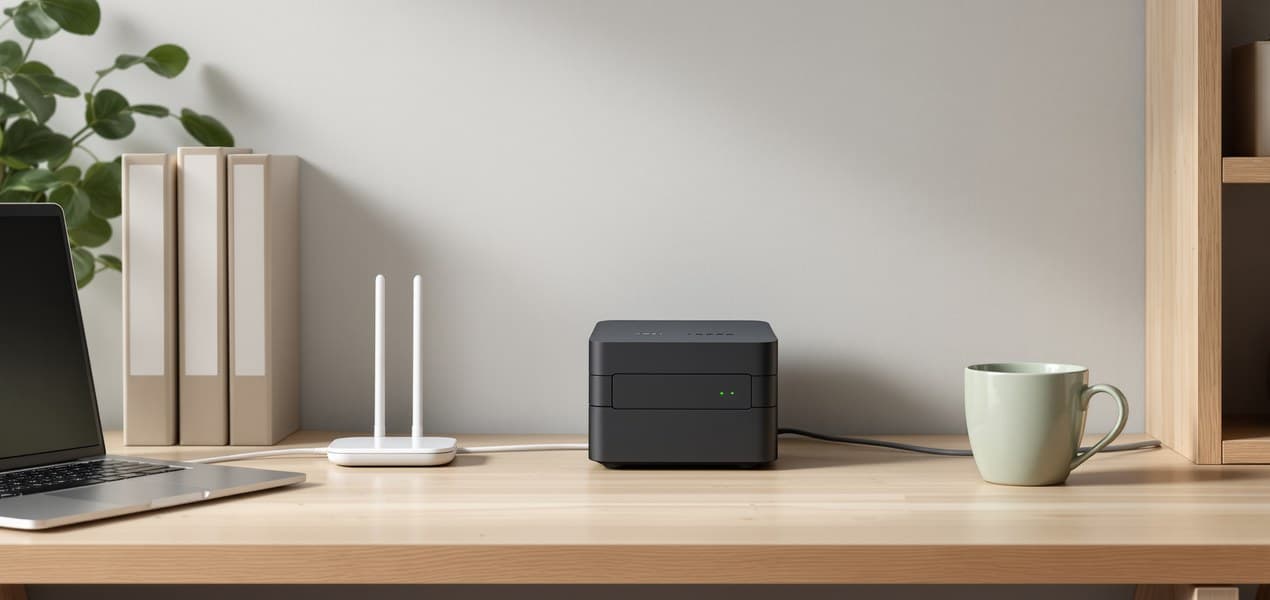
Most UK home offices should buy the Synology DiskStation DS225+: two bays, a 2.5GbE network port and memory you can upgrade. Before you order drives for it, check Synology's compatibility list, for reasons explained below. The four-bay DS425+ is the step up for a small team, and the QNAP TS-233 is the plain two-bay alternative with no drive list to work around.
Our picks at a glance
- View at Amazon UK
Best for most home offices
- View at Amazon UK
Best if you want room to grow
- View at Amazon UK
Simplest two-bay option
The picks in detail
- Top pick
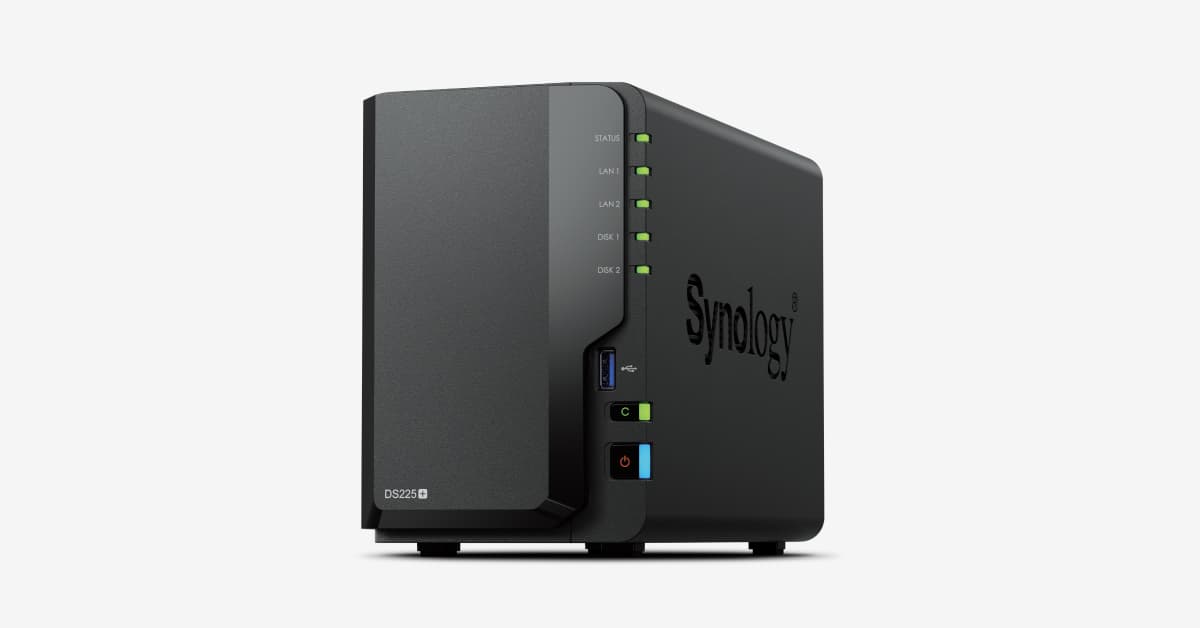
Best for most home offices
Synology DiskStation DS225+ (2-bay NAS)
For most UK home offices, the Synology DS225+ is the NAS to buy.
View at Amazon UKTwo hot-swappable bays take 3.5" hard drives or 2.5" SSDs, and inside is an Intel Celeron J4125 (4 cores) with 2GB of memory that expands to 6GB. You get one 2.5GbE and one 1GbE port, a choice of RAID 0, RAID 1, Synology Hybrid RAID, Basic or JBOD, up to 48TB of raw storage on 24TB drives, and a 3-year warranty that Extended Warranty Plus stretches to five. The catch is the drives: at launch Synology limited full support to its own and certified drives, and only DSM 7.3 reopened third-party ones (see below). It suits two or three people sharing files and backups; with a single laptop, an external drive is simpler.
What we like
- 2.5GbE port plus a 1GbE port
- Memory expandable from 2GB to 6GB
- 3-year hardware warranty, extendable to 5 years
Watch out for
- Drive policy: launched requiring Synology or certified hard drives for full support; DSM 7.3 reopened third-party drives, but M.2 pools and cache still need listed drives
- Two bays means RAID 0, RAID 1 or Synology Hybrid RAID only, no RAID 5
- Best if you want room to grow
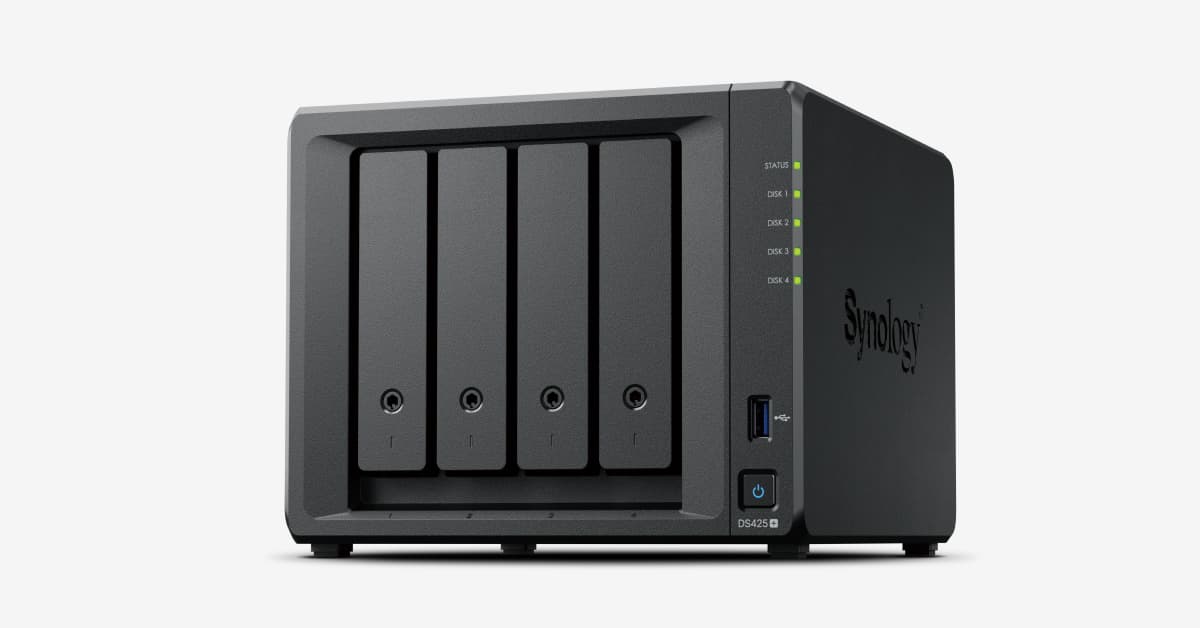
Synology DiskStation DS425+ (4-bay NAS)
The Synology DS425+ uses the same processor, memory and network ports as the DS225+ but has four drive bays plus two M.2 NVMe slots.
View at Amazon UKWith four bays Synology lists RAID 5, RAID 6 and RAID 10 as well as RAID 0 and RAID 1, and its UK page quotes up to 96TB of raw storage, based on 24TB drives. SSD cache works with select compatible SSDs, sold separately, and the M.2 slots are not hot-swappable. Choose it for a small team or a photo and video archive that will keep growing. For one or two people it is more box, and more drives, than you need, and it shares the DS225+’s drive-policy history.
What we like
- Four bays plus two M.2 NVMe slots
- RAID 5, RAID 6 and RAID 10 available
- 2.5GbE port plus a 1GbE port
Watch out for
- Same drive policy as the DS225+; M.2 storage pools and SSD cache need drives on Synology’s list
- A larger box and more drives to buy
- Simplest two-bay option
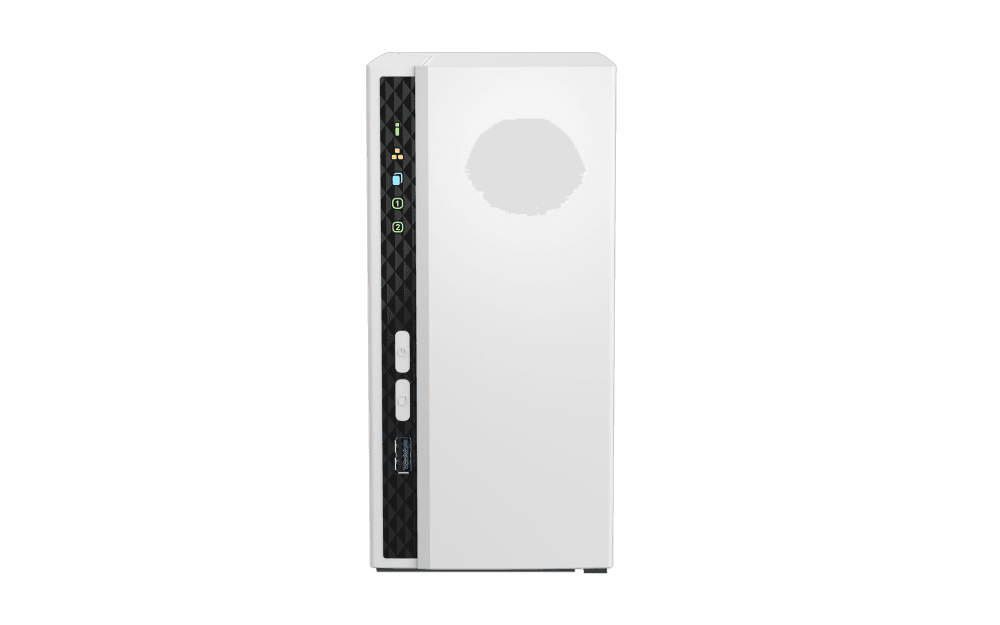
QNAP TS-233 (2-bay NAS)
The QNAP TS-233 is a two-bay tower with a 4-core ARM Cortex-A55 processor at 2.0GHz and 2GB of memory that QNAP says is on the board and not expandable.
View at Amazon UKIt has one Gigabit Ethernet port, one USB 3.2 Gen 1 port and two USB 2.0 ports, and runs QTS. QNAP lists JBOD, single, RAID 0 and RAID 1 for two-bay models, and a 2-year standard warranty. Choose it for plain file storage and backups on a gigabit network, especially if you would rather not work around Synology’s drive list. Skip it if you want to run extra apps or use faster networking.
What we like
- Two hot-swappable bays for 3.5" hard drives or 2.5" SSDs
- Screws for both drive sizes in the box
- Runs QNAP’s QTS operating system
Watch out for
- Gigabit Ethernet only, no 2.5GbE port
- Memory cannot be expanded
- 2-year standard warranty, shorter than Synology’s 3 years
A NAS (network-attached storage) is a small computer full of drives that every device on your network can reach. It makes a good shared folder and a good backup target for several computers. It is not a backup plan on its own, because it sits in the same building as the computers it protects.
We have not tested these models. The figures below come from Synology's and QNAP's UK product pages, linked under Sources.
The short version
- Best for most home offices: Synology DS225+. Two bays, Intel Celeron J4125, 2.5GbE and 1GbE ports, up to 6GB of memory.
- Best if you want room to grow: Synology DS425+. Four bays, two M.2 NVMe slots, and RAID 5, RAID 6 and RAID 10 on top of RAID 0 and RAID 1.
- Simplest two-bay option: QNAP TS-233. Two hot-swappable bays, one Gigabit Ethernet port, 2GB of memory that cannot be expanded.
- Before you buy: all three are sold diskless. For the Synology models, check the drive compatibility list first, and plan a copy of the NAS that lives somewhere else.
How the three compare
All figures are the makers' own. Synology's storage figures are "raw" capacity, based on 24TB drives, so what you can use depends on the drives and the RAID setup you choose.
| Synology DS225+ | Synology DS425+ | QNAP TS-233 |
|---|---|---|---|
Drive bays | 2 x 3.5" HDD or 2.5" SSD | 4 x 3.5" HDD or 2.5" SSD, plus 2 M.2 NVMe | 2 x 3.5" HDD or 2.5" SSD |
Processor | Intel Celeron J4125, 4 cores, 2.0GHz (2.7GHz turbo) | Intel Celeron J4125, 4 cores, 2.0GHz (2.7GHz turbo) | ARM Cortex-A55, 4 cores, 2.0GHz |
Memory | 2GB DDR4, up to 6GB | 2GB DDR4, up to 6GB | 2GB on board, not expandable |
Network | 1 x 2.5GbE, 1 x 1GbE | 1 x 2.5GbE, 1 x 1GbE | 1 x Gigabit Ethernet |
USB ports | 2 x USB 3.2 Gen 1 | 2 x USB 3.2 Gen 1 | 1 x USB 3.2 Gen 1, 2 x USB 2.0 |
RAID options listed | Synology Hybrid RAID, Basic, JBOD, RAID 0, RAID 1 | Synology Hybrid RAID, Basic, JBOD, RAID 0, 1, 5, 6, 10 | JBOD, Single, RAID 0, RAID 1 |
Raw capacity quoted | Up to 48TB | Up to 96TB | Not verified |
Operating system | DSM | DSM | QTS 5.2.10 |
Warranty | 3 years, extendable to 5 | 3 years, extendable to 5 | 2 years standard |
Where to buy in the UK, and your rights
All three picks link to Amazon UK. Make sure the listing is the diskless model, not a bundle with drives. On top of the maker's warranty, the Consumer Rights Act 2015 gives you rights against the retailer if the NAS turns out to be faulty, so you can take a fault up with the shop, not only with Synology or QNAP.
What is a NAS, and do you need one?
A NAS is a box with one or more drive bays and a network port. You plug it into your router, and computers on your network can save files to it, open them from it, or back up to it. It runs its own operating system, which you manage from a web browser or an app: Synology calls its system DSM and QNAP calls its system QTS.
It earns its place when two or more computers need the same files or the same backup destination, or when you would rather keep files at home than in someone's cloud. One laptop and a simple backup? An external drive is usually enough.
A NAS is not a backup by itself
RAID spreads your data across several drives so that one can fail without loss. That is all it does. QNAP puts it bluntly: RAID is not a backup. A corrupted file, a power cut at the wrong moment, a fire or a spilt drink reaches every drive in the box at once, so QNAP advises at least two copies of your data, one of them offsite.
The usual way to put it is the 3-2-1 rule: three copies of anything important, on two kinds of storage, one kept away from the building. The NCSC's guide for small organisations makes backing up your data one of its first steps. A NAS in your spare room can be your second copy, never the offsite one.
For that offsite copy, Synology's Hyper Backup can send the NAS's contents to a remote server, an external drive you keep elsewhere, or cloud storage, including Synology's C2 Storage subscription.
How to choose a NAS for a home office
Start with the bays
More bays give you more RAID choices and more room. With two bays, both makers list RAID 0 and RAID 1. The four-bay Synology adds RAID 5, RAID 6 and RAID 10. If you are not sure, a two-bay model is easier to start with. If you know you will be storing a lot, or sharing between several people, look at four bays.
Drives are a separate purchase
All three are sold diskless, and for the Synology pair the choice of drive matters more than it used to. When Synology launched its 2025 Plus models, including the DS225+ and DS425+, it limited full support to its own or certified hard drives, a policy Tom's Hardware reported on at launch and again when it was reversed. DSM 7.3, released on 8 October 2025, lets these models build storage pools on third-party hard drives Synology has not validated, but M.2 storage pools and SSD cache still need drives from its list, and Synology gives only limited support for unlisted drives.
So: update to DSM 7.3 or later before you create storage, and check the current compatibility list for your model before buying drives. QNAP's TS-233 has no such history. We don't recommend specific drives here.
Check the network port
A NAS can never be faster than your network. Both Synology models have a 2.5GbE port, and the QNAP has a single Gigabit port. A 2.5GbE port helps only if your router, switch or computer also supports it. If your office is mostly on Wi-Fi, the wireless connection will usually decide the speed, so use a cable to the NAS where you can.
Look at the processor, memory and software
The Synology models use an Intel processor and can take extra memory. The QNAP uses an ARM processor with fixed memory. For simple file storage and backups, any of them is a reasonable starting point on paper. If you want to run extra apps on the box, read the maker's software page for the app you have in mind first, because we have not tested any of them.
Warranty
Synology gives 3 years, extendable to 5 with Extended Warranty Plus; its UK page for the DS425+ says that plan is only sold in Europe and North America. QNAP gives 2 years as standard. Both sit on top of your Consumer Rights Act rights against the retailer, which don't depend on either warranty.
How to set up a NAS as a backup target
The exact steps depend on the maker, so follow the setup guide that comes with your model. In outline:
- Install your drives in the bays and connect the NAS to your router with a network cable.
- Complete the setup in your web browser and choose a RAID option that suits your drive count.
- Create a shared folder for backups and a separate user for each computer.
- On Windows, Microsoft says File History can save to a network location, so you can point it at the NAS share. On a Mac, follow Apple's and your NAS maker's instructions for Time Machine.
- Set up an offsite copy as well, and restore one file to prove it works.
Which is best for you
- One or two people, shared files and computer backups: the Synology DS225+.
- A small team, or files you expect to keep growing: the four-bay Synology DS425+ gives you more bays and more RAID choices.
- A basic two-bay box and a gigabit network is enough: the QNAP TS-233.
- One laptop and a simple backup: you may not need a NAS at all. An external drive can be enough.
More backup and storage guides are in our UK storage guides.
How we chose
We have not tested these NAS models. We picked from the two makers most UK buyers compare, read each one's UK product page for bays, processor, memory, ports, RAID, warranty and box contents, and added the Synology drive policy because it is the most widely reported problem with these two models. We left out drives and anything we could not check on a spec page. We don't show or compare prices.
Questions people ask
What is the best NAS for a home office in the UK?
The Synology DS225+, a two-bay NAS with a 2.5GbE port and memory that can grow to 6GB. Check Synology’s drive compatibility list before you buy drives. For four bays and more RAID options, the DS425+ is the step up.
Can I use any hard drive in a Synology DS225+ or DS425+?
On DSM 7.3 or later you can build storage pools on third-party hard drives Synology has not validated, but M.2 pools and SSD cache still need drives from its compatibility list, and unlisted drives get only limited support.
What are my rights if a NAS is faulty?
Under the Consumer Rights Act 2015 you can go back to the retailer if the NAS is faulty, whatever the maker’s warranty says. Synology’s and QNAP’s warranties come on top of that.
Does a NAS come with hard drives?
Not these three. All are sold diskless, so you buy drives separately.
Is RAID the same as a backup?
No. RAID lets a box survive a failed drive, but not deletion, corruption or a fire. QNAP recommends at least two copies of your data, one stored offsite.
Is a NAS an offsite backup?
Not if it sits in your home or office. The 3-2-1 rule asks for one copy kept away from the building, so a NAS at home is one of your copies, not the offsite one.
Do I need a 2.5GbE port?
Only if the rest of your network can use it. A 2.5GbE port on the NAS needs a router, switch and computer that also support 2.5GbE. Otherwise it runs at the speed of the slowest link.
Sources we used
- Synology DiskStation DS225+ specifications (UK)
- Synology DiskStation DS425+ specifications (UK)
- QNAP TS-233 hardware and software specifications (UK)
- Synology: DSM 7.3 release (third-party drive support on 2025 models), 8 October 2025
- Synology Knowledge Center: Drive compatibility policies for systems from 2025 (DSM 7.3 and above)
- Tom’s Hardware: Synology requires self-branded drives for some consumer NAS systems
- Tom’s Hardware: Synology walks back compatibility policy for 2025 NAS units with DSM 7.3
- QNAP Blog: RAID = Backup?
- NCSC: Small organisations guide to cyber security (backing up your data)
- GOV.UK: Consumer protection rights
- Microsoft Support: Backup and restore with File History